
Interface Customization
DisplayNet Controller offers extensive interface customization options that administrators can configure for each user. These settings control the visual appearance, layout preferences, and branding elements of the DisplayNet Controller interface.
Accessing Configuration
User configuration for DisplayNet Controller is managed through DisplayNet Manager:
- Log in to DisplayNet Manager as an administrator
- Navigate to Settings tab
- Select User Management from the left sidebar
- Choose the user account to configure
- Locate the DisplayNet Controller section in the user details panel

User Management section showing the DisplayNet Controller configuration panel for the selected user Jack Johnson, with all configuration options visible on the right where Jack's settings can be modified. The Support Info section below is for configuring OEM details (see Support Information documentation).
Users can access DisplayNet Controller even without specific configuration. If not configured by an administrator, users will see the default interface with standard settings.
Application Branding
Application Name
Customize the application name that is appended to "DisplayNet Controller" in the interface title. When configured, the full title becomes "DisplayNet Controller - [Application Name]".
- Default Value: None (displays "DisplayNet Controller" only)
- Character Limit: 50 characters
- Usage: Appears in the browser title bar and interface header
- Example: Setting "Conference Room" results in "DisplayNet Controller - Conference Room"
Theme Selection
Available Themes
DisplayNet Controller includes three theme options to match different environments and preferences:
- Light Mode - Bright interface suitable for well-lit environments (default)
- Dark Mode - Reduced eye strain in low-light conditions
- System - Automatically detects and follows your browser's theme setting (equivalent to Auto mode on macOS Appearance settings)
Layout Configuration
Preset View Layout
Configure how presets are displayed in the interface. Note: Users can have either sidebar or grid view, but not both simultaneously.
Sidebar Layout
- Vertical list of presets accessed via hamburger menu on the left side
- Maximizes routing area space
- Ideal for systems with many presets
- Shows preset names and icons clearly
- Supports both Scripts and Snapshots
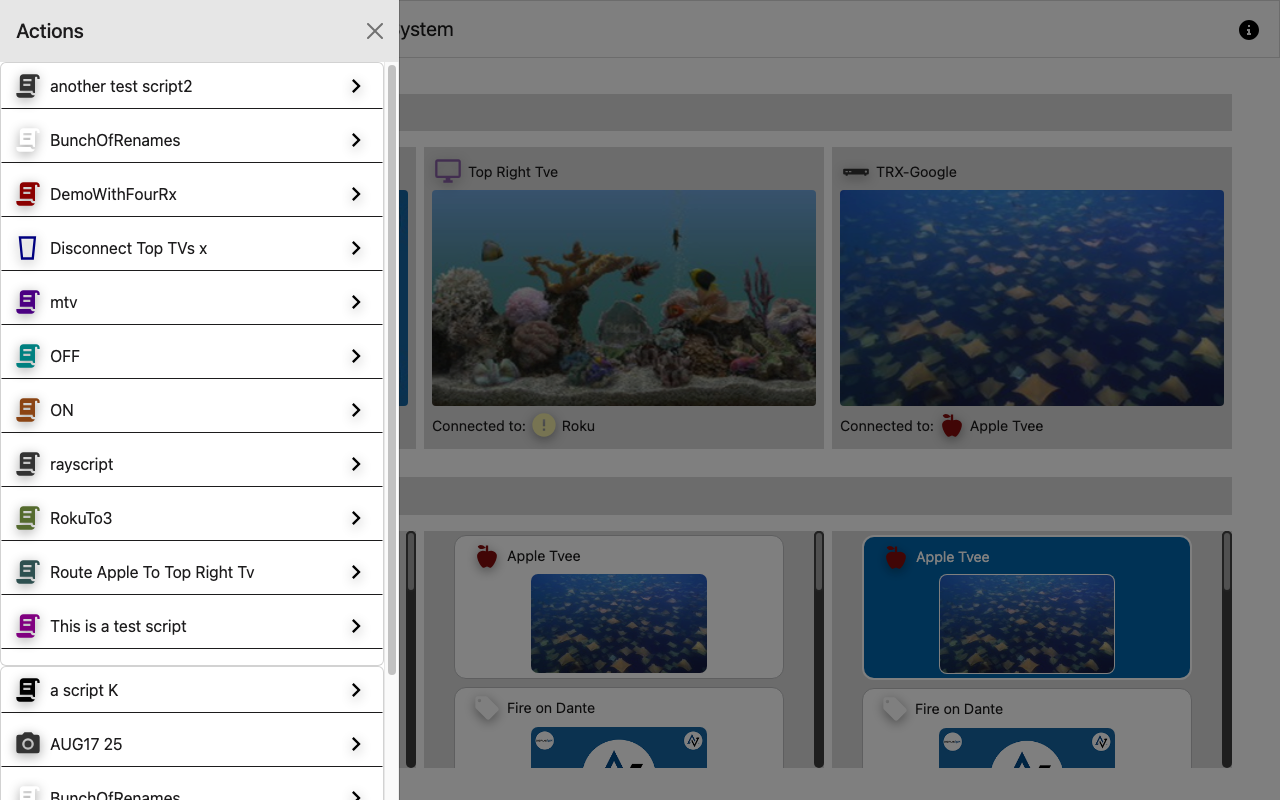 DisplayNet Controller in light mode showing the preset sidebar opened via hamburger menu over the routing column view, with preset buttons displayed vertically on the left.
Grid Layout
- Presets displayed as large tiles occupying the main content area of the single-page application
- Visual icon-based selection with larger buttons
- Better for touchscreen interfaces
- Supports both Scripts and Snapshots
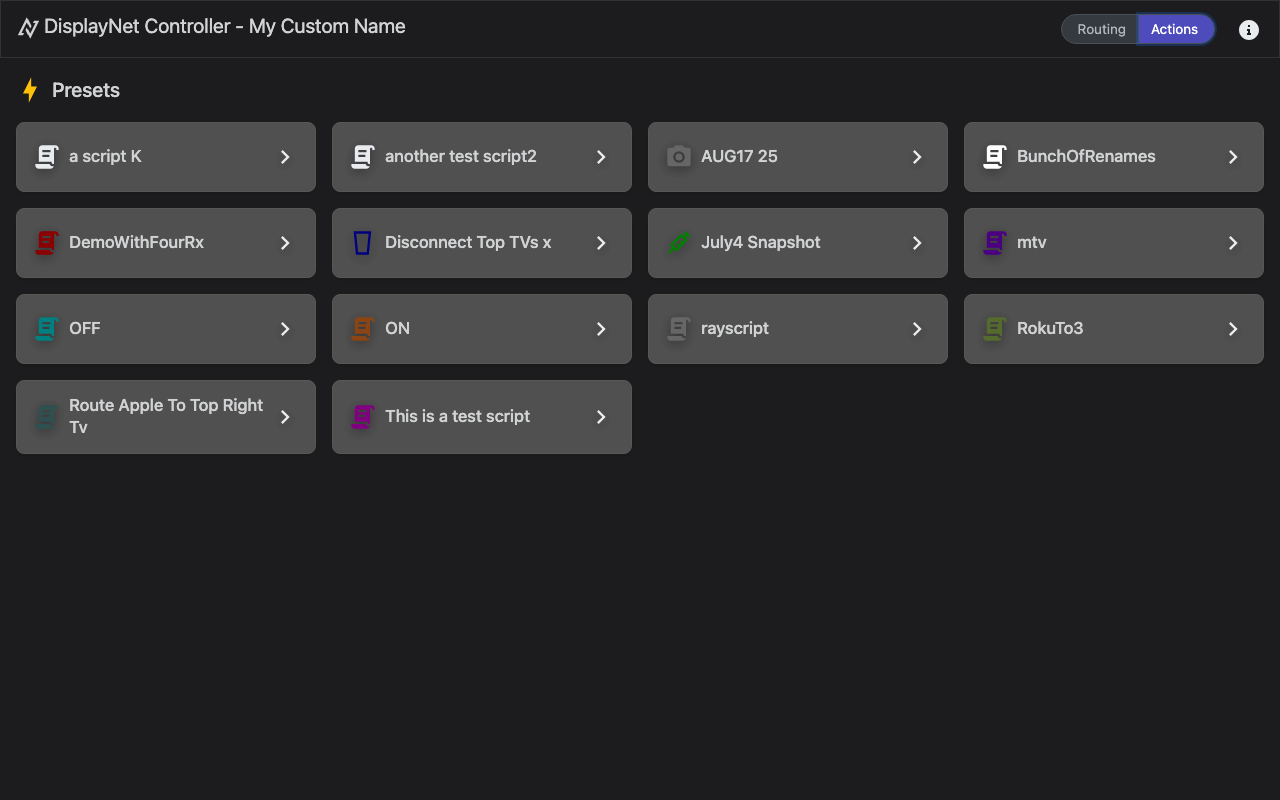
DisplayNet Controller in dark mode showing the preset grid layout with preset tiles arranged in a grid pattern. The Routing/Actions buttons at the top allow switching views, with selecting Routing taking the user back to the routing page.
Routing Type Layout
Choose how sources (Transmitters) and destinations (Receivers/Displays) are arranged in the routing interface:
Column Layout
- Displays (Receivers) arranged horizontally across the top
- Sources (Transmitters) displayed underneath the Receivers in columns
- When a source is clicked in a column under a Receiver, that Transmitter is routed to that Receiver
- Traditional matrix-style routing with clear source-to-destination flow
- Efficient for many devices
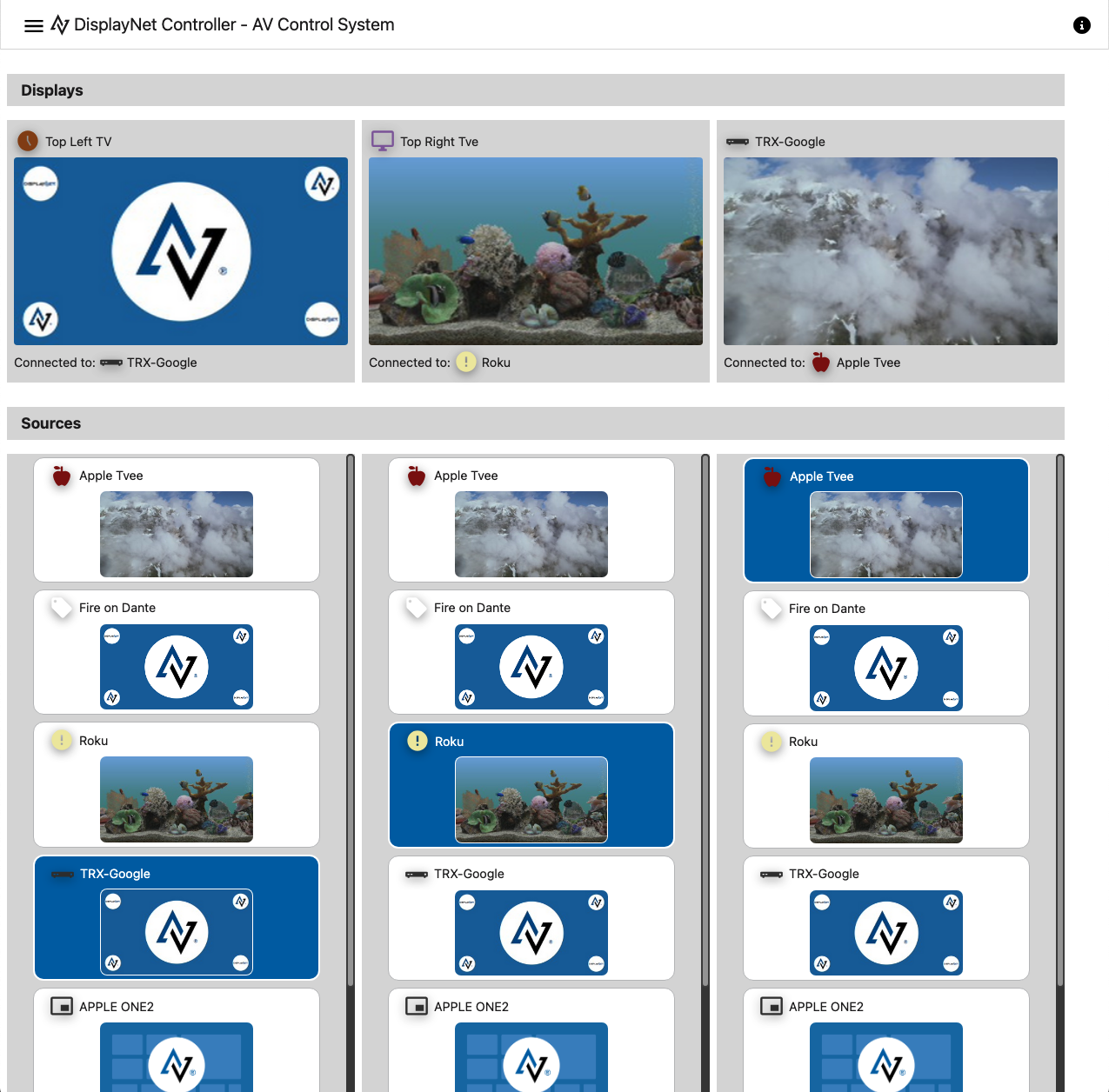
DisplayNet Controller in light mode showing routing column view with Receiver displays across the top and Transmitter sources below. The hamburger menu in the top left opens the Preset Sidebar view.
Grid Layout
- Displays (Receivers) arranged in a row across the top
- Sources (Transmitters) displayed as buttons below
- When a Display is selected first, it becomes the target for subsequent source selection
- When a source is then clicked, it routes to the previously selected Display
- Visual thumbnail-based selection ideal for video routing with previews
- Better spatial organization with larger device representations
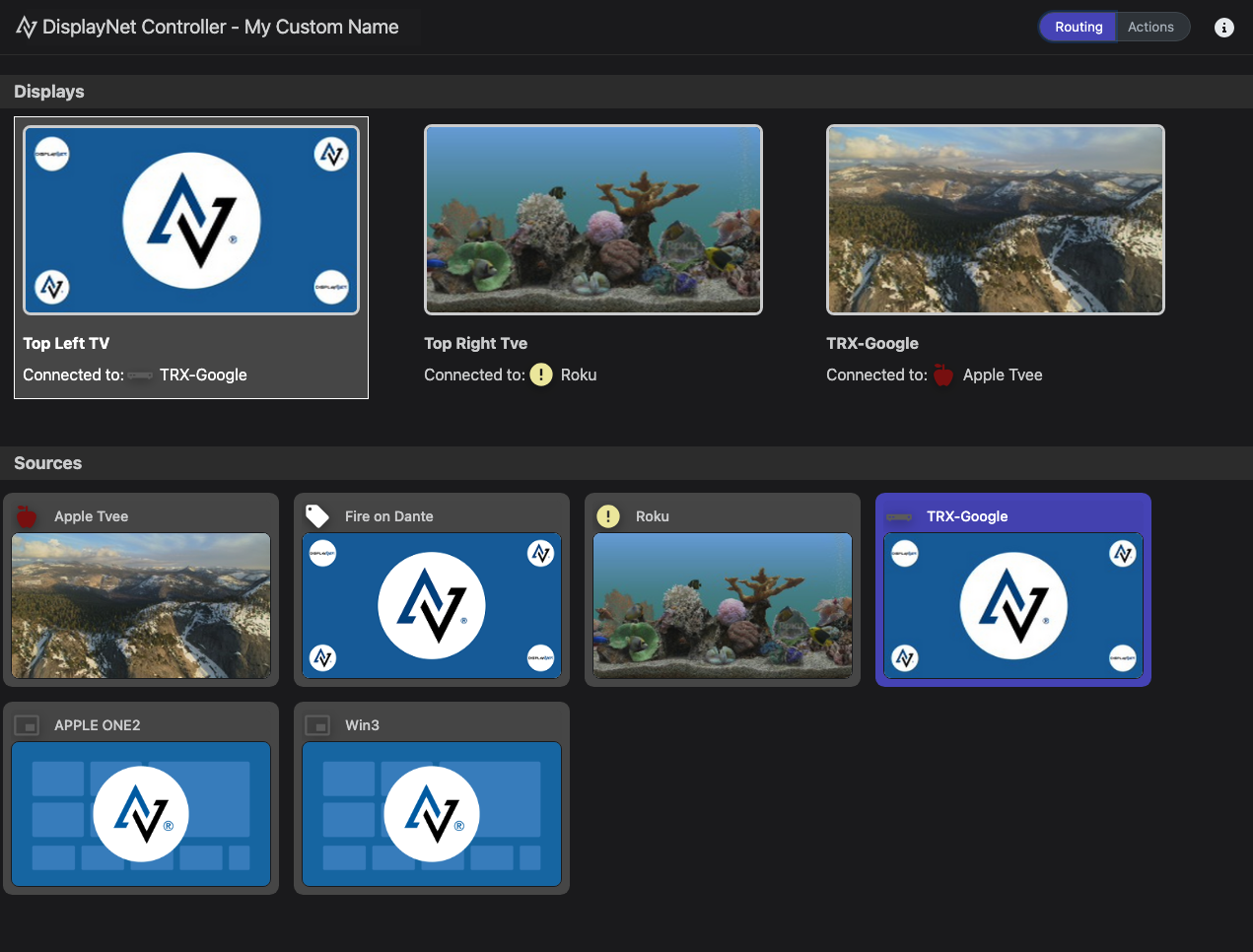
DisplayNet Controller in dark mode showing routing grid view with Receiver displays in a row at top and Transmitter sources as larger tiles below. The Routing/Actions buttons at the top toggle between Routing view and Actions (Presets Grid View).
Display Options
Restrict To Tag
Configure device and preset filtering using tag-based restrictions:
- Function: Limits presets and devices included in both Preset View and Routing View
- Tag Support: Permits use of individual tags or group tags for filtering
- Use Case: Simplify interface for specific workflows by showing only relevant devices
- Configuration: Select from available tags defined in DisplayNet Manager
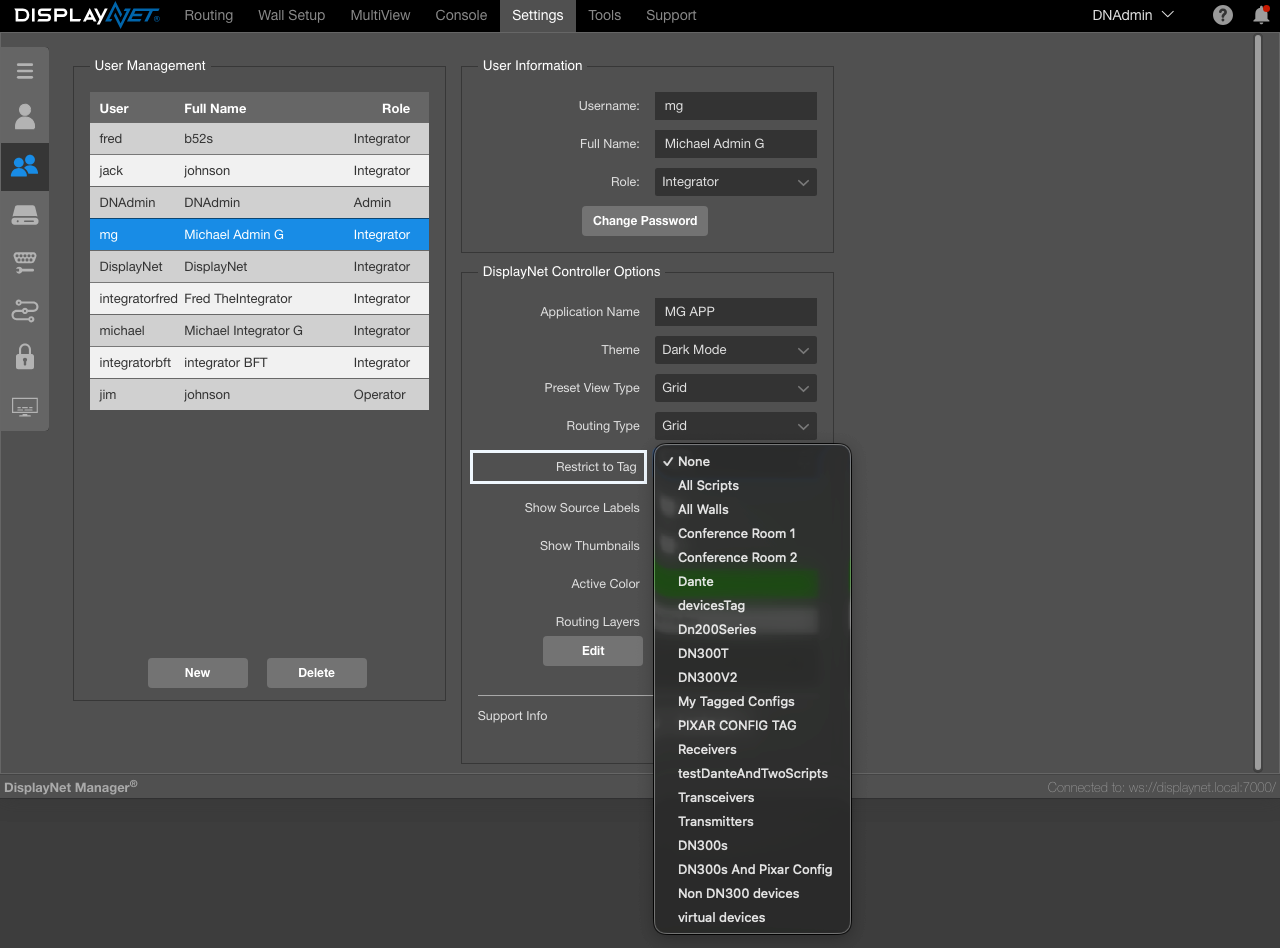
DisplayNet Controller Options showing Restrict To Tag configuration with available tags for filtering devices and presets
Show Source Labels
Control the visibility of "Displays" and "Sources" text labels in routing views:
- Enabled: Shows descriptive labels to help users identify what visual elements represent
- Disabled: Removes labels for a cleaner, more streamlined UI
- Application: Affects both Column and Grid routing view layouts
- User Benefit: When visible, helps users understand the interface structure
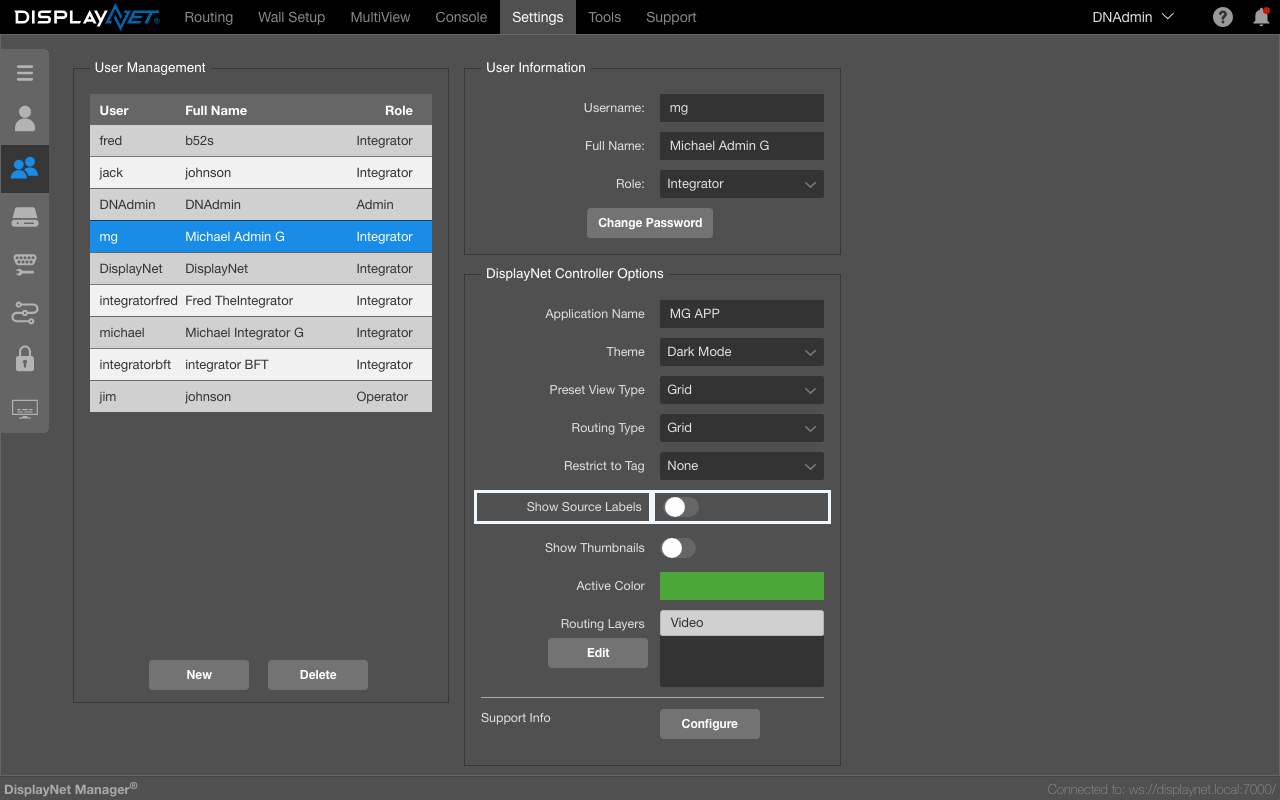
DisplayNet Controller Options showing Show Source Labels configuration toggle for controlling visibility of "Displays" and "Sources" text labels in routing views
Show Thumbnails
Enable or disable device thumbnail previews in the routing interface:
- Transmitter Thumbnails: When enabled, shows live preview thumbnails on Transmitter (TX) buttons if the device supports streaming thumbnails
- Receiver Thumbnails: Always shown on Receivers (RX) when present and streaming content, regardless of this setting
- Performance: Consider network bandwidth when enabling for multiple devices
- Fallback: When disabled or unavailable, displays device names and icons only
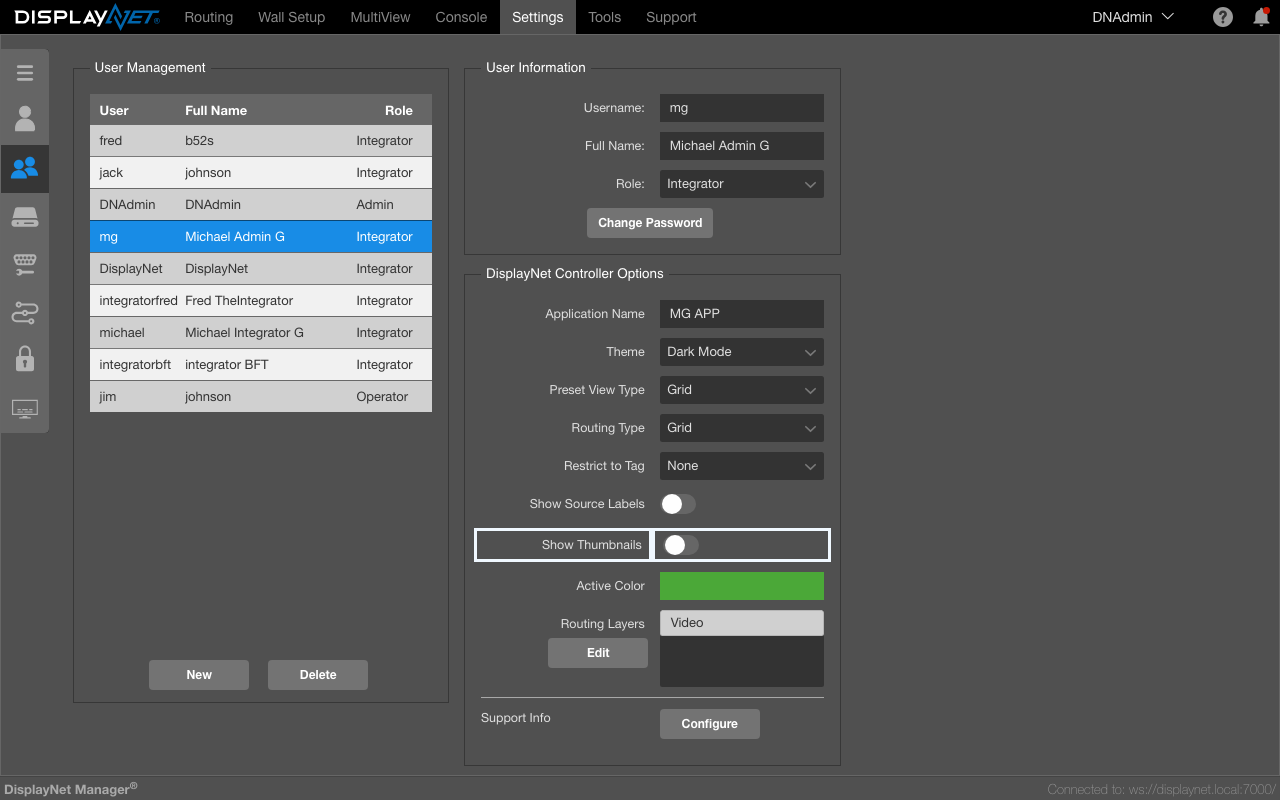
DisplayNet Controller Options showing Show Thumbnails configuration toggle for enabling or disabling device thumbnail previews in the routing interface
Color Customization
Active Color Configuration
Configure the highlight color used for active states throughout the interface:
- Default Color: #007bff (System Blue)
- Format: Hexadecimal color codes or color picker selection
- Application:
- Active routing buttons when a Transmitter is routed to a Receiver
- Selected preset buttons in sidebar layout
- Hover state variations for preset buttons in grid view
- Focus indicators and selection highlights
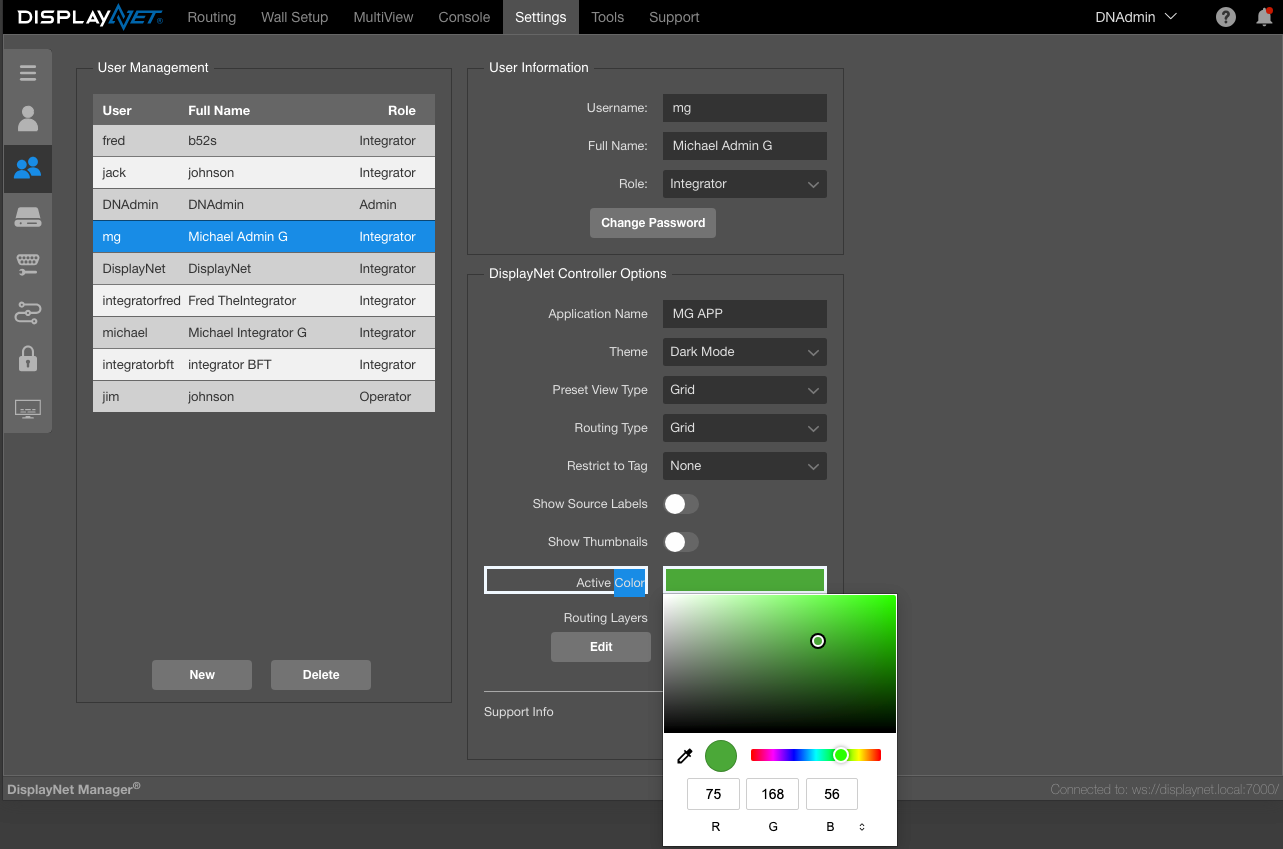
Active Color configuration showing color picker interface for customizing the active state color used throughout DisplayNet Controller
Routing Layers Configuration
Routing Layers Selected
Configure which signal layers are routed when a Transmitter is connected to a Receiver in both routing view layouts:
- Video Layer: HDMI video signal routing
- Audio Layer: Analog audio signal routing (when separate from HDMI)
- HDMI Audio Layer: HDMI embedded audio routing
- Multichannel Audio Layer: Multichannel audio signal routing
- USB2 Layer: Full USB 2.0 device routing
- USB-HID Layer: USB Human Interface Device switching (keyboards, mice)
- RS232 Layer: Serial control signal routing
- Infrared Layer: IR control signal routing
Flexible Configuration: Users can potentially route only video, or combine multiple layers such as VIDEO + HDMI AUDIO + USB-HID support, depending on system requirements and user needs.
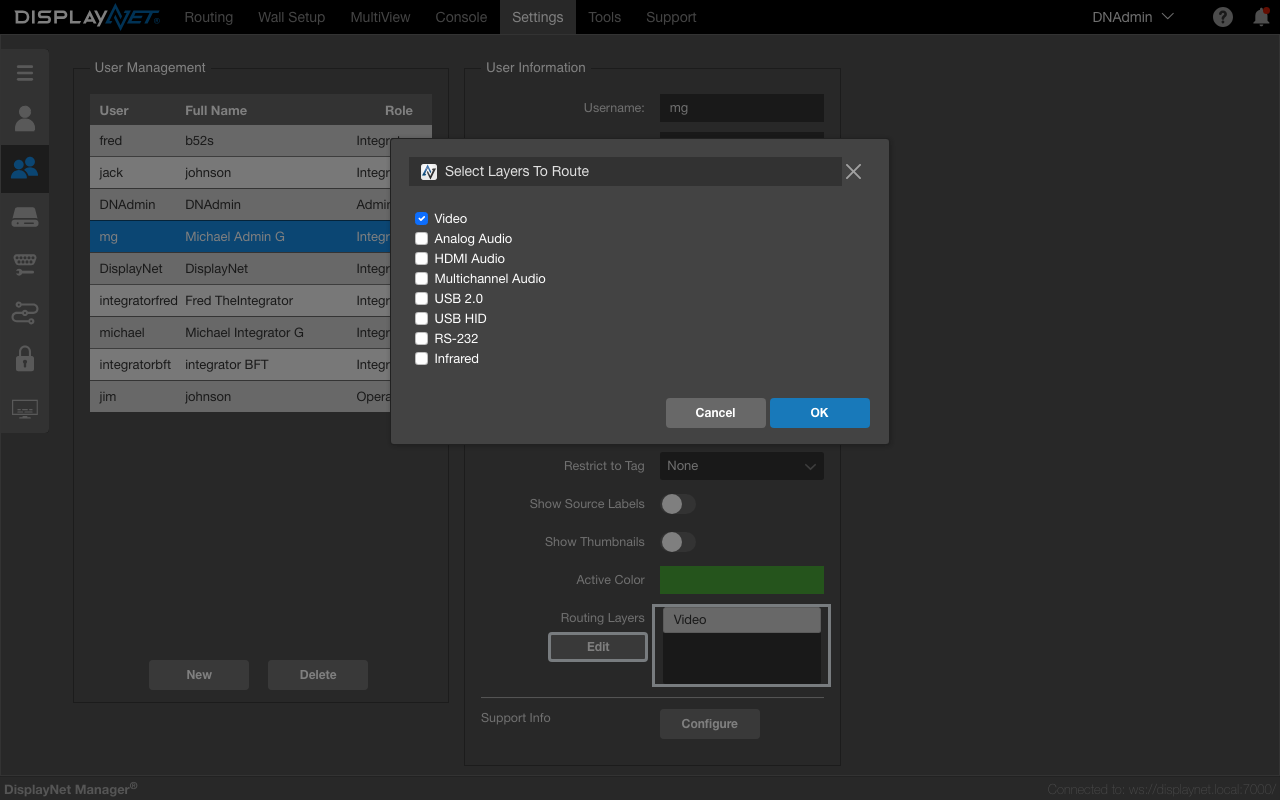 Routing Layers configuration showing available layers with checkboxes for selecting which layers to route during Transmitter-to-Receiver connections
Applying Settings
Automatic Synchronization
DisplayNet Controller options are automatically applied:
- Changes are immediately sent to the API when modified
- Settings are delivered to DisplayNet Controller when users log in
- Currently logged-in users receive updates when they refresh their browser
- No manual save action required
Default Configuration Values
When users access DisplayNet Controller without administrator-defined "DisplayNet Controller Options" configuration:
- Application Name: None (displays "DisplayNet Controller" only)
- Theme: Light Mode
- Preset View: Sidebar layout
- Routing Type: Column layout
- Restrict To Tag: None (all devices and presets visible)
- Show Source Labels: Enabled
- Show Thumbnails: Enabled (when supported by devices)
- Active Color: System default blue (#007bff)
- Routing Layers: All available layers enabled