
Console Tab
The console tab shows the activity log for the commands performed during the current DisplayNet Server software session. It also provides the ability to send commands directly to the DisplayNet API using the Command Terminal.
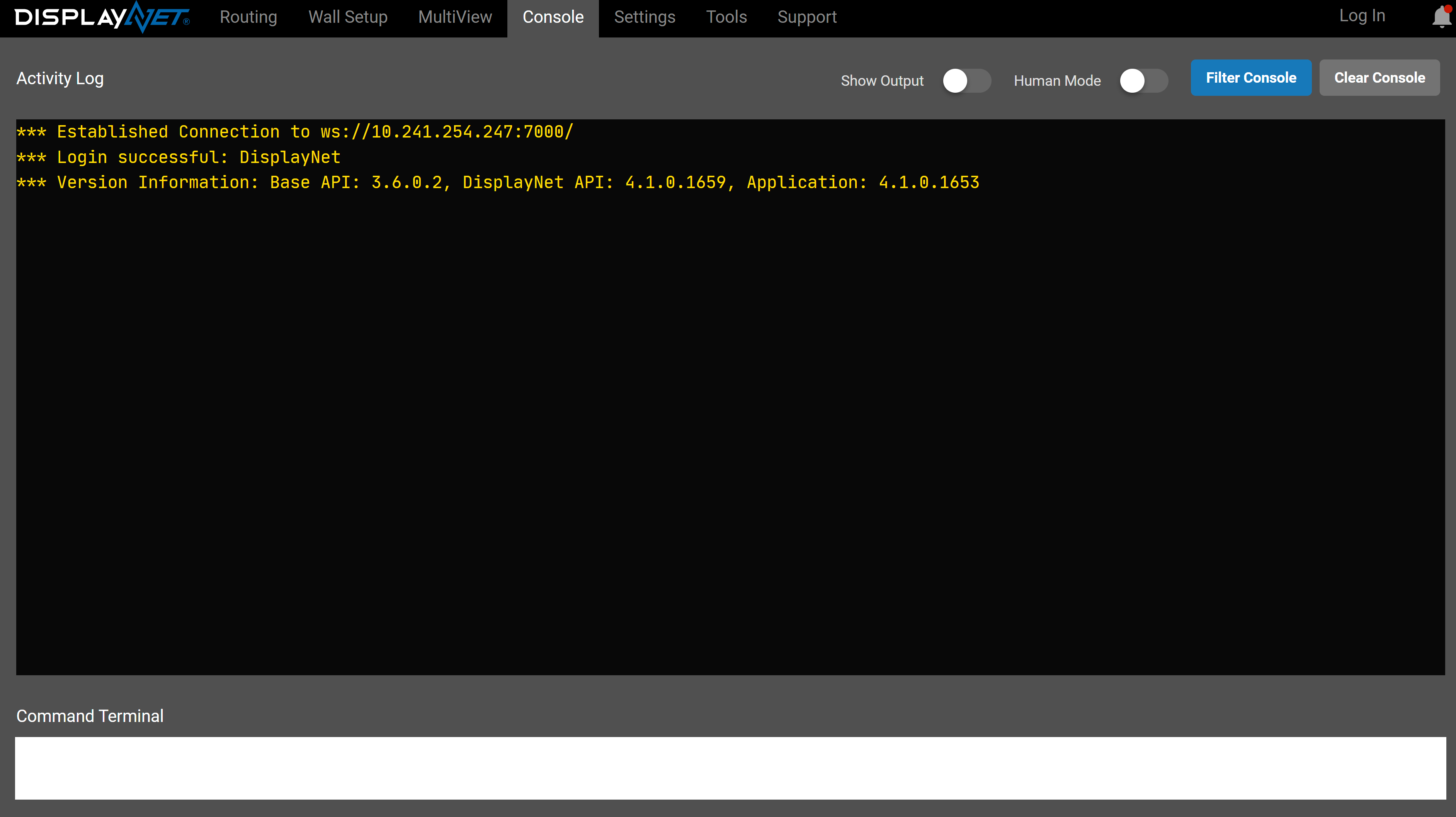
The Console Tab is a useful tool for system integrators. Rather than relying solely on manually written API commands, programmers can take a look under the hood of DisplayNet Manager software during live operation. This allows them to perform functions using the software (changing settings, making switches, etc.) and then view which commands were sent to perform those functions. For instance, when an operation (such as a switch) is performed in the Routing Tab, the command that corresponds to that operation will be shown in the Activity Log panel. This is an especially useful tool for integrating DisplayNet into systems where third-party controllers are used day-to-day.
The Console Tab, along with DisplayNet Logging can also be useful for troubleshooting issues with the system or software. If there is a problem, the activity log can be checked for a list of commands that were issued.
Invalid commands will produce errors.
Additional information can be found in the DisplayNet API Manual.
Activity Log Controls
The Activity Log panel includes several controls for managing the display of log entries:
Human Mode
The Human Mode toggle switches between two display formats:
- Human Mode ON - Displays log entries in a formatted, collapsible view that makes JSON responses easier to read. Entries can be expanded to see full details.
- Human Mode OFF - Displays raw text output showing the exact API messages as they are sent and received.
Your preference is saved and persists across sessions.
Filter Console
The Filter Console button opens a filter panel that allows you to show or hide specific types of log entries. The filter list is built dynamically based on the message types encountered during your session. This is useful for focusing on specific types of activity, such as routing changes or device events, while hiding routine messages.
Clear Console
The Clear Console button removes all entries from the Activity Log display. This clears the visual log only and does not affect the System Log or any persistent logging.