
General Tab
The General Tab contains commonly used device settings and information.
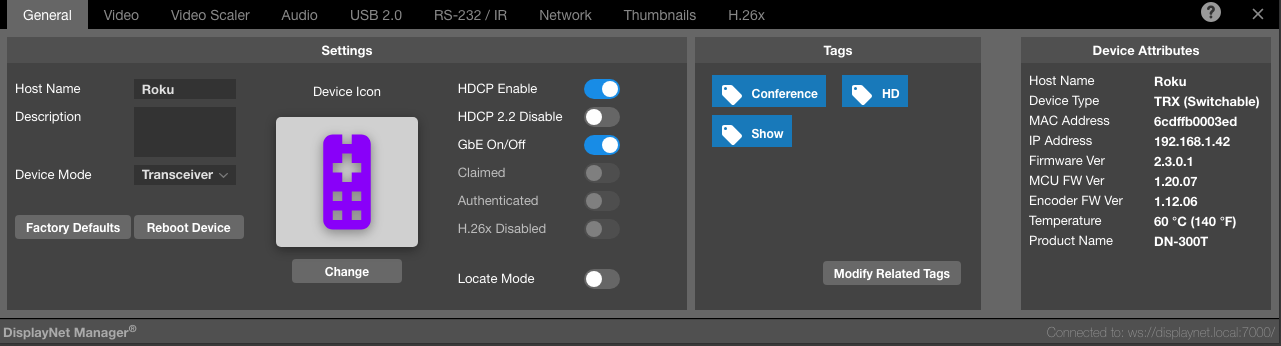
Settings Panel
The following settings are available in the Settings Panel:
| Setting | Description |
|---|---|
| Host Name | The Host Name field holds a short name up to 19 characters. By default, the Host Name for each device is set to the MAC Address of that device. If a device is disconnected, then the last used Host Name will remain viewable in DisplayNet Manager. |
| Description | The Description field can be used to store a longer description of the connected device. The Description field is stored locally in the cache of the device running the software. The last used Description can be viewed even on a disconnected device. |
| Device Mode (Transceivers Only) | If the selected device is a Transceiver, it can be toggled back and forth with this option. |
| Device Icon | Allows assignment of a custom icon and color to represent the device. The selected icon appears throughout DisplayNet Manager and DisplayNet Controller for easy visual identification. By default, Source devices use the Set-Top Box icon and Destination devices use the Monitor icon. See Icon Customization for detailed information on selecting icons and colors. |
| HDCP Enable (TX Only) | This enables HDCP on the transmitting device. In most cases, this should be enabled, as long as HDCP-compatible displays are in use. If this option is disabled, certain copy-protected content will not be shown or may be shown in degraded quality. This option is not available on receivers. |
| HDCP 2.2 Disable (TX Only) | This option disables HDCP 2.2 support on the transmitter. If this option is enabled, the selected transmitter will present itself as an HDCP 1.4-compatible device. This can be used to force certain HDCP 2.2-compatible source devices to output an HDCP 1.4-compatible signal, allowing for the use of HDCP 1.4-compatible displays. If HDCP is disabled, this option will have no effect. This option is not available on receivers. |
| Video Input (TX Only) | This setting selects the active video input on the device. Automatic (HDMI): Automatically selects either DisplayPort or HDMI if a single device is plugged in, but will prefer HDMI in the event of two devices being plugged in simultaneously. This is the default option. HDMI: Transmit video received on the HDMI input on the device. DisplayPort: Transmit video received on the DisplayPort input on the device. If a device is an AVP or is a non AVP device and has only one video input node, this option is not applicable. |
| GbE On/Off | The GbE On/Off option enables or disables the 1GbE port on the selected device. This can be useful in cases where the AV network is isolated and the connection of outside devices is undesired. |
| Claimed (Admin Only) | The Claimed option allows the user to claim a device. This option is only available when the device is not claimed. This option is only available when the device is not authenticated and the server's Claim Key has been set. |
| Authenticated (Admin Only) | The Authenticated option allows the user to authenticate a device. This option is only available when the device is not authenticated and the server's Authentication Key has been set. |
| H.26x Disabled (Admin & TX Only) | This option enables or disables the H.26x encoder on the selected device. This option is only available on devices that have an H.26x encoder. |
| Factory Defaults | The Factory Defaults button resets the unit to its factory default settings except for the description, custom device icon, stored EDID value, and the Toggle LED Blink function which are cached on the server. This is generally used to troubleshoot the device in the event of a device malfunction. If the target device(s) was associated with the API server by use of auth or claim requests, it is released. |
| Reboot Device | It may be occasionally necessary to reboot DisplayNet endpoint devices. If the devices can be detected by DisplayNet Server, they may be rebooted using this button. If a device is inaccessible within DisplayNet Manager, it can be rebooted by disconnecting power from the device, waiting 3-5 seconds, and then reconnecting power. During the reboot process, the Device Row will show "Disconnected…" in the resolution field. The resolution field will repopulate once the device has finished rebooting. |
| Locate Mode | At times, it may be necessary to visually identify a DisplayNet transmitter or receiver within a system. When the On button is clicked, all of the LED lights on the front of the selected device will flash in unison. This allows the devices to be identified for setup, maintenance, or other purposes. The LEDs will return to normal operation upon clicking the Off button. |
Device Tags Panel
The Device Tags Panel displays the tags that have been assigned to the selected device. Tags are used to group devices together for easier management. For more information on tags, see the Device Tags section.