
Network Tab
The Network Tab is used to configure the network settings of the DisplayNet device.
By default, the device is configured to obtain its network configuration from a DHCP server.
If there is no DHCP server present, then in this mode, the DisplayNet devices will obtain their IP addresses using Automatic Private IP Addressing (APIPA scheme) in the 169.254.X.X range with a subnet mask of 255.255.0.0.
To manually configure the network settings of a DisplayNet device, click the IP drop-down and select “Manual.” The other settings in this panel will become available. Enter the desired IP Address, Subnet Mask, and Gateway. If the network does not have a gateway, set the Gateway value to 0.0.0.0.
If the device connects to a switch port that enforces 802.1X, the device must have a valid 802.1X certificate installed before it can communicate on the network. See 802.1X Network Authentication.
The IP settings are saved internally within each DisplayNet device in non-volatile memory. If power cycle or reboot occurs, then this setting will be retained. When switching from DHCP to manual mode, the settings that were obtained automatically from the network will be retained after the mode has been changed.
Before making any changes, please consult a qualified network specialist and take note of the current settings.
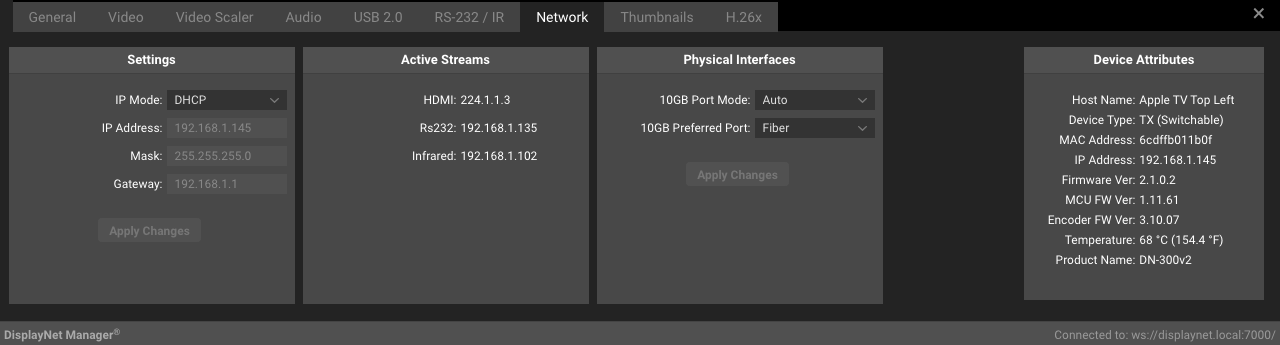
Settings Panel
| Setting | Description |
|---|---|
| IP Mode | Choose between DHCP mode or manual mode. In manual mode, the network settings may be manually adjusted. In DHCP mode, the network settings will be obtained automatically from the DHCP server or using the APIPA scheme if no server is present. By default, the devices will be set to DHCP mode. |
| IP Address | In DHCP mode: This value is automatically obtained. In manual mode: Set this to the desired value. Ensure that there are no conflicts with other devices on the network and that the address is in the appropriate range. |
| Mask | In DHCP mode: This value is automatically obtained. In manual mode: Set this to the desired value. Ensure that the device is in the appropriate range. |
| Gateway | In DHCP mode: This value is automatically obtained. In manual mode: Set this to the desired value. If the network does not have a gateway, set this value to 0.0.0.0. |
| Apply Changes button | Applies any of the changes in the above settings. |
When switching from DHCP to manual mode, the settings that were obtained automatically will be retained in manual mode. For systems using manual mode on an ongoing basis, it can be helpful to use a DHCP server for the initial system setup. The DHCP server can automatically assign network settings to every device without any conflicting addresses. After this is done, the devices can then be set to manual mode and used as intended.
The gateway is not required for a dedicated AV content network configuration.
Active Streams Panel (Transmitters Only)
| Setting | Description |
|---|---|
| {Stream Type} | IP address of device streaming |
- Stream Types include: Stereo Audio, CEC, HDMI, HDMI Audio, MultiChannel Audio, Infrared, RS232, and Thumbnail.
Subscribed Streams Panel (Receivers Only)
| Setting | Description |
|---|---|
| {Stream Type} | IP address of subscribed device |
- Stream Types include: Stereo Audio, CEC, HDMI, HDMI Audio, MultiChannel Audio, Infrared, RS232, and Thumbnail.
Physical Interface Panel (ASIC Devices Only)
| Setting | Description |
|---|---|
| 10GB Port Mode | Auto/Manual Port Selection mode |
| 10GB Preferred Port | Copper or Fiber |
| Apply Changes button | Applies any physical interface changes made. |
Devices placed in Manual Port Selection mode will not failover to the other network interface in the event of a network connectivity failure. We highly recommend the use of Automatic Port Selection mode with a preferred interface type instead.
Network Status Panel (DN-225 Devices Only)
| Setting | Description |
|---|---|
| Active Port | Displays: Fiber, Copper or Disconnected |