
Video Tab
The Video tab contains device settings and information related to the video routing functionality of each DisplayNet Device.
Settings Panel For Transmitters
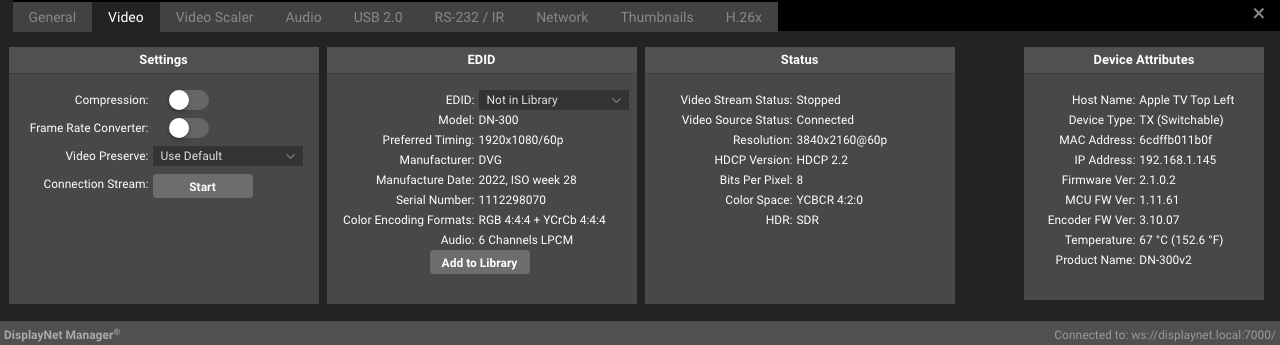
The following settings are available in the Setting Panel of the Video Tab for transmitters:
| Setting | Description |
|---|---|
| Compression (TX Only) | This setting forces compression to be turned on for Stream 0. This is primarily used to save bandwidth in a multiview configuration. Compression is automatically turned on by default when the uncompressed stream would exceed 10gbps. |
| Default Quantization Level (TX Only) | This setting overrides the default quantization level for the transmitter's video output. Disabled: Uses the source's native quantization level (default). Full: Forces full range (0-255) quantization. Limited: Forces limited range (16-235) quantization. |
| Frame Rate Converter (TX Only) | This setting enables the Frame Rate Converter on the transmitter. The Frame Rate Converter halves the frame rate of the source stream, reducing bandwidth. This is commonly used in multiview configurations where full frame rate is not required. Frame Rate Converted streams may only be routed to receivers in Fast Switched Mode. |
| Video Preserve (TX Only) | This setting controls whether existing video streams are stopped when making a new routing connection from this transmitter. This is the per-device override for the global Preserve Video Source on Connect setting. Use Default: Uses the global setting from the Settings Tab. True: Existing streams from this transmitter are preserved when making new connections, allowing multiple simultaneous destinations. False: When a new route is created, any other active stream from this transmitter is stopped (default behavior). |
| Connection Stream (TX Only) | This button starts and stops the video stream on the transmitter. All existing multicast group memberships and video routings will remain if the transmitter is stopped, the associated receivers will begin displaying the video stream as soon as it is started again. |
Settings Panel For Receivers
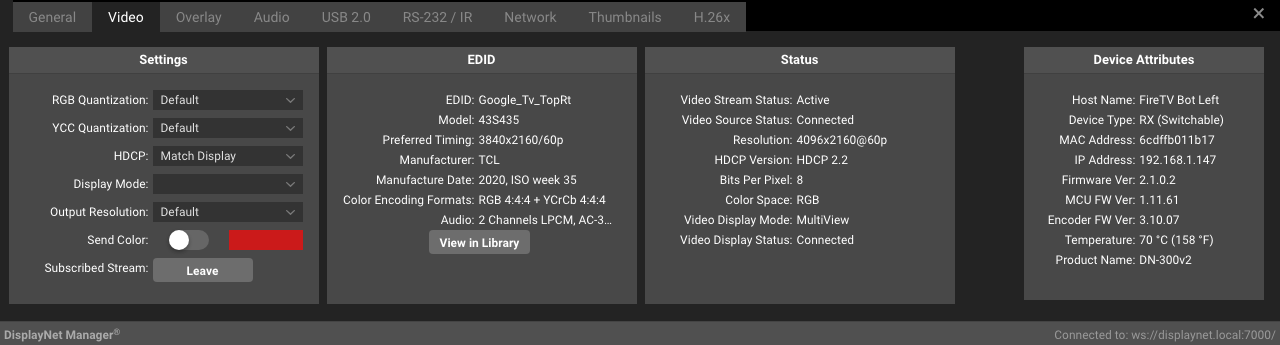
The following settings are available in the Setting Panel of the Video Tab for receivers:
| Setting | Description |
|---|---|
| RGB Quantization (RX Only) | This setting adjusts the RGB quantization of the receiver. Default: This is the default setting. Standard: This setting is used to match the quantization of the source device. Auto: This setting is used to match the quantization of the source device. Limited: This setting is used to match the quantization of the source device. Full: This setting is used to match the quantization of the source device. |
| YCC Quantization (RX Only) | This setting adjusts the YCC quantization of the receiver. Default: This is the default setting. Standard: This setting is used to match the quantization of the source device. Auto: This setting is used to match the quantization of the source device. Limited: This setting is used to match the quantization of the source device. Full: This setting is used to match the quantization of the source device. |
| HDCP (RX Only) | This setting adjusts the HDCP mode of the receiver. Match Display: This setting is used to match the HDCP mode of the connected display. Match Display (HDMI 1.4): This setting is used to match the HDCP mode of the connected display. Follow Source: This setting is used to match the HDCP mode of the source device. |
| Display Mode (RX Only) | Using this drop-down menu, the Display Mode for each receiver may be individually set. Default: By default, the Display Mode for each receiver is set to "Default." In this case, the receiver will use the global setting selected in the Settings Tab. Genlocked: In this mode, there will be zero frame latency between the video input into the transmitter and the video output from the receiver. However, any switching performed will not be seamless. Fast Switch: When this feature is enabled, seamless switching between sources with the same characteristics (including resolution, refresh rate, color depth, and color space) is possible. Genlocked Scaling: In this mode, there will be zero frame latency between the video input into the transmitter and the video output from the receiver. However, any switching performed will not be seamless. Unlike Genlocked Mode, Genlock Scaling mode allows the source image to be scaled to match the destination resolution. Fast Switch Crop This setting enables or disables the Fast Switch Crop feature on the receiver. When enabled, the receiver will crop the edges of the video stream to match the resolution of the destination display. This is useful for applications where the destination display is smaller than the source resolution. Fast Switch Stretch This setting enables or disables the Fast Switch Stretch feature on the receiver. When enabled, the receiver will stretch the video stream to match the resolution of the destination display. This is useful for applications where the destination display is larger than the source resolution. |
| Output Resolution (RX Only) | This setting adjusts the output resolution of the receiver. Use Source Resolution: Outputs at the resolution of the source stream. This is the default setting. Use Native Resolution: Outputs at the default native resolution of the connected display. This setting will have no effect if the receiver is in Genlocked Mode, as Genlocked Mode sends the original source stream directly to the display, unaltered. Other Resolutions: A wide variety of other standard resolutions are available for output in the Output Resolution dropdown menu. |
| Send Color (RX Only) | This setting displays a full-frame image of the selected color when this option box is selected, overriding all video routing settings. The color sent may be changed by selecting the color next to the checkbox. The existing video stream will resume immediately when this option is unselected. This feature may be used to identify receivers during initial configuration and for troubleshooting purposes. |
| Subscribed Stream Leave Button (RX Only) | The Leave button removes the selected receiver from any subscribed video multicast groups. Once this is performed, all existing video routings will be dropped and will need to be re-established to resume the video stream. If the receiver is not currently joined to any groups, the Leave button will be grayed out. |
Edid Panel
The EDID Panel contains the following settings:
| Setting | Description |
|---|---|
| EDID | Transmitter: For Tx's, this drop-down menu allows the selection of EDID's in the EDID library (see below). When a new EDID is selected, the EDID will be sent to the connected display. If the current EDID is not in the EDID Library, this will display "Not In Library", and the "Add To Library" button will appear below. Receiver: For RX's, this displays the EDID of the connected display. |
| Model | Displays the model of the connected display. |
| Preferred Timing | Displays the preferred timing of the connected display. |
| Manufacturer | Displays the manufacturer of the connected display. |
| Manufacturer Date | Displays the manufacturer date of the connected display. |
| Serial Number | Displays the serial number of the connected display. |
| Color Encoding Formats | Displays the color encoding formats of the connected display. |
| Audio | Displays the audio capabilities of the connected display. |
| View in Library | This button opens the The EDID Libary window. |
In some applications, DisplayNet’s EDID management can be used to force both input signals to the same specifications. This prevents the display from having to re-sync between sources, enabling seamless source switching in Fast Switched Mode.
Status Panel
The Status panel shows the status of the device. It contains the following status attributes:
| Status | Description |
|---|---|
| Video Stream Status | This shows the status of the video stream between the TX and the RX. Transmitter: Streaming: Video output stream is started. Stopped: Video output stream is stopped. Receiver: Active: The RX is subscribed to a video multicast address. Inactive: The RX is not subscribed to a video multicast address. |
| Video Source | Receiver: Displays the MAC address of the source device. |
| Video Source Status | This shows whether the HDMI input on the transmitter is connected (and receiving a signal) or disconnected (or not receiving a signal) from its source device. On the RX, this shows the status of the HDMI connection on the TX that the RX is subscribed to. Transmitter: Connected: The HDMI input is connected and is receiving a signal. Disconnected: The HDMI input is disconnected or is not receiving a signal. Receiver: Connected: The RX is subscribed to a TX with a Source Status of Connected. Disconnected: The RX is subscribed to a TX with a Source Status of Disconnected. |
| Resolution | Transmitter: Shows the current resolution of the input signal. For example: 3840x2160@24p which is 3840 pixels wide and a height of 2160 pixels with 24 frames per second (fps) Receiver: Genlocked Mode: Shows the current resolution of the input signal. Fast Switched Mode: Shows the current resolution of the signal in the frame buffer. |
| HDCP Version | Transmitter and Receiver: HDCP + Version Number (e.g. HDCP 1.4) Indicates if the source is HDCP encrypted and is automatically enabled if the source is HDCP protected. On the Transmitter, the HDCP Enable / Disable function can be used to prevent the HDCP acknowledgment from being sent to the source. This is an HDCP-compliant method of resolving issues when some sources unnecessarily encrypt non-protected content. |
| Bits Per Pixel | Transmitter and Receiver: 8, 10, 12, 16 Shows the most recently used HDMI color depth. |
| Color Space | Transmitter and Receiver: RGB, YCbCr420, YCbCr422, YCbCr444 Shows the most recently-used HDMI color space. |
| HDR | Transmitter: SDR (Standard Dynamic Range), HDR (High Dynamic Range) |
| Video Display Mode | This shows the current Display Mode of the DisplayNet receiver device. Receiver: Genlocked, Genlock Scaling, Fast Switched, Wall, Multiview |
| Video Display Status | This shows the Hot Plug Detect (HPD) status on the HDMI output port of the RX. Receiver: Connected: The HDMI output port on the RX is connected to the destination. Disconnected: The HDMI output port on the RX is disconnected from the destination. |
If a receiver is part of an active wall configuration, its display mode will be overridden and Wall mode will be used instead. If a receiver is returned to normal matrix switching operation, then its display mode will revert to the previously selected mode.
The Display Mode field and the Video Display Status field are only available in the Destination Device Settings.
The resolution field will show "0x0" in two cases. First, on the transmitter if it does not have an active input signal present. Second, on the receiver in Genlocked Mode if the video from the connected transmitter is stopped. Additionally, the receivers in an active wall configuration may display non-standard resolutions based on the setup of the wall. This is due to the fact that there is no scaling performed to produce the wall.
When the value is "RGB," the color space will always be 4:4:4.