
Configurations
The Configurations panel is accessed through the second button on the left sidebar.
Configurations are used in conjunction with layouts to create multiviews.
Multiview configurations are associated with layouts and define which source devices should be assigned to the windows in the associated layout.
Creating a New Configuration
To create a new configuration, click the "New" button in the Select Configuration panel in the left sidebar. This creates a new configuration with default settings. Its name by default is "New Config" and if that name is taken, it will be "New Config 1", "New Config 2" and so on. The new name will now appear in the "Select Configuration" dropdown in the "Select Configuration" section. By default, the first layout in the layout list will be selected.

Once you've created at least one configuration, you can change its settings by selecting a configuration in the "Select Configuration" dropdown menu on the left sidebar.
Configuration Settings
- Select the configuration to modify or view - choose from the list of previously created configurations.
- Rename the selected configuration - Click on the input that shows the name and change the text used for the name. (when you click away from the input, the name will be saved)
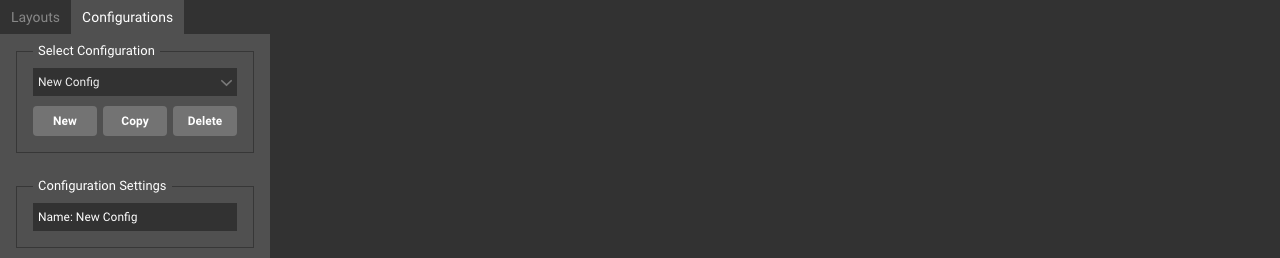
Changes to the configuration are saved automatically as they are made in DisplayNet.
Associating a Layout with a Configuration
To associate a layout with a configuration, select the desired layout in the "Select Layout" dropdown menu.

The layout will be shown in the layout preview to the right of the left sidebar.
Assigning Sources to a Configuration
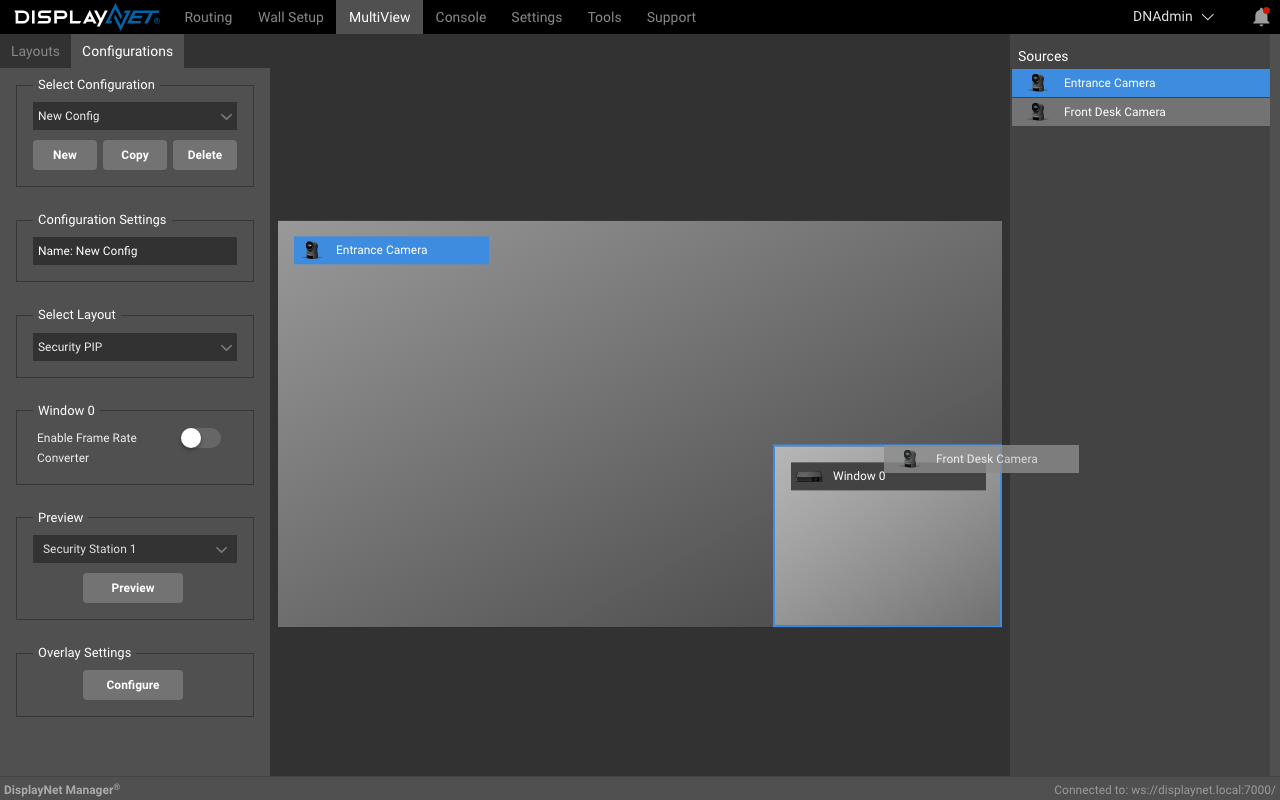
Each window in the layout can be assigned a source device from the list of available sources in the "Sources" right sidebar panel. To assign a source device to a window, drag the source device from the "Sources" panel and drop it on the desired window in the layout preview. Once a source is assigned, it will be highlighted with a light-blue background in the "Sources" panel. To unassign a source, drag it from the window and drop it back into the "Sources" panel. When the device is assigned, its hostname will appear under the Window label on the window. Once the windows are assigned, you are ready to use the configuration.
- This is a screenshot of a device being dragged to Window 0, while Window 1 already has a source assigned to it.
Enabling the Frame Rate Converter
The Frame Rate Converter is a feature that can be enabled on a per-window basis. It is disabled by default on all windows.
- Select the window you want to enable the Frame Rate Converter on by clicking on it in the layout preview on the right.
- Enable it by turning on the "Enable Frame Rate Converter" toggle (it will show blue when on) in the "Window Settings" panel. The "Windows Settings" panel will show the title of the source when it is assigned to a window or the title of the window when no source is assigned.

Previewing a Configuration
The configuration may be previewed by clicking the Preview button.
- Select the desired receiver in the Preview dropdown menu.
- Click the Preview button. This routes the selected multiview configuration to the receiver selected in the Preview dropdown.

Routing Configurations
Once a configuration is created, the configuration is shown as a routable device in the source in the Routing Tab and can be routed to any DisplayNet receiver in the same manner as a regular transmitter device.
Multiviewer configurations can only be routed to multiview-capable DisplayNet receivers, and cannot be routed to Video Walls