
Layouts
The Layouts panel is accessed by clicking the "Layout" navigation on the left sidebar. Layouts are used in conjunction with Configurations to create multiviews. Layouts define things like size and locations streams to be shown in the multiview and at what resolution.
Creating a New Layout
To create a multiview layout, click the "New" button in the Select Layout panel in the left sidebar. This creates a new layout with default settings. Its name by default is "New Layout" and if that name is taken, it will be "New Layout 1", "New Layout 2" and so on.

Saving Changes to a Layout
Any time a change is made to a layout, an "Unsaved Changes" indicator will appear, and the "Save Changes" button will appear. To save the changes, click the "Save Changes" button. To discard the changes, click the "Undo Changes" button and the layout will revert to the last saved state.

Layout Settings
- Select the layout to modify or view - choose from the list of previously created layouts.
- Rename the selected layout - Click on the input that shows the name and change the text used for the name.
- Change the layout resolution - The Target Resolution should match the native resolution of the monitor that is to display the multiview. For best results, this should be set before adding any windows to the layout.

See Show Grid below for more details on using the Grid.
Copying a Layout
To copy a layout, click the "Copy" button near the top of the left sidebar. The copied layout will be the currently selected layout.
Deleting a Layout
To delete a layout, click the "Delete" button near the top of the left sidebar. The layout will be removed from the list of layouts. If that layout is used in any configurations, the layout will be removed from the configuration and the configuration will be updated with the next available layout.
Using a Layout
Layouts are used in conjunction with Configurations to create multiviews.
Multiview Windows
Window Settings
The "Window Settings" section is shown in left sidebar with the title of the selected window. (i.e., below labeled "Window 0")
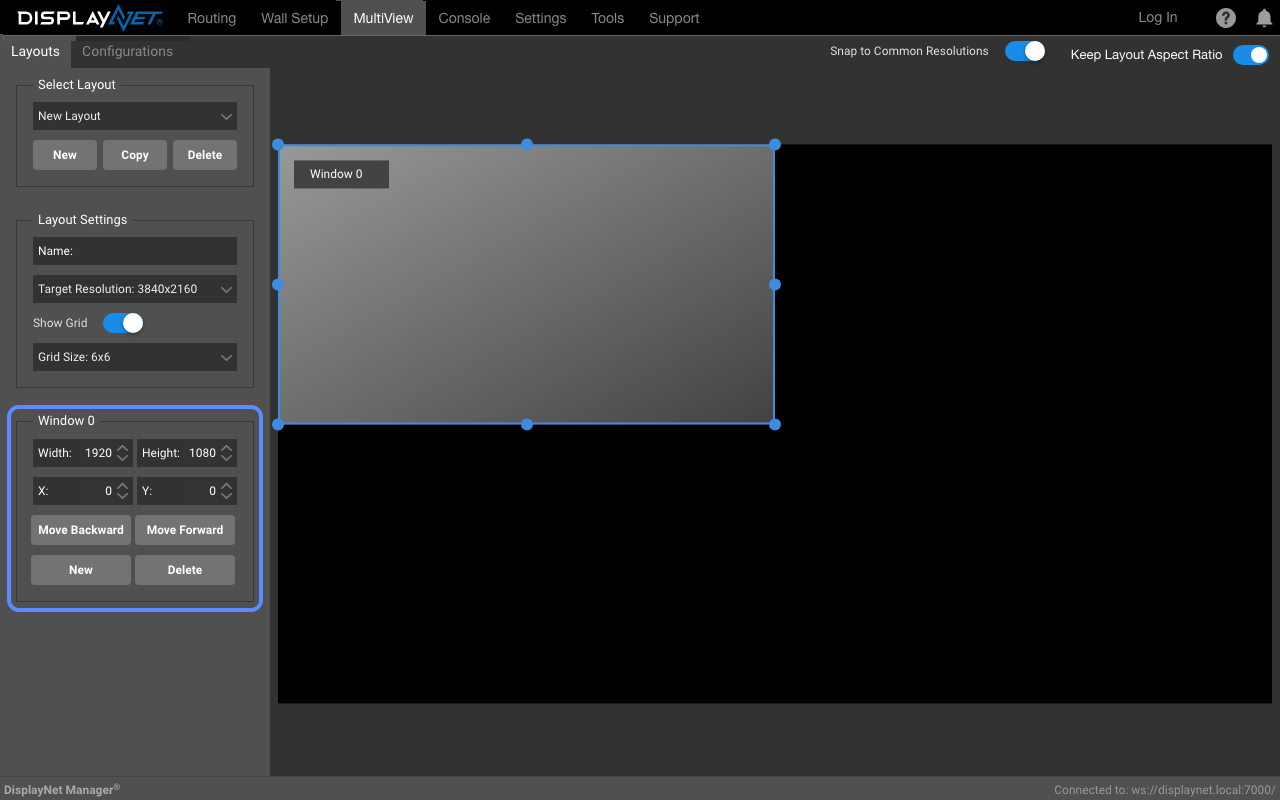
Here, you can adjust the position of the currently selected window, the size of the window, and it's z-order (which window is on front of each other).
Select the window you want to adjust by clicking on it in the "Window" list. The currently selected window will be highlighted in light blue, and its settings will be displayed in the "Window Settings" panel which will be named "Window 1" for example, if Window 1 was selected.
- position - The selected window's position can be adjusted by changing the "X" and "Y" values. It can also be moved by clicking and dragging the window with the mouse.
- size - The selected window's size can be adjusted by changing the "Width" and "Height" values. It can also be resized by clicking and dragging the window with the mouse.
- z-order - The selected window's z-order can be adjusted by clicking the "Move Backward" and "Move Forward" buttons. The window with the lowest number is on top of the other windows. 0 being the top window, 1 being the next window, and so on. The window with the highest number is on the bottom of the other windows.
Adding a Window to a Layout
To add a window, click the "New" button at the bottom of the left sidebar. The new window will be the currently selected window, and will be highlighted in light blue and assigned Windows 0. The previous window will be deselected, and all windows "behind" Window 0 will increase their z-order by 1.
Deleting Windows
Select the window you want to delete by clicking on it in the layout preview on the right. Click the "Delete" button at the bottom of the left sidebar to delete the selected window. The window will be removed from the layout, and all windows "in front" of it will decrease their z-order by 1.
Window Limitations
Multiview Layouts support up to 32 windows per layout.
The maximum resolution of both the overall layout and each individual window within the layout is constrained by the limitations of the device's frame buffer. The maximum resolution of the layout is 4096x2160. The maximum resolution of the first window is 4096x2160. The maximum resolution of the second through eleventh windows is 2048x1080. The maximum resolution of the twelfth through sixteenth windows is 2048x856.
As a result, if you attempt to create a layout out of these bounds, the layout will not be created, and an error message will be displayed. ie. "Only one window can be larger than 2048x1080. The width and the height are both too large."
Other Visual Aids
Show Grid
The Grid is a visual aid to help align windows in the layout. It is not displayed on the monitor when the multiview is displayed. When dragging a window, it will snap to the grid if the "Show Grid" option is enabled. It can be turned off by unchecking the "Show Grid" option.
The Grid Size dropdown controls the number of panels in the grid. Available options are: 2x2 (default), 3x3, 4x4, 5x5, 6x6, 10x10, 12x12, and 15x15.
Snap To Common Resolutions
When "Snap To Common Resolutions" option is enabled, when resizing a window with a mouse, it will snap to common resolutions making it easier to align windows. When the "Snap To Common Resolutions" option is disabled, the window can be resized freely.
Keep Layout Aspect Ratio
When the "Keep Layout Aspect Ratio" option is enabled, the aspect ratio of the window when resizing with a mouse will be locked to the layout's aspect ratio. When the "Keep Layout Aspect Ratio" option is disabled, the aspect ratio of the window can be adjusted freely.