
Matrix View
In addition to List View, stream routing may also be managed in Matrix View. The Matrix View contains a grid displaying all of the potential and active connections for a given routing layer. To activate this view, click on the "View Mode" dropdown and select the "Matrix View" option at the lower left of the routing window. Sources are shown in the left-most column, while Destinations are shown in the top row.
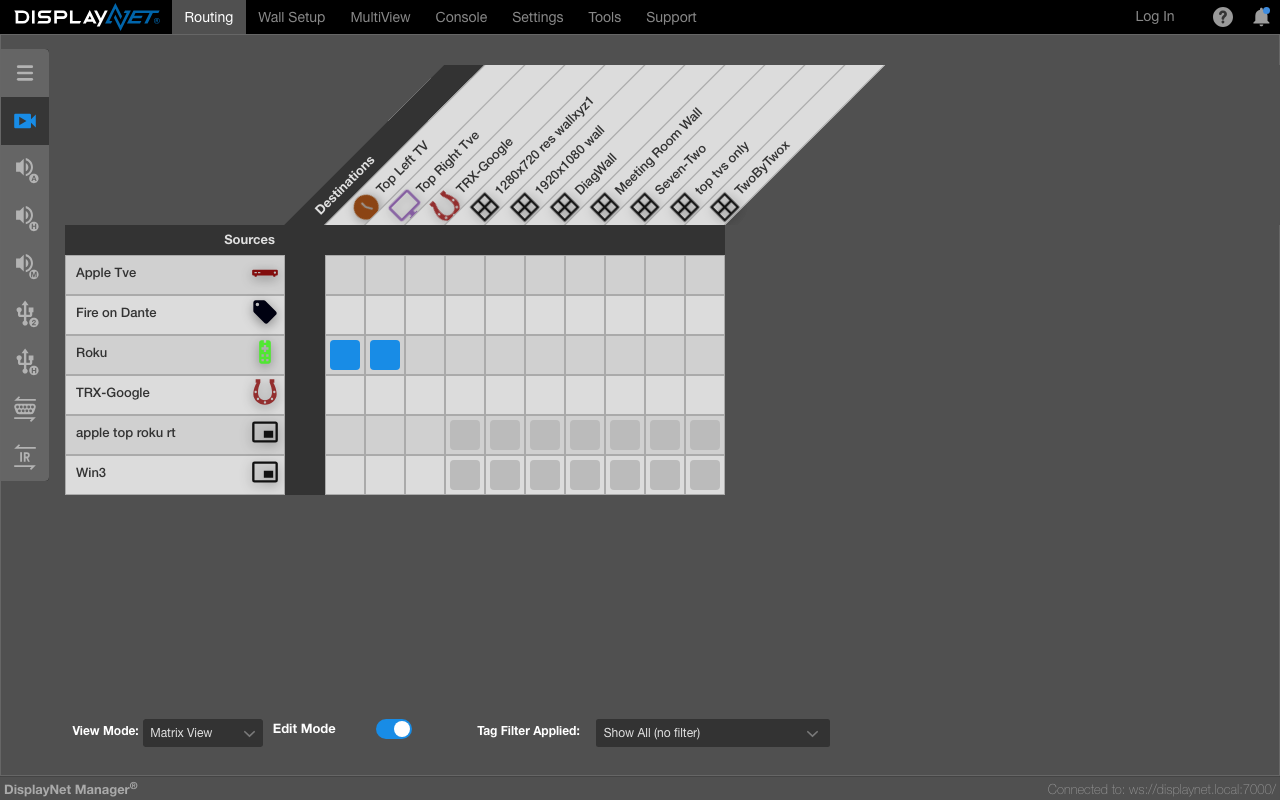
Matrix View is useful for viewing and editing all the current connections in a given system.
Navigating the Routing Layers
Matrix View allows users to easily view and edit all of the current routes in a system for an individual routing layer. By using the left sidebar navigation, one can navigate through each of the routing layers to manage the connections for each layer.
Edit Mode versus View Mode
When in "View Mode", Matrix View shows the current connection status by highlighting the intersected boxes in blue. In this mode, clicking on a box will not change the connection status. When in "Edit Mode", the box showing the intersection of sources and destinations can be clicked to make or remove connections.
Edit mode can be toggled on and off by clicking the "Edit Mode" toggle in the lower left corner of the routing window. When in Edit Mode, the toggle will be highlighted in blue. When in View Mode, the toggle will be shown grayed out.
Sources and Destinations
In Matrix View, Transmitters and any saved Multiview layouts are treated as Sources, and are shown in the left-most column, while Receivers and saved Walls are treated as Destinations, are shown in the top row.
Routing of Multiviews to Walls is not supported.
Matrix View always uses Auto Take. Note that multiple sources cannot be connected to a single destination.
For audio layers, List View is recommended as it provides full audio routing control.