
HDMI Audio Layer
DisplayNet features independently routable HDMI audio. Two HDMI audio channels are available, HDMI (All), and Downmixed, which is a downmixed version of the source audio. The HDMI Audio Layer is color-coded green.
In order to be downmixed, the original HDMI audio must be in uncompressed LPCM format. Compressed audio formats such as Dolby, DTS, etc. are not supported. EDID management may be used to control the audio format provided by the source.
HDMI embedded audio is only available for HDMI output when the receiver is operating in Genlocked Mode.
HDMI embedded audio always follows the video stream. The HDMI (All) audio, and downmixed audio streams are routed together, independently of the video stream or other audio layer streams.
Audio Controls
The right-click menu (found when right-clicking a device) can be used to start and stop the analog audio streams on transmitters. Receivers can leave audio streams in the same way that they can leave video streams.
Stopping and Starting Audio on Transmitters
To stop the TX from sending its audio stream over the 10GbE link, select "Stop Downmixed Audio" (in the HDMI Audio Layer). The TX will retain its multicast address. However, no audio data will be sent and any RX devices subscribed to the TX will not be provided with an audio stream. The Source Device Row will display status "Stopped", however the subscribed Destination device rows will continue to display "Streaming" as their status, as they have not left the multicast group. Audio may be resumed by selecting "Start Downmixed Audio" (in the HDMI Audio Layer). As the receivers are still subscribed to the multicast group, audio playback may be resumed without re-joining the receivers.
Leaving Audio on Receivers
Receivers have the option to leave the multicast group to which they are subscribed. To do this, right-click the receiver and select "Leave Downmixed Audio". Once this is done, the receiver will not be subscribed to the HDMI audio stream. The Destination Device Row will display "Stopped" as the device’s status. In this case, the receiver must be re-joined to a source device to resume audio playback.
The options that are present in the receiver's submenu depend on the device characteristics. For example, if the receiver has a 3.5mm audio output jack, the Analog Out column will be present.
Audio Output Settings
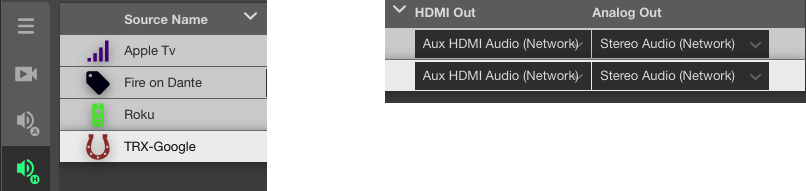
There are two audio output columns in the Audio Layer:
- HDMI Out
- Analog Out
The audio outputs on each device can be set to output different audio streams. For more information on available streams, see Device Settings > Audio Tab.