
View Mode
The routing tab can operate in two modes: View Mode and Edit Mode.
Switch between these two modes by clicking the toggle switch at the bottom of the routing tab.
In View Mode, connections between Source and Destination devices cannot be created or modified. This mode allows users to view device configurations without inadvertently modifying AV routes. By default, DisplayNet Manager software is set to Edit Mode.
In Edit Mode, the user is allowed to make routing changes.
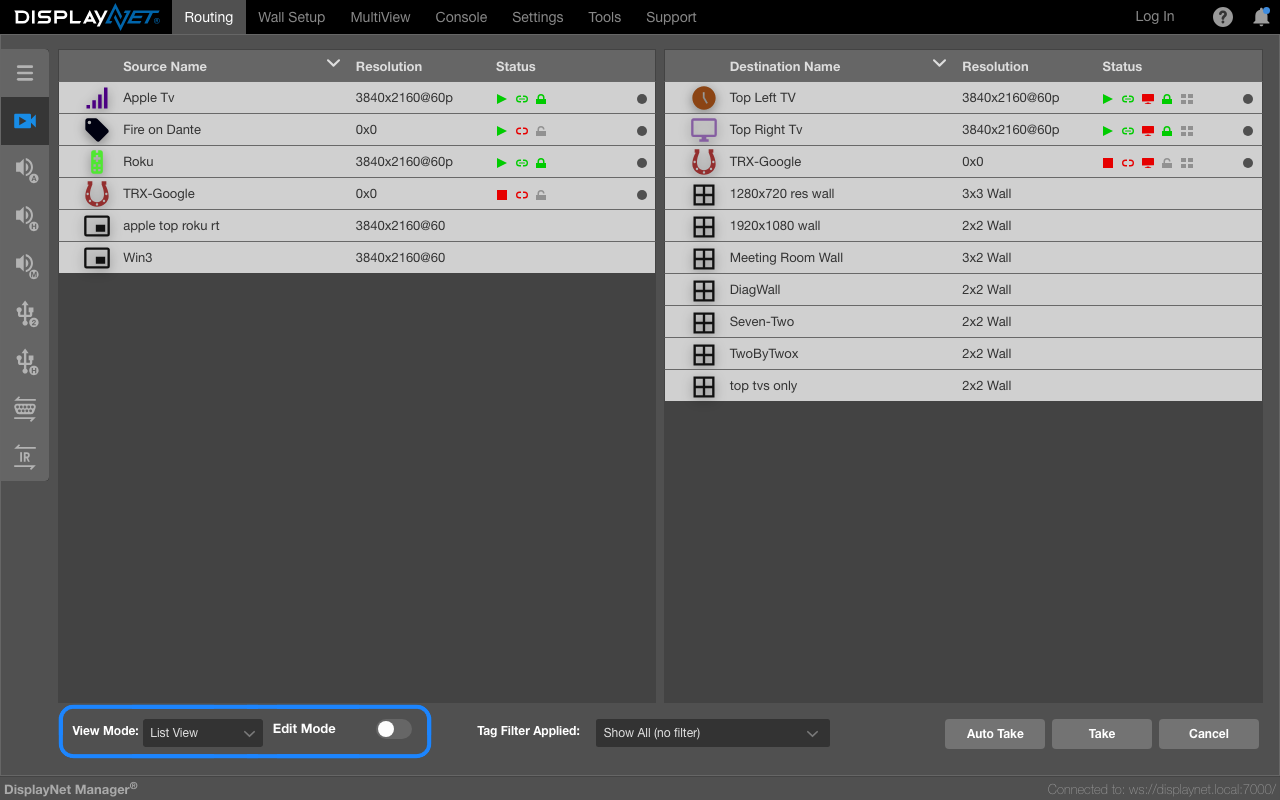
View Mode is useful for preventing accidental routing changes.
Using View Mode
View Mode may be used to display the current connections between Sources and Destinations. To view a connection, click once on a Source device row. The selected source will be highlighted the color of the routing layer currently being used. Any destination devices connected to it will also be highlighted.
In the Video routing layer, a selected Source device row will appear blue, along with any connected Destination device rows.
Similarly, if a Destination device is selected, the Source device connected to that Destination device will be highlighted as well.
In View Mode, the right-click menu may also be used. Note that while View Mode prevents changes to device routing, any changes to device settings will be applied and saved.
In the Video and Audio layers, a Source may be connected to multiple Destinations simultaneously. However, a Destination may only be connected to a single Source at a time.
DisplayNet transmitter and receiver devices that have been disconnected from the network will continue to appear in the Sources or Destinations Panels, and their device settings will still be viewable until they are manually removed.