
Global Image Settings
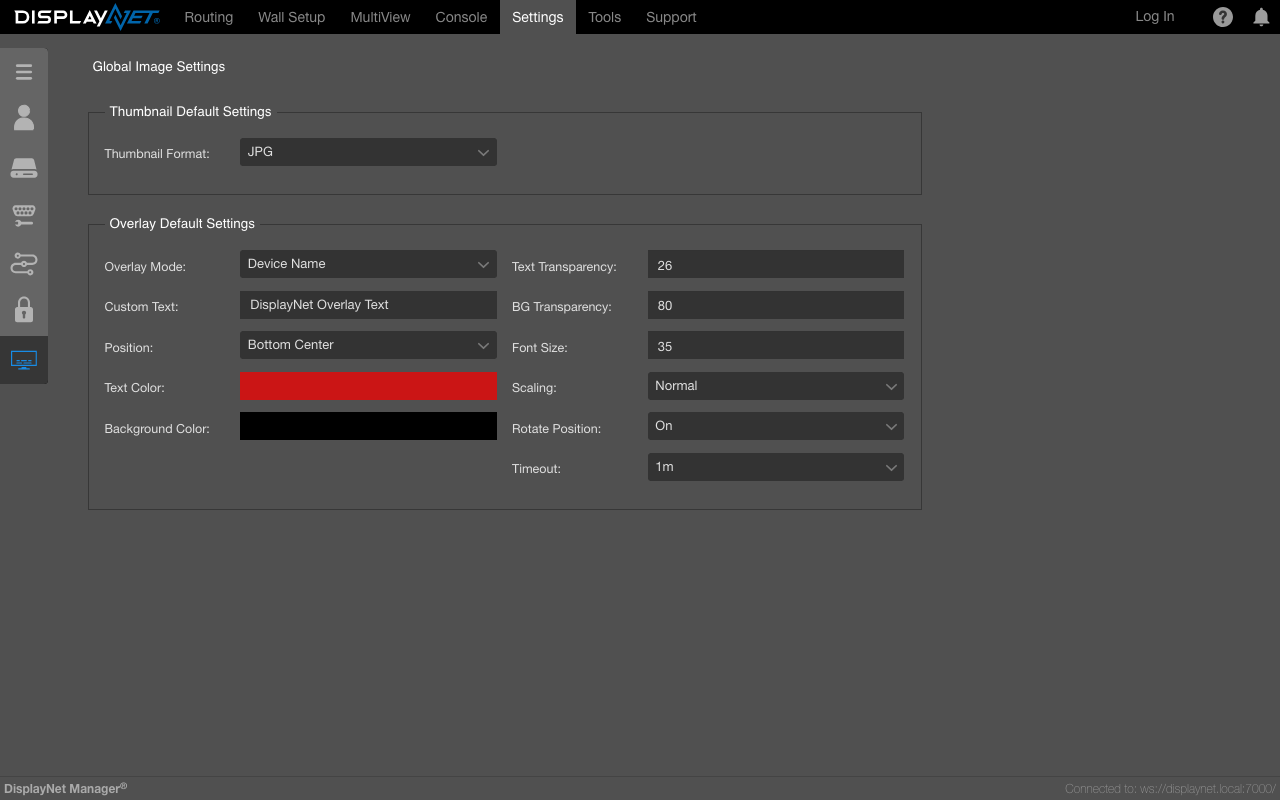
Thumbnail Default Settings
Thumbnails are small images that represent a larger image or video. This is where you can set the default system-wide settings for new thumbnails. Thumbnails will be subsequently created using the selected format.
The types of thumbnails that can be set are: PNG and JPG.
This tab is located in the Settings Tab using the Global Image Settings sidebar option.
Overlay Default Settings
Overlays refer to an additional layer of visual content that is superimposed onto the main video stream. This is where you can set the default system-wide settings for new overlays.
This tab is located in the Settings Tab using the Global Image Settings sidebar option.
Only DN-200 Series devices support overlays.
One can also edit a particular device's overlay settings in the Overlay Tab located in the device settings rollup.
Overlay Mode
- Device Name -- display the name of the device
- Device Mac -- display the MAC address of the device
- Device Address -- display the IP address of the device
- Device Status -- display the status of the device
- DisplayNet Logo -- display the DisplayNet logo
- Custom Text -- display custom text
Custom Text
Enter the text that you want to display in the overlay. This text will be displayed on the video signal if the Custom Text option is selected in the Overlay Mode.
Position
Set the position of the overlay on the video signal. The Options are:
- Top Left, Top Center, Top Right, Center, Bottom Left, Bottom Center, Bottom Right
Text Color
Set the color of the text displayed in the overlay. Clicking the color field will open a color picker. Select the color you want to use for the text.
Background Color
Set the color of the background of the overlay text. Clicking the color field will open a color picker. Select the color you want to use for the background of the overlay text.
Rotate Position
To avoid the overlay from burning into the display, turning on this operation will rotate the overlay position every few seconds.
Text Transparency
Set the transparency of the text displayed in the overlay.
The range of acceptable values is 0 to 100, where 0 is fully transparent and 100 is fully opaque.
BG Transparency
Set the transparency of the background of the overlay text. The range of acceptable values is 0 to 100, where 0 is fully transparent and 100 is fully opaque.
Font Size
Set the size of the font used in the overlay text. The range of acceptable values is 1 to 100.
Scaling
Set the scaling of the overlay text. The values are: Normal, Medium and Large.
Timeout
Set the time in seconds that the overlay will be displayed on the video signal.
The options are: Off, 5s, 10s, 30s, 1m, 1m 30s, 3m, 5m, 10m