Routing Settings
Default Display Mode Type
Each DisplayNet receiver can operate in Genlocked Mode, which provides zero frame latency, Fast Switched Mode, which provides seamless switching and scaling, or Genlock Scaling mode, which provides zero frame latency with image scaling. These modes only apply to the receiver and do not have any effect on the operation of the transmitter device. Refer to the DisplayNet Hardware Manual for specifc details on the capabilities and limitations of these modes.
The Default Display Mode Type setting is used to select the display mode that will be used by all of the receivers in a system by default. This setting can be overridden on individual receivers using the receiver’s Device Settings window, as discussed in Section 4.2.5. Receivers that have been manually set to a Display Mode will maintain their assigned Display Mode, independent of any changes to the Default Display Mode.
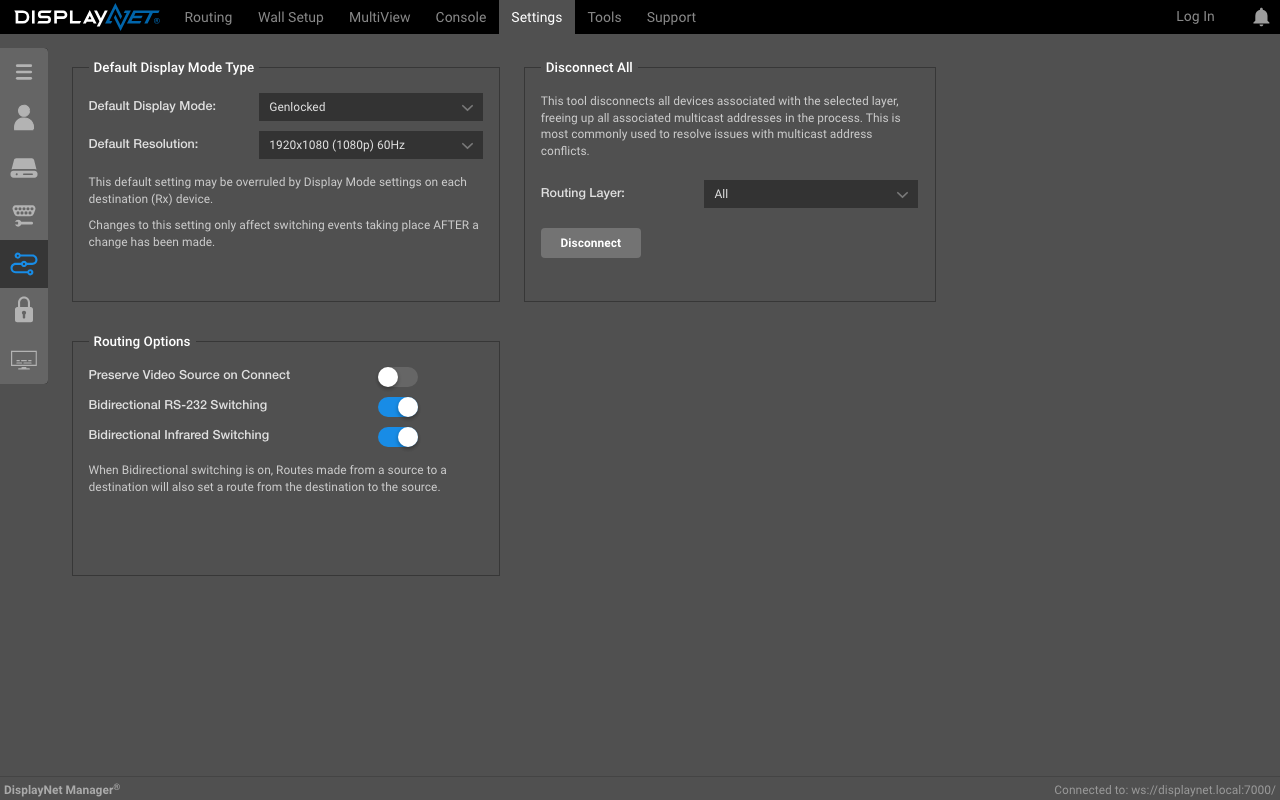
Changes to this setting only affect future switching events.
If a receiver is part of an active wall configuration, its normal display mode will be overridden, and Wall mode will be used instead. If the receiver is returned to matrix switching operation, then its display mode will return to its previous mode.
Genlocked Mode
In Genlocked Mode, there is zero frame latency between the source and the display, the display is synchronized directly to the source signal. In this mode, the signal sent to the display is an exact byte by byte replication of the source signal. Genlocked mode is ideal for applications where low-latency is critical, as well as applications that are reliant on the exact replication of the source signal. Refer to the DisplayNet Hardware Manual for further information on the benefits and limitations of Genlocked Mode.
Genlocked Mode provides zero frame latency, but switching performed in this mode will not be seamless as the display will need to resynchronize to each source.
For time-sensitive applications, select a display with low input lag. An input lag of less than 30ms is recommended.
Fast Switched Mode
DisplayNet receivers can also operate in Fast Switched Mode. This mode allows for seamless switching between different sources. In order to seamlessly switch between sources, the source signals being switched must share the same specifications. In the event the sources have different specifications, a black screen will shortly appear while the receiver resynchronizes to the source.(9-7) Scaling is also available in Fast Switched Mode, allowing for the use of source signals that do not match the resolution of the destination display. In Fast Switched Mode, the total latency between the source and display is always between 1 and 2 frames.
The EDID management options in DisplayNet Server can be used to help ensure that source devices output video with identical specifications.
See the DisplayNet Hardware Manual for further information on the benefits and limitations of Fast Switched Mode.
Fast Switch Crop
Fast Switch Crop is a variant of Fast Switched Mode that scales the source to fill the entire display while preserving the original aspect ratio. If the source aspect ratio differs from the display, portions of the image are cropped to prevent letterboxing or pillarboxing. This mode is useful when filling the display is more important than showing the complete source image.
Fast Switch Stretch
Fast Switch Stretch is a variant of Fast Switched Mode that scales the source to fill the entire display by stretching the image. If the source aspect ratio differs from the display, the image will be distorted to fit. This mode is useful when the entire display must be filled without cropping, and aspect ratio distortion is acceptable.
Genlock Scaling Mode
Genlock scaling mode allows for the low-latency display of content that does not match the resolution of the destination display. In genlock scaling mode, the signal is fed directly from the decoder into the scaling engine found on the DN-210 and DN-220 receivers, the framebuffer, used in Fast Switched Mode, is not used. By skipping the framebuffer, Genlock Scaling Mode achieves a latency of approximately 3 milliseconds, or about a quarter of a frame at 60 frames per second. As with Genlocked Mode, fast switching is not available, as the destination display is synchronized directly to the source device.
Default Resolution
The Default Resolution setting controls the default output resolution for DisplayNet receivers. This setting applies to new routing connections and can be overridden by Display Mode settings on individual destination (Rx) devices.
Available options include:
- Set Custom - Enter a custom resolution
- Native Resolution - Use the display's native resolution
- Source Resolution - Match the source signal resolution
- Standard resolutions including 4K (3840x2160, 4096x2160), 1080p, 720p, and 480p at various refresh rates (24Hz, 25Hz, 30Hz, 50Hz, 60Hz)
Changes to this setting only affect switching events taking place after the change has been made.
Routing Options
Preserve Video Source on Connect
When disabled (the default), routing a source to a new destination will stop any other active streams from that source device. This is standard single-destination behavior.
When enabled, existing video streams from a source device are preserved when making new connections. This allows the same source to stream to multiple destinations simultaneously, which is useful for scenarios like sending one source to multiple displays or multiview layouts.
This setting can also be configured per-device in the Video tab of Device Settings, allowing you to override the global default for specific sources.
Bidirectional RS-232 Switching
This setting controls whether to route RS-232 connections bidirectionally by default. Unlike video and audio signals, which are unidirectional, RS-232 and IR connections may be unidirectional or bidirectional. To create a bidirectional tunnel between an RS-232 sender and listener, it is necessary to join the devices twice: once in one direction and again in the reverse direction.
By default, Bidirectional RS-232 Switching is enabled, which is denoted by a light blue toggle switch. In this mode, DisplayNet Manager automatically joins the devices in both directions whenever an RS-232 route is created. When this option is disabled, the toggle switch will appear gray, and any RS-232 routes created in DisplayNet Manager will only allow for unidirectional communication.
Bidirectional Infrared Switching
This setting controls whether to route IR connections bidirectionally by default. Unlike video and audio signals, which are unidirectional, RS-232 and IR connections may be unidirectional or bidirectional. To create a bidirectional tunnel between an IR sender and listener, it is necessary to join the devices twice: once in one direction and again in the reverse direction.
By default, Bidirectional Infrared Switching is enabled, which is denoted by a light blue toggle switch. In this mode, DisplayNet Manager automatically joins the devices in both directions whenever an IR route is created. When this option is disabled, the toggle switch will appear gray, and any IR routes created in DisplayNet Manager will only allow for unidirectional communication.
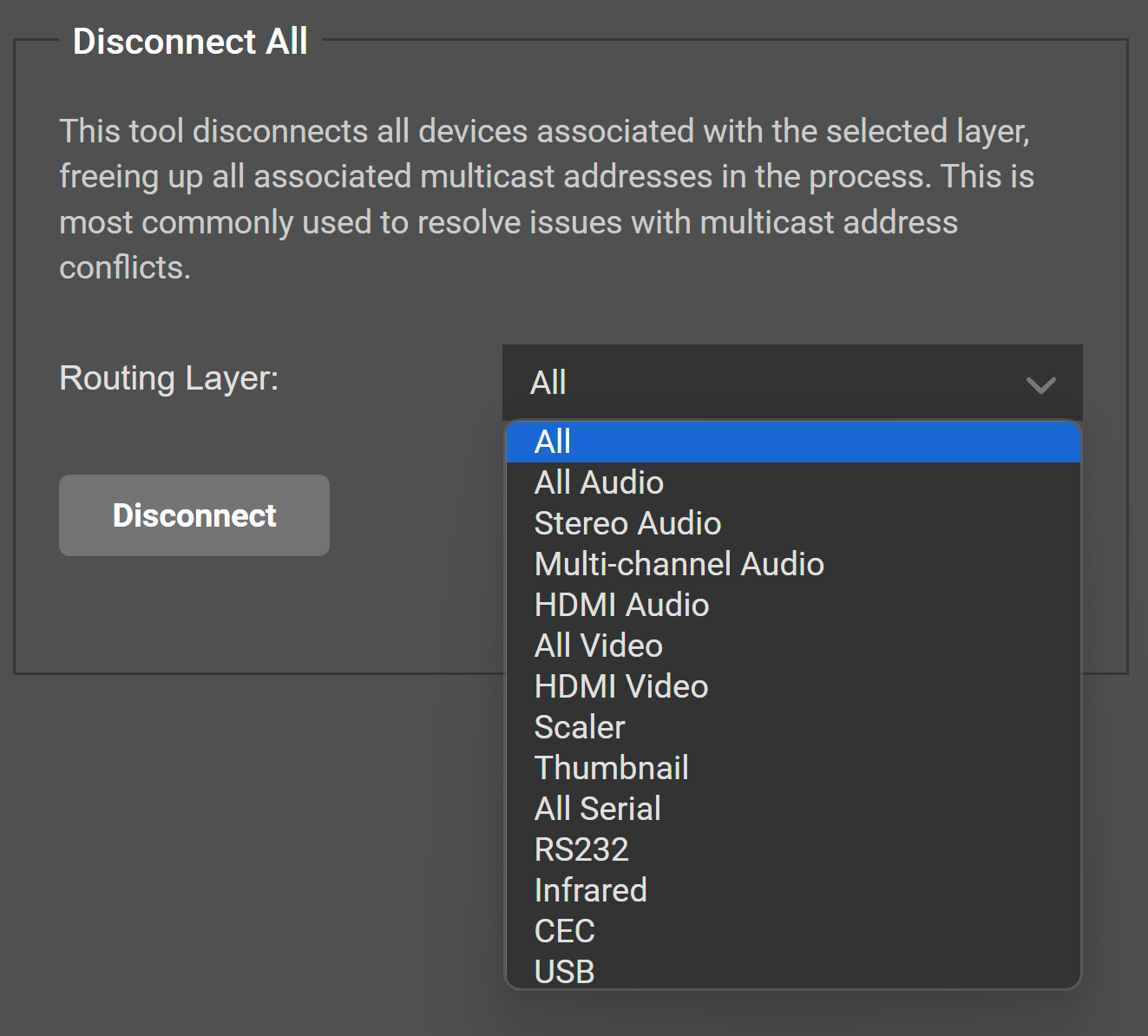
Disconnect All