
Security Settings
Overview
DisplayNet has a number of server level security features to protect the system from unauthorized access. These include and are documented in the following sections:
- Requiring Authentication
- Enforcing HTTPS
- Enforcing SSH
Requiring Authentication
By default, users are not required to log in to DisplayNet Manager. The non-logged-in user is called "DisplayNet".
The "DisplayNet" user's default role is that of "Integrator" which can be changed in the user management tab.
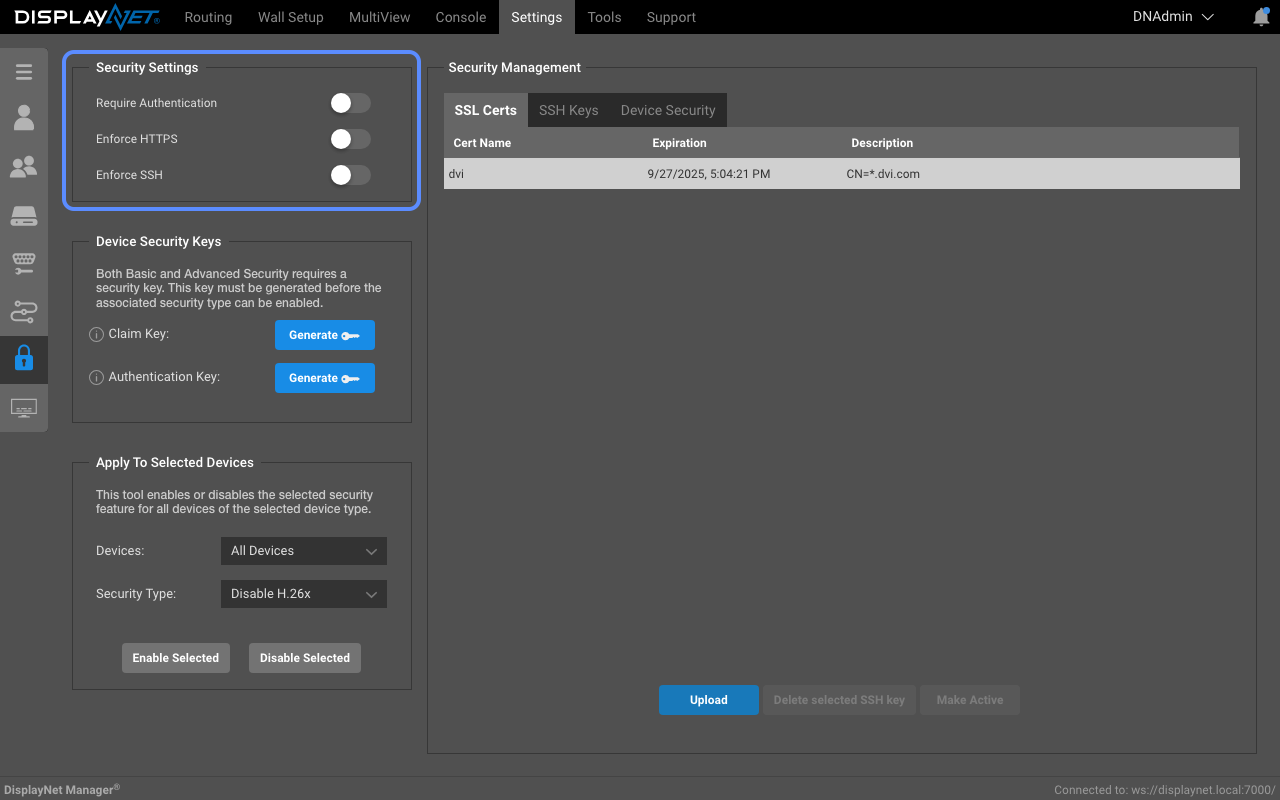
Admin users can require DisplayNet users to be logged in at all time by enabling the "Require Authentication" toggle located in the "Security Settings" section at the top left of the security tab.
This takes effect immediately and will require users to log in to DisplayNet Manager to continue using it.
Enforcing HTTPS
By default, DisplayNet Manager uses HTTP. Admin users can require HTTPS by checking the "Enforce HTTPS" toggle located in the "Security Settings" section at the top left of the security tab. This will require users to use HTTPS to access DisplayNet Manager which will encrypt the data sent between DisplayNet Manager and the user's browser.
SSL Certificate management
To enable HTTPS on the server, it's necessary to generate an SSL certificate and then add it to the server. Subsequent instructions detailing these steps are provided below.
Within the "Security Management" section of the security tab, admin users can manage the SSL Certificate to be used by DisplayNet Manager.
Uploading a valid SSL Certificate and its corresponding Private Key
Assuming you have a valid SSL certificate and its corresponding Private Key, you can upload these to DisplayNet Server via DisplayNet Manager and activate it by following the instructions below.
-
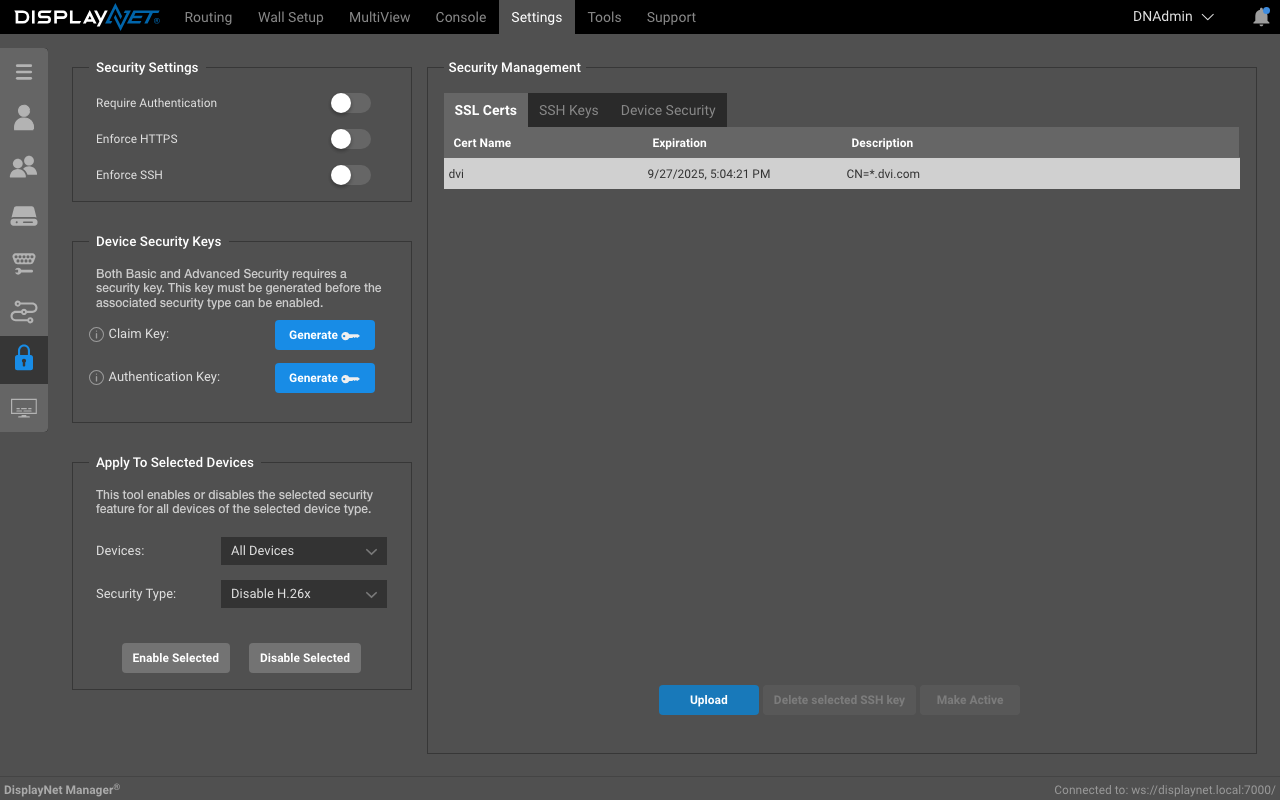
Click the "Upload" button located in the "SSL Certs" section of the "Security Management" section to upload a new SSL Certificate.
-
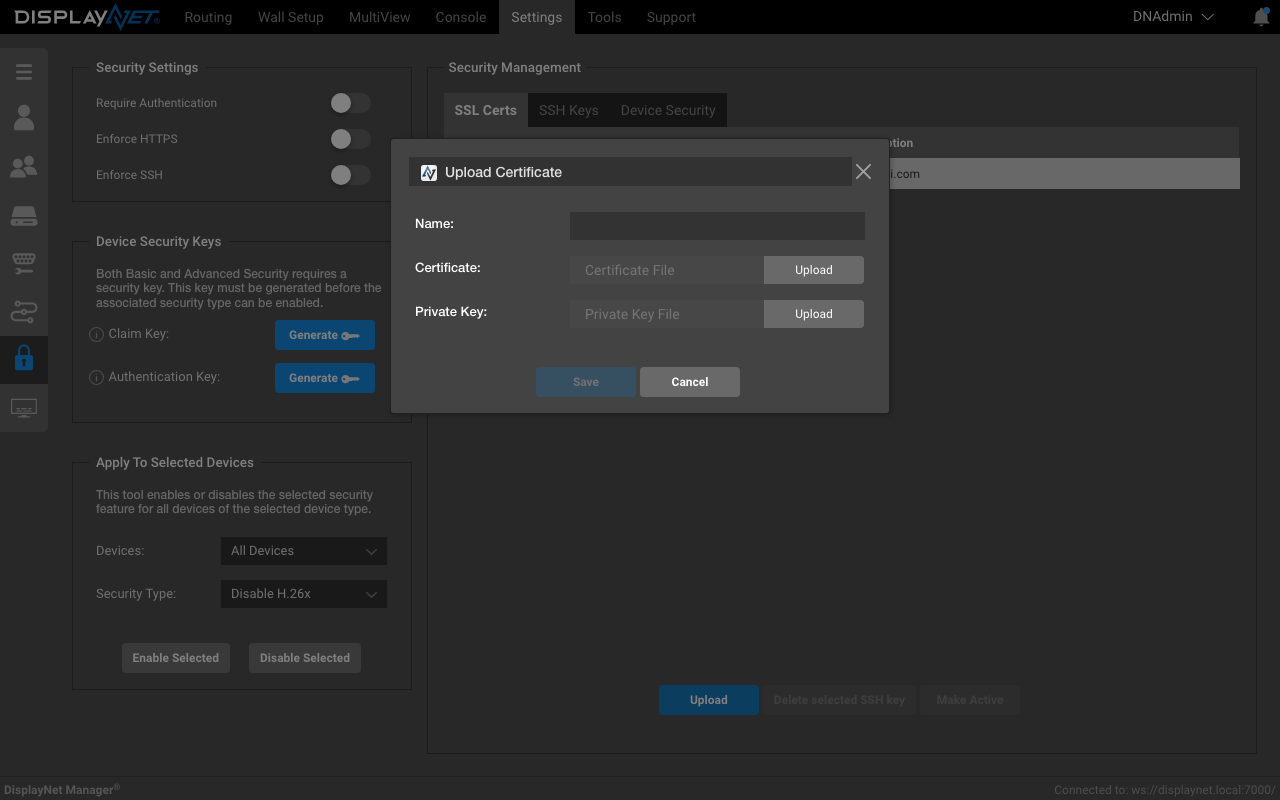
Add a name for the SSL Certificate in the modal window shown.
-
Click the "Upload" button next to the "Certificate" field to select the SSL Certificate file from your computer to upload.
-
Click the "Upload" button next to the "Private Key" field to select the SSL Certificate's private key file from your computer to upload.
-
Click the "Save" button to save the SSL Certificate.
-
The SSL Certificate will be uploaded, saved and will be listed in the "SSL Certs" section of the "Security Management" section.
-
The SSL Certificate will not be active until it is activated.
Activating an SSL Certificate
Once an SSL Certificate is uploaded and saved, it will be listed in the "SSL Certs" section of the "Security Management" section.
It can now be activated by selecting it, and clicking the "Make Active" button at the bottom of the "Security Management" section.
- Select the SSL Certificate to activate from the list in the "SSL Certs" section of the "Security Management" section.
- Click the "Make Active" button to activate the SSL Certificate.
- The SSL Certificate will be activated and will be used by DisplayNet Manager.
- DisplayNet Manager will now be accessible via HTTPS.
Deleting an existing SSL Certificate
- Select the SSL Certificate to delete from the list in the "SSL Certs" section of the "Security Management" section.
- Click the "Delete" button to delete the SSL Certificate.
- Finalize the deletion by clicking "Delete" in the confirmation dialog.
- The SSL Certificate will be removed from the system.
- If the SSL Certificate was active, DisplayNet Manager will revert to using HTTP.
Enforcing SSH
By default, users can directly telnet into the server and access the API directly. However, Telnet is insecure as it sends traffic across the wire in clear text, including usernames and passwords. Anyone snooping or sniffing network traffic will be able to intercept these credentials and potentially gain management access to the device.
By turning on “Enforce SSH”:
- Telnet access is disabled.
- SSH access is permitted via the “api” account.
- Accessing the API requires access to the server via SSH using the api account.
SSH Key management
Within the "Security Management" section of the security tab, admin users can manage the SSH Keys to be used by DisplayNet Manager.
Uploading a public SSH Key
Assuming you have a valid SSH public and private key, you can upload your public key to DisplayNet Server via DisplayNet Manager and activate it by following the instructions below.
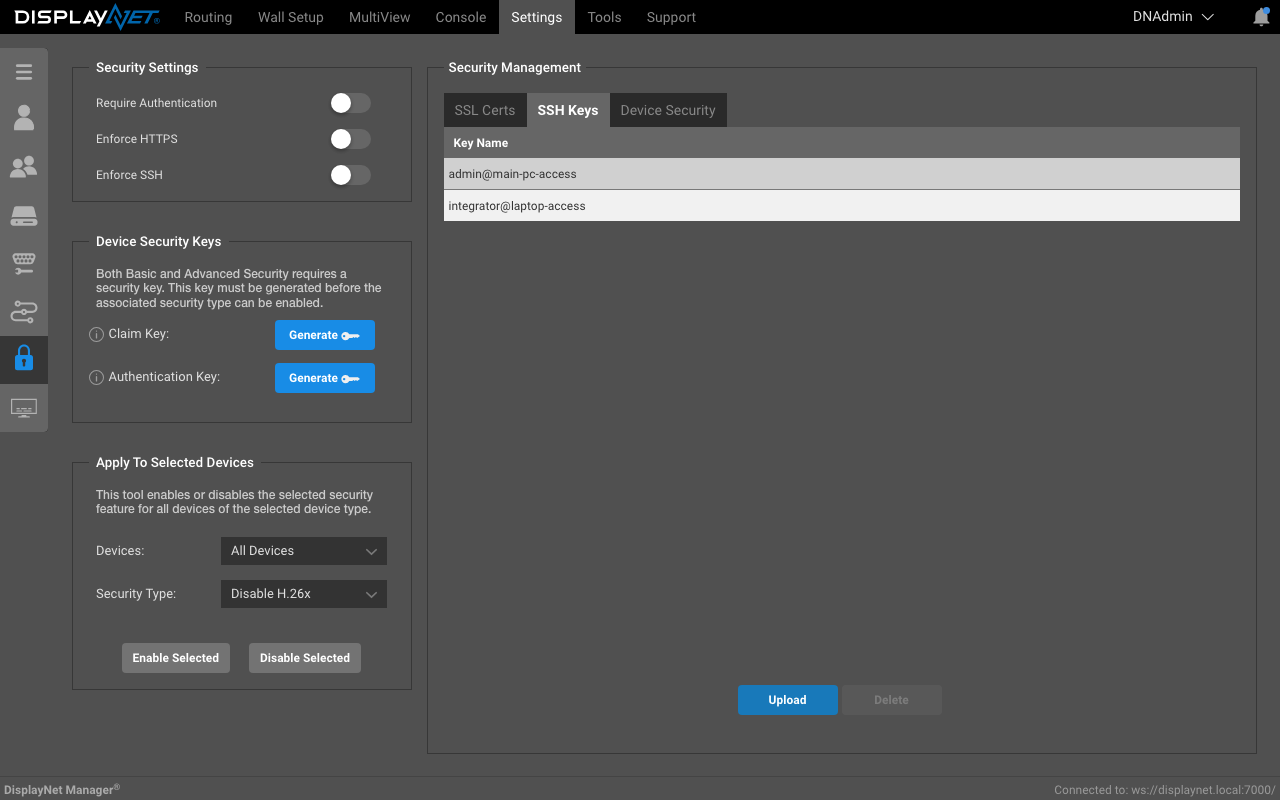
- Click the "Upload" button located in the "SSH Keys" section of the "Security Management" section to upload a new SSH Key.
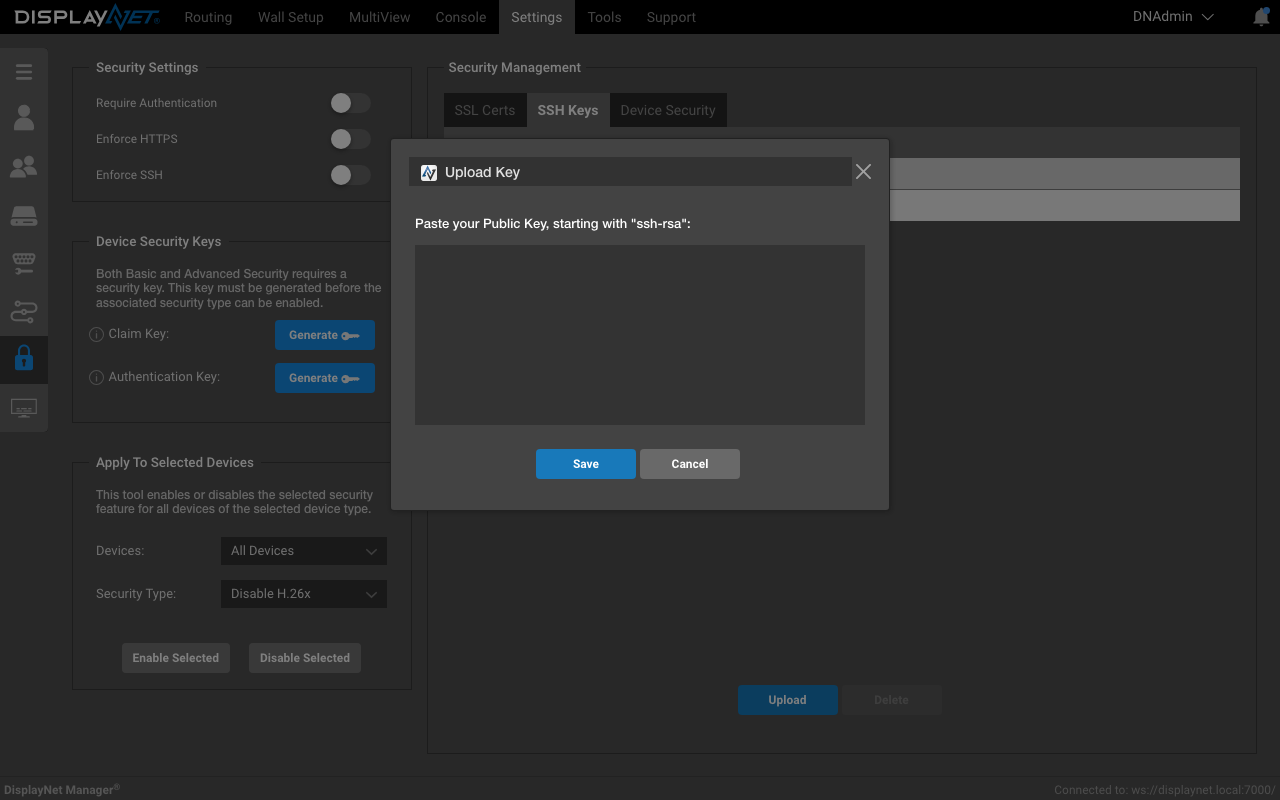
- Paste your public key into the modal window shown.
- Click the "Save" button to save the SSH Key.
- The SSH Key will be uploaded, saved and will be listed in the "SSH Keys" section of the "Security Management" section.
Delete an existing SSH Key
- Select the SSH Key to delete from the list in the "SSH Keys" section of the "Security Management" section.
- Click the "Delete" button to delete the SSH Key.
- Finalize the deletion by clicking "Delete" in the confirmation dialog.
- The SSH Key will be removed from the system.