
Device List
The Device List can be used to view device attributes and device status information for both connected and disconnected devices in a system. Each device is represented as a row, and the list may be sorted by any of the column headers. To sort in ascending or descending order, click on any of the column headers.
If the panel cannot display all the column information at once, horizontal and vertical scroll bars will appear, these may be used to scroll across the list to view additional fields.
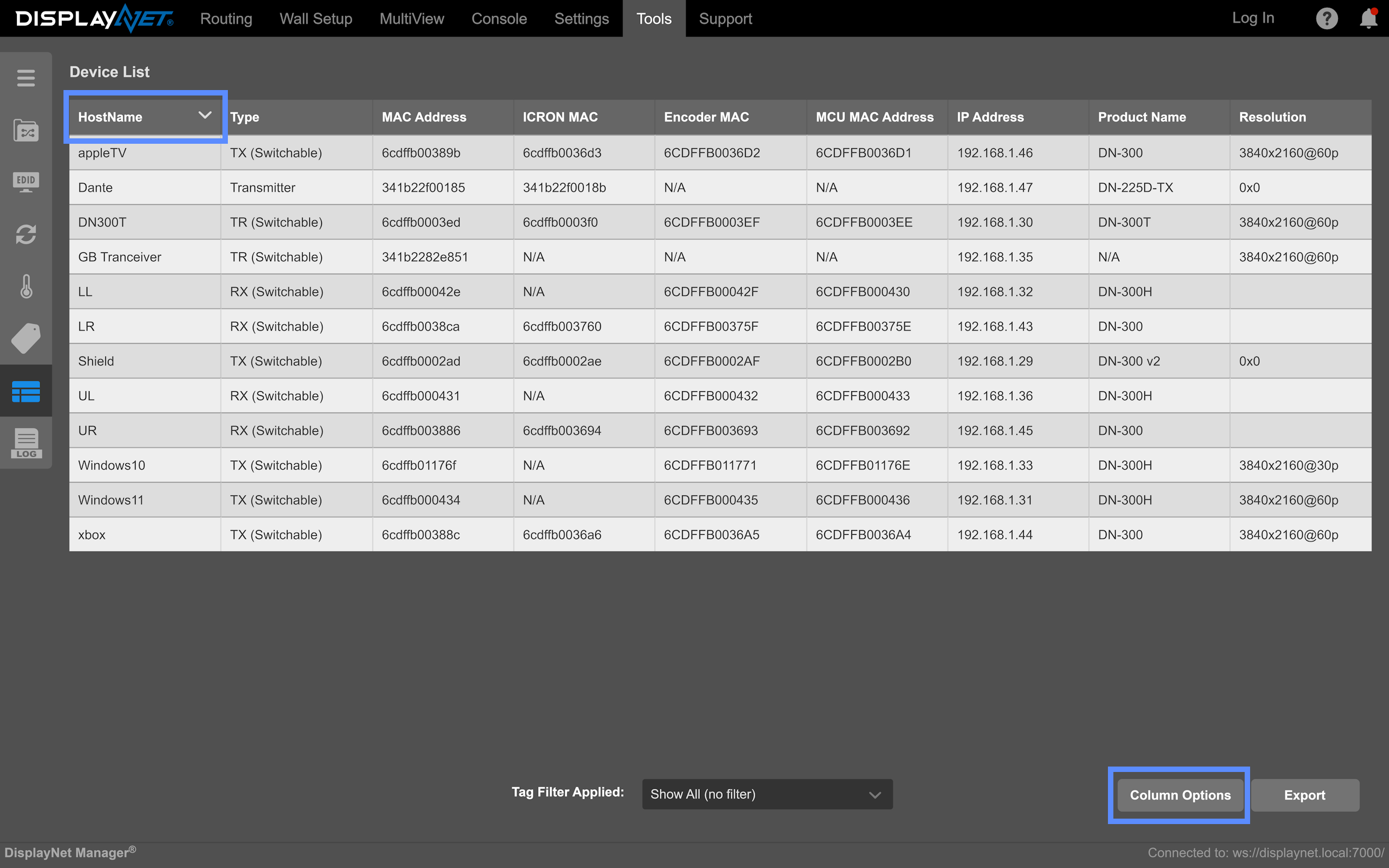
Column Options
The 'Column Options' button brings up the following window and will allow customization of the device list columns. Specifically, it allows the user to add, remove, and reorder columns.
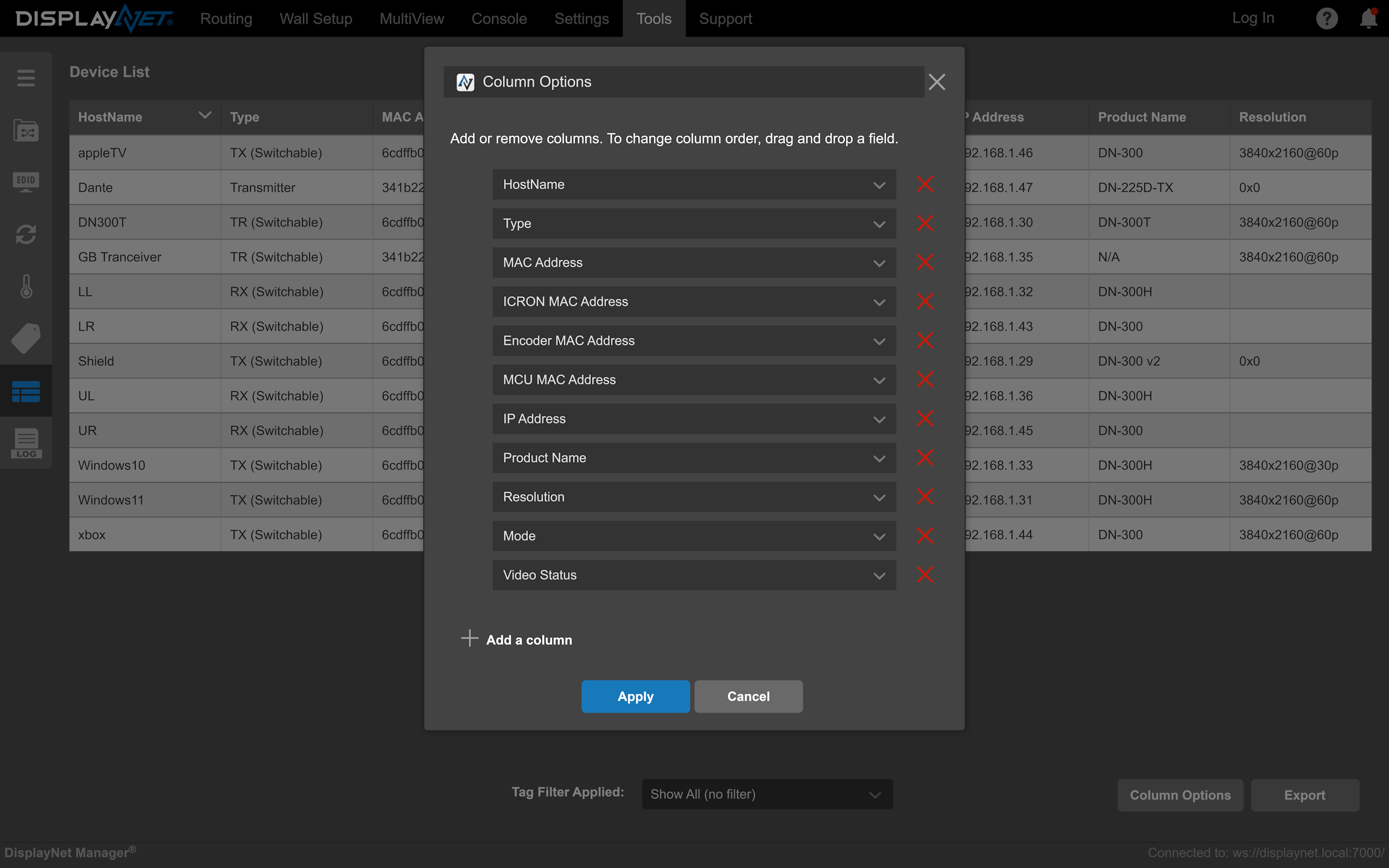
Column Order
Clicking the left side of the column option and dragging will allow you to order the columns appropriately. The topmost column will be the leftmost column in the device list. The bottommost column will be the rightmost column in the device list.
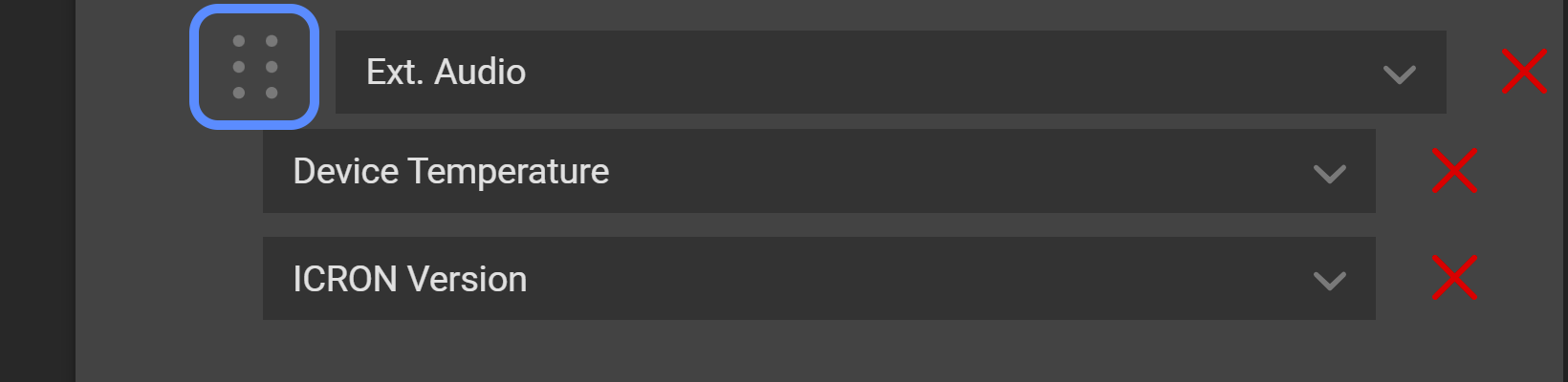
Adjusting Columns
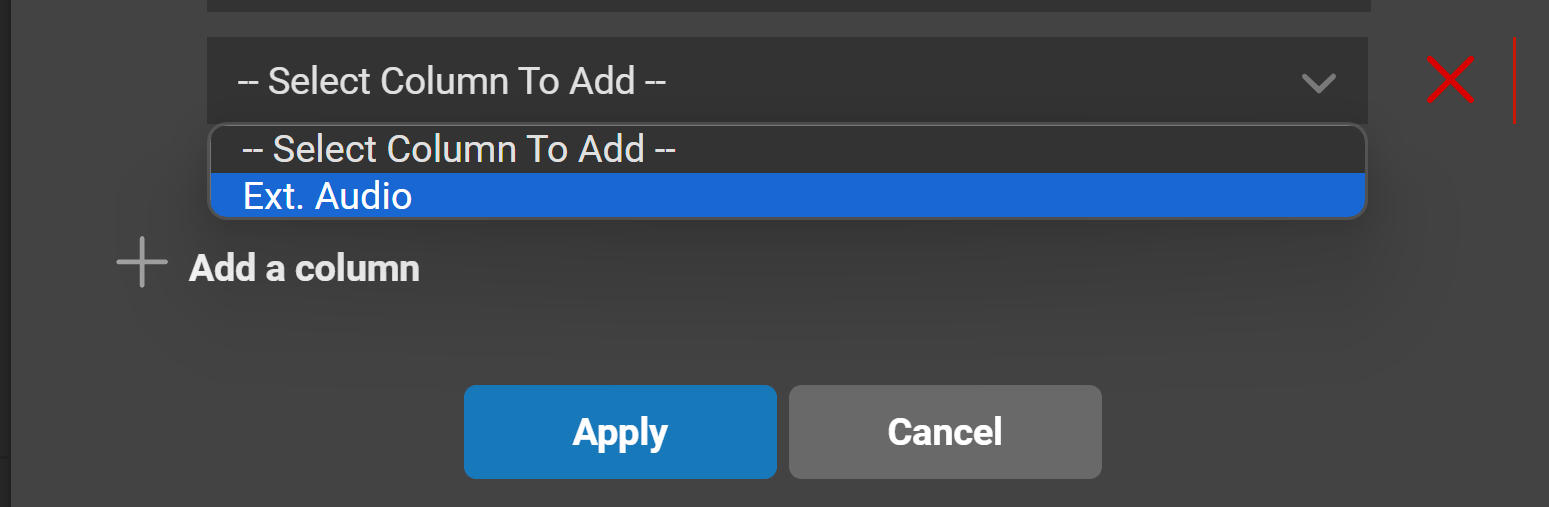
- Adding Clicking the 'Add a column' button will bring up a dropdown menu at the bottom of the window. Here you can see which fields are not currently used and selection of the field to add.
- Removing Clicking the red 'X' will remove the column from the device list.
Clicking "Apply" will apply any changes made to the column options. Clicking "Cancel" will cancel any changes made to the column options.
Exporting Device List Data
It can be useful to save the device list to a file. To do this, click the "Export" button at the bottom right of the window. This will download a copy of the current device list to a *.csv file on the local device running the software. This file can be opened in a typical office spreadsheet editor.
Note that the sorting order in the saved file will not necessarily follow the sorting order selected in the Device List.
The Device List can be useful for record-keeping as well as maintenance. Once the system is installed and configured, it is strongly recommended to export this device list with all columns enabled and retain a copy of this list in a secure location for reference. The device list will contain all the MAC addresses (which double as the device’s serial number), firmware versions, and IP configurations for devices in the system.
If there is a problem with the system requiring technical support, providing a complete current exported device list can be sent to DVIGear customer service to aid in the troubleshooting process.
Filtering Results
On large systems, it can be useful to show only a subset of the many devices on a system using the Device Filtering feature combined with the "Tag Filter Applied" dropdown at the bottom of the Device List.