
Device Replacement
- This feature and page is inaccessible to non-admins.
To navigate to the Device Replacement tab, click on the "Device Replacement" sidebar option in the "Tools Tab" while logged in as an Admin User.
Device Replacement Overview
DisplayNet provides a way to replace device details in the system. This is useful when a device is damaged or needs to be replaced for any reason. Since DisplayNet Server maintains a list of all devices in the system and their status, these settings can be selectively updated to apply to a new device.
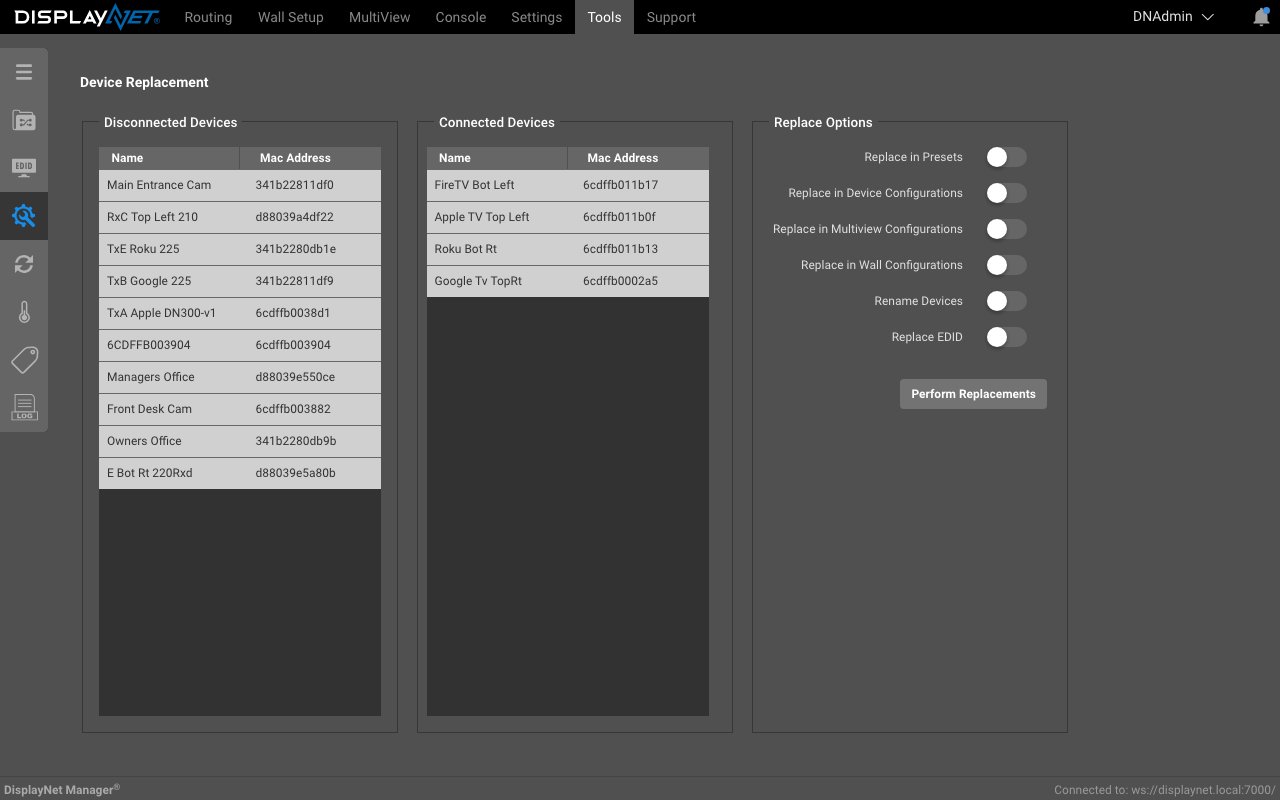
Replacing Device Data
- Select the device to be replaced from the Disconnected Devices column. (The "Connected Devices" column will update to show compatible devices to replace the selected device with.)
- Select the device to replace into with from the "Connected Devices" column.
- Select the type of data to be replaced from the "Replace Options" column.
- Click the "Perform Replacements" button to replace the data.
The information from the chosen disconnected device is now implemented into the selected connected device, completing the replacement process.
Disconnected Devices Column
The "Disconnected Devices" column displays the devices that DisplayNet Server has detected as being disconnected from the server.
Connected Devices Column
The "Connected Devices" column displays the devices that are currently connected to the server that are compatible with the device selected in the "Disconnected Devices" column to be replaced.
Replace Options Column
The "Replace Options" column has the following data that can be replaced:
- Presets
- Device Configurations
- Multiview Configurations
- Wall Configurations
- Renaming Devices
- EDIDs