
EDID Library
EDID Overview
The EDID (Extended Display Identification Data) is a small data file stored in virtually every TV, monitor and display device made within the last twenty years. This file contains information about the display’s capabilities, such as its supported resolutions, refresh rates, color space, type of display, manufacturer, serial number, etc. After connecting a display to a source device, the source reads and saves the EDID in order to determine the most suitable display parameters (e.g. resolution and refresh rate). EDID plays an essential role in the modern "Plug & Play" user experience by allowing for automatic configuration of source feed specifications.
Most DVI computer displays have a 128-byte EDID file structure. With the introduction of HDMI, many newer displays adopted a 256-byte Enhanced EDID file structure, which contains additional information about detailed video timings, supported audio formats, speaker allocation, and other HDMI-specific information.
In applications with only one source and one display, the EDID management process is relatively simple. However, professional AV systems often have multiple sources and multiple displays. This requires advanced EDID Management capabilities that enable integrators to present the correct / optimized EDID information to each source device used in the system. In some cases, it may be necessary to export a display’s EDID to an offline EDID Editor, and then import the modified EDID to the system.
To navigate to the EDID Library tab, click on the "EDID Library" sidebar option in the Tools Tab.
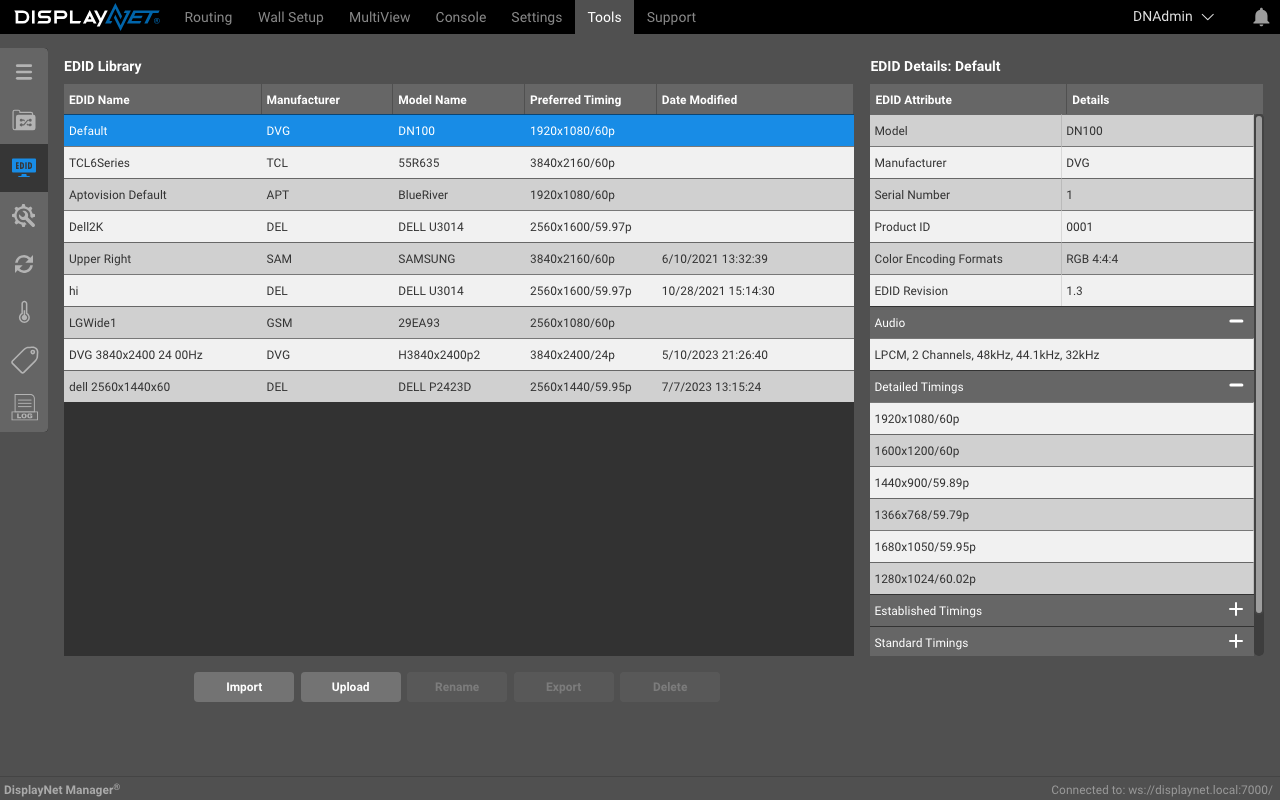
DisplayNet Manager software includes a suite of Advanced EDID Management capabilities accessible from the Tools Tab.
- Access to the EDID Library stored on DisplayNet Server
- Importing EDIDs into the EDID Library from Destination or Source Devices
- Importing EDIDs into the EDID Library from a file
- Exporting EDIDs from the EDID Library to a file
- Uploading EDIDs from the library to Transmitter Devices
- Deleting EDIDs from the EDID Library
A DisplayNet Source device is connected to a PC providing a 4K signal, and the intended DisplayNet Destination device is connected to a monitor that only supports up to 1920x1200 resolution. The monitor will not be able to display the signal because the resolution is too high. In order to avoid this problem, the EDID from the 1920x1200 display is uploaded to the DisplayNet transmitter connected to the PC. When the new EDID is uploaded to the DisplayNet transmitter, the transmitter triggers a hot plug detect event. This causes the PC to read the new EDID, and the PC then only allows resolutions compatible with the monitor to be made available. By default, if it is capable of producing the preferred timing specified in the EDID file, the PC outputs video at the preferred timing of the EDID. If not, another secondary resolution specified in the EDID may be used.
If there is a mismatch between Source and Destination, the EDID of the device with the lowest maximum resolution should be applied.
EDID Library
DisplayNet Server software includes a library of EDID files stored on DisplayNet Server. This library comes preloaded with the Default EDID as well as a set of other useful EDID values. These preloaded EDIDs are permanent cannot be deleted or renamed.
| Preset EDID Names |
|---|
| Default EDID - Preferred Timing: 1920x1080 /60p (with 2-channel LPCM audio) |
| DVG_640x480_59_95Hz_H640x480p59.bin |
| DVG_640x480_60_00Hz_D640x480p60.bin |
| DVG_720x480_59_94Hz_H720x480p59.bin |
| DVG_720x576_50_00Hz_H720x576p50.bin |
| DVG_800x600_60_32Hz_D800x600p60.bin |
| DVG_848x480_60_00Hz_D848x480p60.bin |
| DVG_1024x768_60_00Hz_D1024x768p60.bin |
| DVG_1024x768_60_00Hz_H1024x768p60.bin |
| DVG_1024x2400_60_01Hz_D1024x2400_60.bin |
| DVG_1280x720_50_00Hz_H1280x720p50.bin |
| DVG_1280x720_60_00Hz_H720p60_3D.bin |
| DVG_1280x720_60_00Hz_H1280x720p60.bin |
| DVG_1280x768_50_00Hz_D1280x768p50.bin |
| DVG_1280x768_59_94Hz_D1280x768p60.bin |
| DVG_1280x768_75_00Hz_D1280x768p75.bin |
| DVG_1280x1024_50_00Hz_D1280x1024p50.bin |
| DVG_1280x1024_50_00Hz_H1280x1024p50.bin |
| DVG_1280x1024_60_02Hz_D1280x1024p60.bin |
| DVG_1280x1024_60_02Hz_H1280x1024p60.bin |
| DVG_1280x1024_75_02Hz_D1280x1024p75.bin |
| DVG_1280x1024_75_02Hz_H1280x1024p75.bin |
| DVG_1360x768_60_02Hz_D1360x768p60.bin |
| DVG_1400x1050_50_00Hz_D1400x1050p50.bin |
| DVG_1400x1050_60_00Hz_D1400x1050p60.bin |
| DVG_1400x1050_75_00Hz_D1400x1050p75.bin |
| DVG_1440x240_60_05Hz_H1440x480i59.bin |
| DVG_1440x288_50_08Hz_H1440x576i50.bin |
| DVG_1600x1200_50_00Hz_D1600x1200p50.bin |
| DVG_1600x1200_50_00Hz_H1600x1200p50.bin |
| DVG_1600x1200_60_00Hz_D1600x1200p60.bin |
| DVG_1600x1200_60_00Hz_H1600x1200p60.bin |
| DVG_1680x1050_60_00Hz_D1680x1050p60.bin |
| DVG_1920x540_50_00Hz_H1920x1080i50.bin |
| DVG_1920x540_50_04Hz_H1920x1080i50.bin |
| DVG_1920x540_60_00Hz_H1920x1080i59.bin |
| DVG_1920x540_60_05Hz_H1920x1080i60.bin |
| DVG_1920x1080_24_00Hz_H1920x1080p24.bin |
| DVG_1920x1080_25_00Hz_H1920x1080p25.bin |
| DVG_1920x1080_30_00Hz_H1920x1080p30.bin |
| DVG_1920x1080_50_00Hz_D1920x1080p50.bin |
| DVG_1920x1080_50_00Hz_H1920x1080p50.bin |
| DVG_1920x1080_59_94Hz_H1920x1080p59.bin |
| DVG_1920x1080_60_00Hz_D1920x1080p60.bin |
| DVG_1920x1080_60_00Hz_H1080p60_3D.bin |
| DVG_1920x1080_60_00Hz_H1920x1080p60.bin |
| DVG_1920x1080_60_00Hz_Univ_DVI.bin |
| DVG_1920x1080_60_00Hz_Univ_HDMI_ALL.bin |
| DVG_1920x1080_60_00Hz_Univ_HDMI_DC.bin |
| DVG_1920x1080_60_00Hz_Univ_HDMI_PCM.bin |
| DVG_1920x1200_50_00Hz_D1920x1200p50.bin |
| DVG_1920x1200_59_56Hz_D1920x1200p60.bin |
| DVG_1920x1200_59_56Hz_H1920x1200p60.bin |
| DVG_2048x1080_50_00Hz_D2048x1080p50.bin |
| DVG_2048x1080_60_00Hz_D2048x1080p60.bin |
| DVG_2560x1440_59_95Hz_H2560x1440p60.bin |
| DVG_2560x1600_59_86Hz_H2560x1600p60.bin |
| DVG_3840x2160_24_00Hz_H3840x2160p24.bin |
| DVG_3840x2160_25_00Hz_H3840x2160p25.bin |
| DVG_3840x2160_30_00Hz_H3840x2160p30.bin |
| DVG_3840x2160_30_00Hz_Univ_4k_ALL.bin |
| DVG_3840x2160_30_00Hz_Univ_4k_PCM.bin |
| DVG_3840x2400_24_00Hz_H3840x2400p24.bin |
Any number of other EDIDs may also be loaded into this library. These can be imported from source devices, destination devices, or EDID files. When an EDID is imported into the EDID Library, it is stored on DisplayNet Server. Once in the library, an EDID can be uploaded to one or all transmitters on the network, exported to a file, or it can be deleted from the library.
Default EDID
A default EDID is preloaded onto every DisplayNet device. The same EDID value is also permanently available in DisplayNet Server's EDID library as the default EDID. The preferred timing of this EDID is 1920x1080 /60p (with 2-channel LPCM audio).
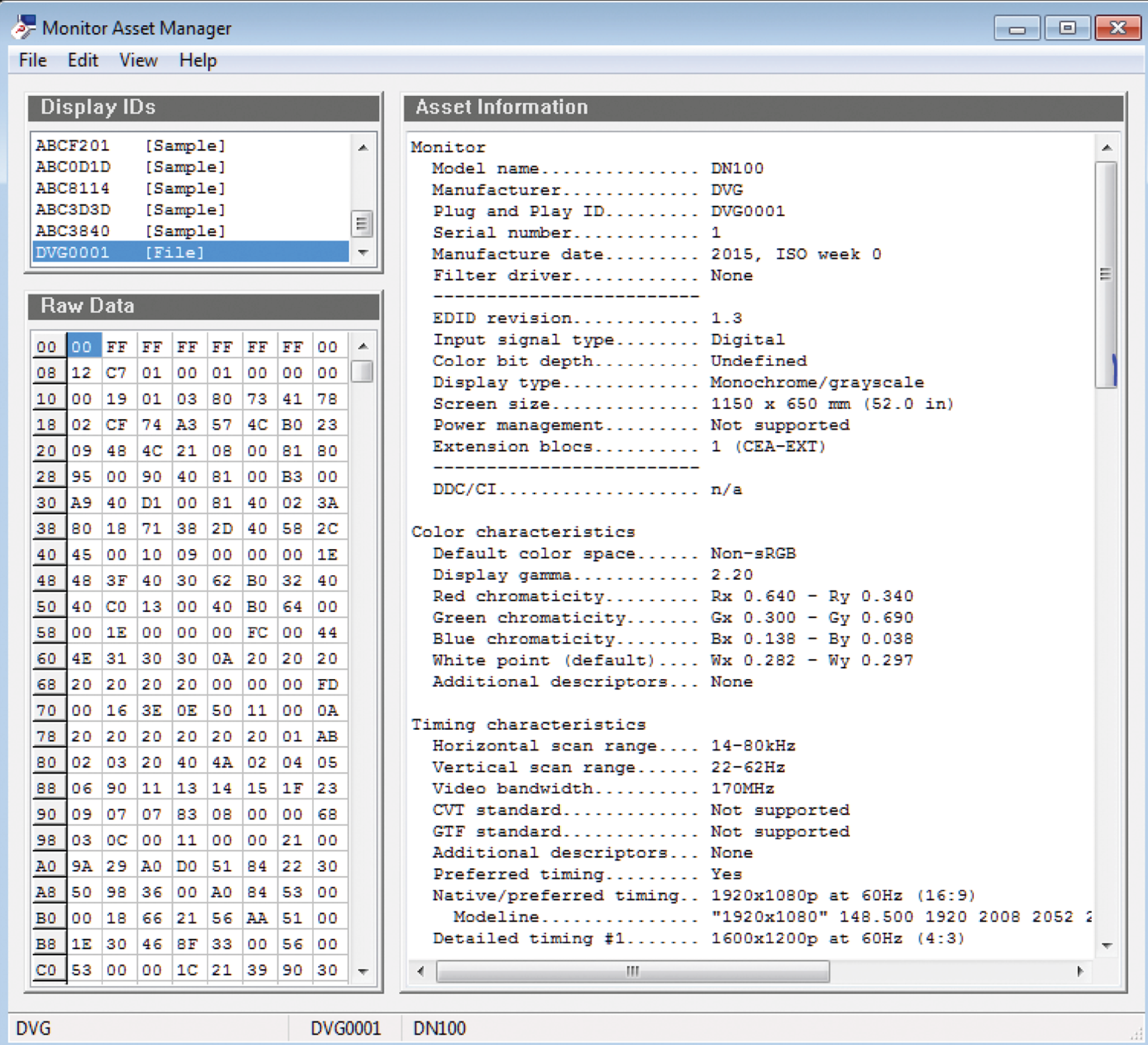
To view all the details of this default EDID, export the default EDID and examine it with EDID editor software.
Import
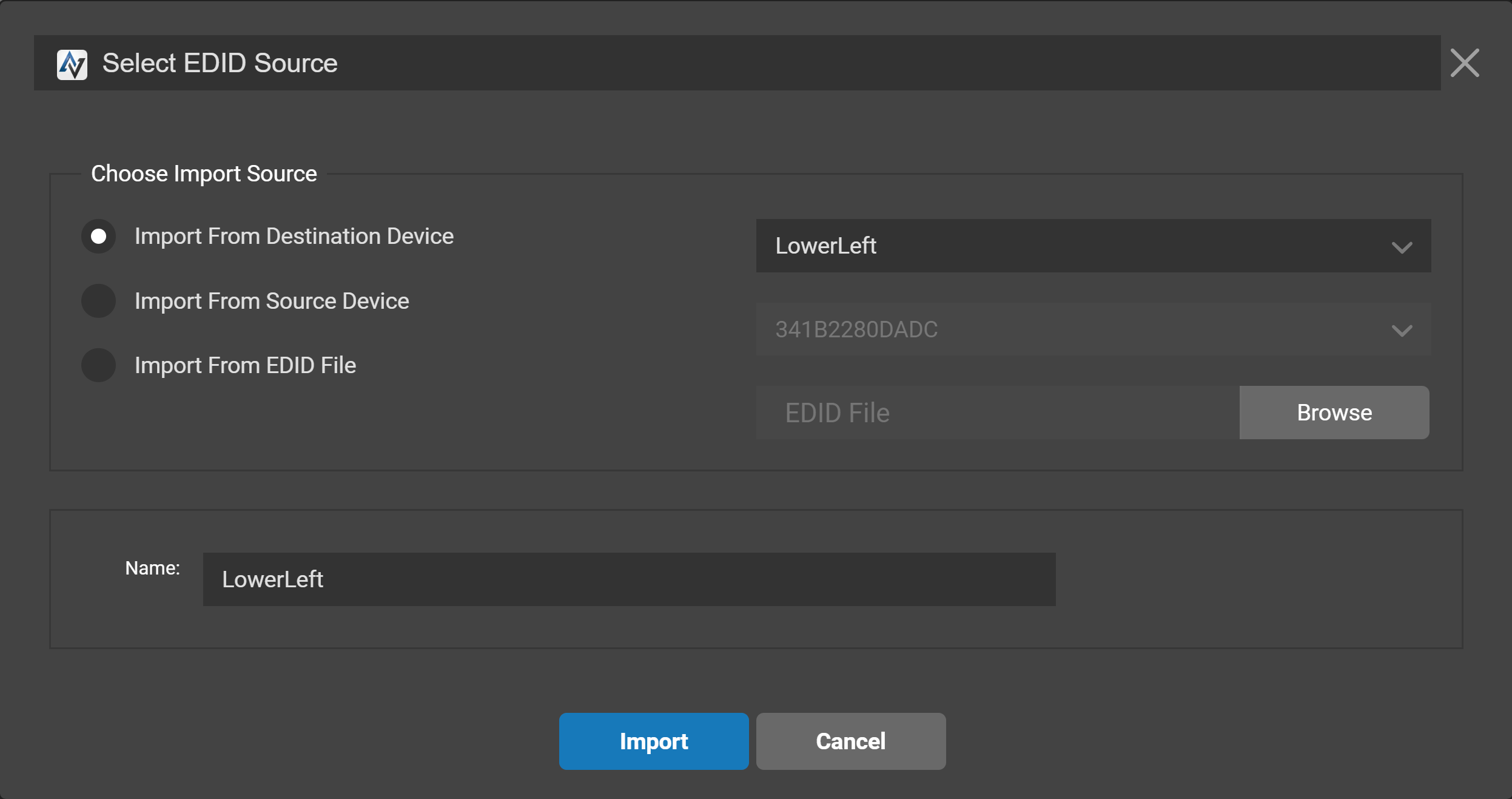
To import an EDID into the library, click the "Import" button. This will open the Import EDID window. From here, an EDID can be imported from a DisplayNet Destination device, a DisplayNet Source device, or a locally stored EDID file. Once a file has been imported into the EDID Library, it is stored on DisplayNet Server. Stored EDIDs can be uploaded to one or all transmitters on the network.

Once an EDID is imported into the library, it is stored on DisplayNet Server and can be used to configure any DisplayNet Source transmitter by opening the device settings rollup for the transmitter and selecting the EDID panel in the Video Tab. It can also be uploaded via the upload button.
Import from Destination or Source Device
To import from a DisplayNet Device, click the radio button for the type of device, then click the drop-down menu and select the device that will provide the EDID. Transmitters will provide their currently stored EDID value. Receivers will provide the EDID of the connected display. Once the appropriate options are selected, enter a name for the EDID and then click the "Import" button to save the EDID to the EDID library.
Import from EDID File
To import an EDID from a locally stored EDID file, click the "Import from EDID File" radio button and then click "Browse". Locate and select the EDID file to import and click "Open". DisplayNet Server and DisplayNet devices accept *.bin, *.dat, *.edid, or *.hex EDID file formats. To save the EDID to the EDID library, enter a name for the EDID and then click the "Import" button.
Upload
To upload an EDID from the library to a DisplayNet Source device, select the EDID from the library panel and click the "Upload" button.

This will open the Upload EDID to DisplayNet Source window. Select the desired DisplayNet transmitter from the drop-down menu and then click the "Upload" button.
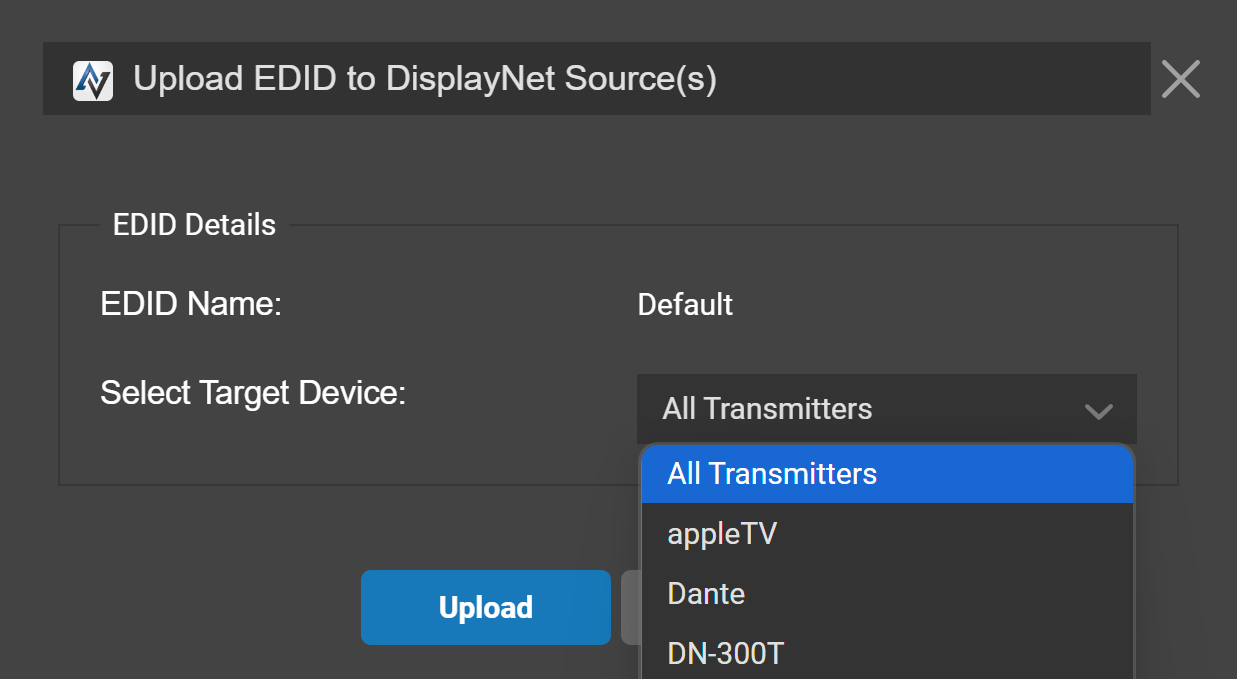
The selected EDID will be sent to the selected DisplayNet device. It is also possible to send the EDID to all connected DisplayNet Sources using the "All Transmitters" selection.
Note that the HDMI signal coming from a transmitter will temporarily stop when a new EDID is applied, as an HDMI hot-plug detection event is triggered and the new EDID is sent to the source device.
Rename
To rename an EDID from the library, click the "Rename" button.

This will open the Rename EDID window.
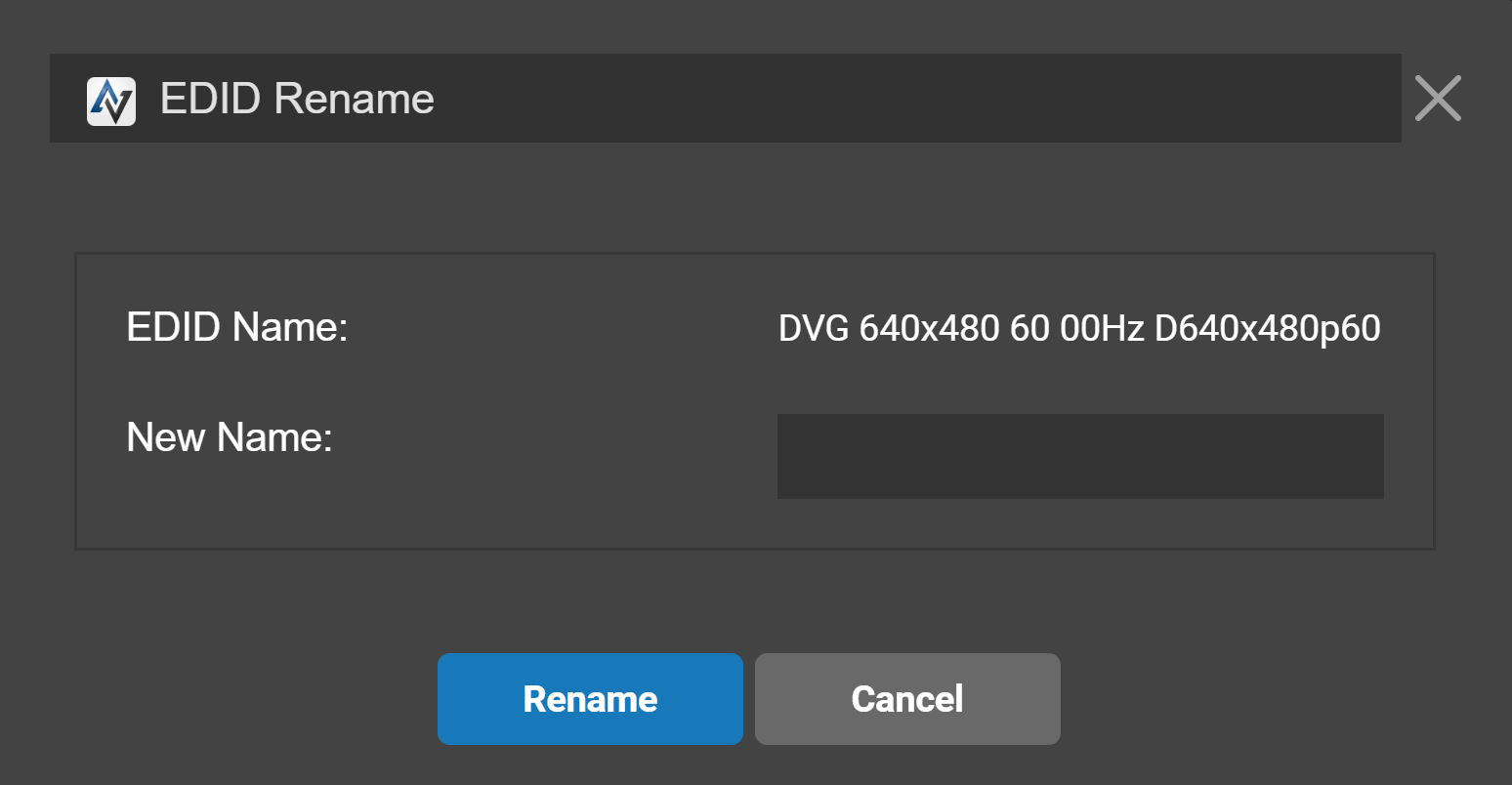
This allows the user to change the name of the EDID in the library by entering a new name and clicking the "Rename" button.
Export
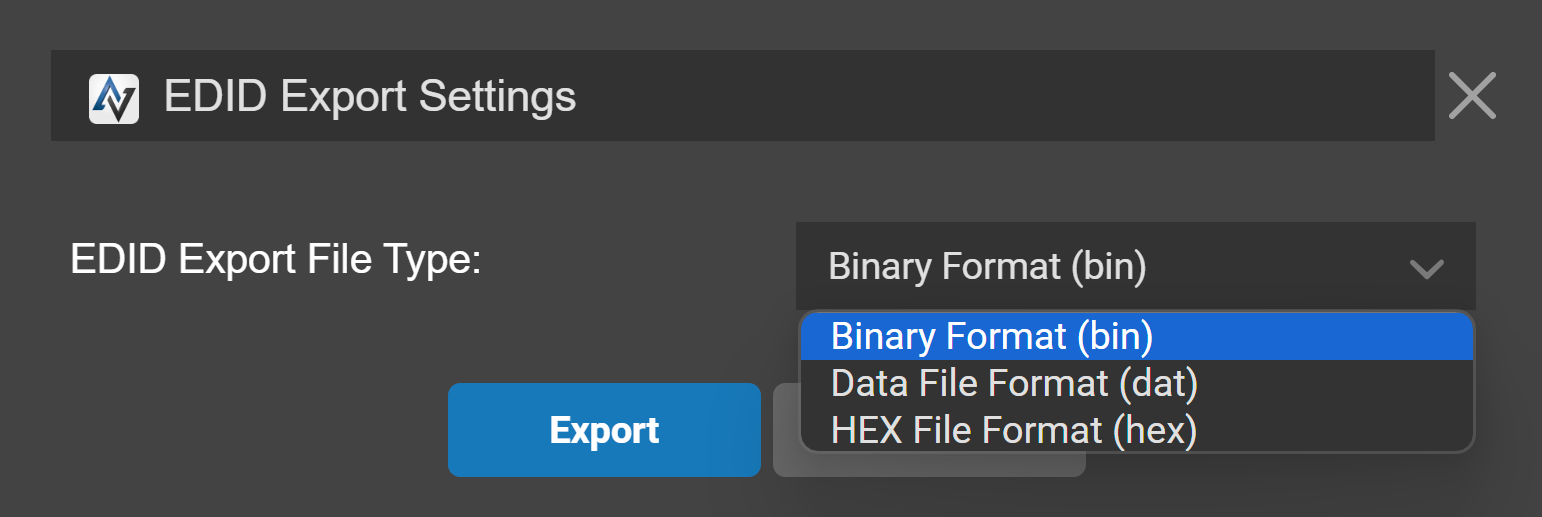
To export an EDID from the library to a file on the device accessing DisplayNet Manager, select the desired EDID from the library and then click the "Export" button. When you save from the browser, the EDID file will be downloaded from DisplayNet Server and saved to your chosen location on the device, usually in the "Downloads" folder.

After selecting the "Export" button, the "EDID Export Settings" window will open. Using the "EDID Export File Type" drop-down, you can select the file format used when exporting EDIDs. DisplayNet Manager can export EDIDs in any of three (3) different file formats: *.bin, *.dat, or *.hex.
Delete
To delete an EDID from the library, select the EDID and click the "Delete" button.

Confirm the request and the EDID will be deleted from the library.
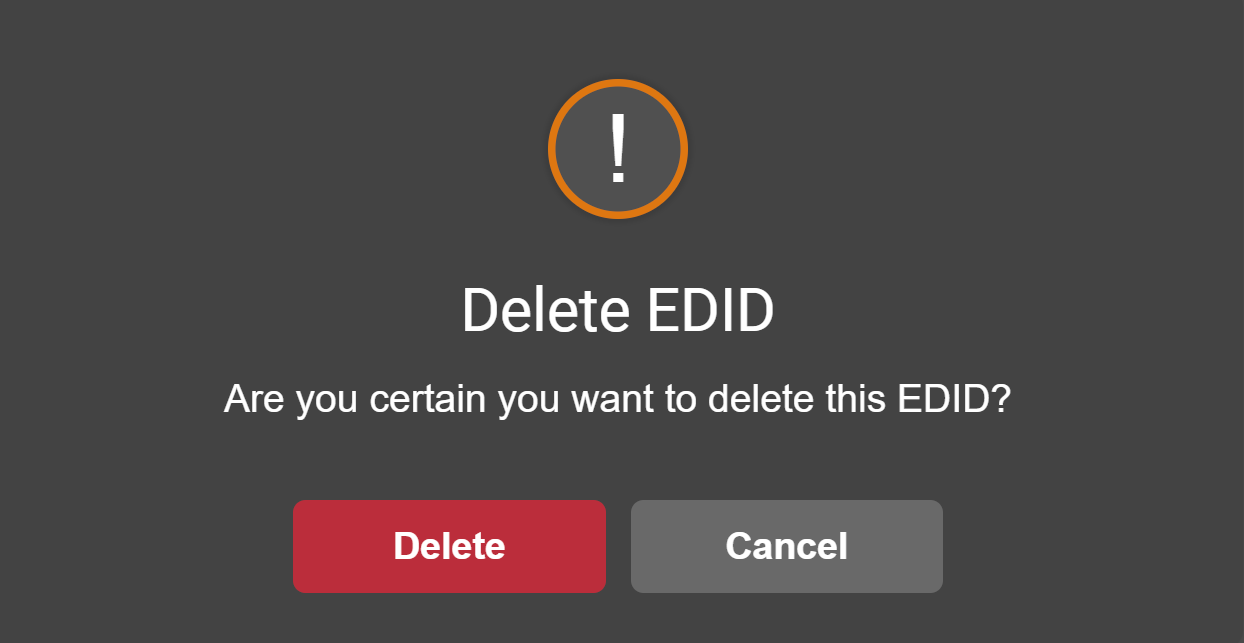
The preloaded EDIDs contained in the library are permanent, and cannot be deleted or renamed.