
Firmware Update
Depending on the model, DisplayNet devices can have multiple chipsets, all having their own set of firmware versions and corresponding updates.
To navigate to the Firmware Update panel, click on the "Firmware Update" sidebar option in the Tools Tab.
Types of Firmware Updates
- Device
- MCU
- Encoder
Firmware Version
To see a device's firmware version, a user can open the Device Settings Rollup by clicking on the device's row in the firmware update tab (or other places like the Routing Tab). The firmware version will be displayed in the right-hand side of the "General Tab" in the 'Device Attributes' column.
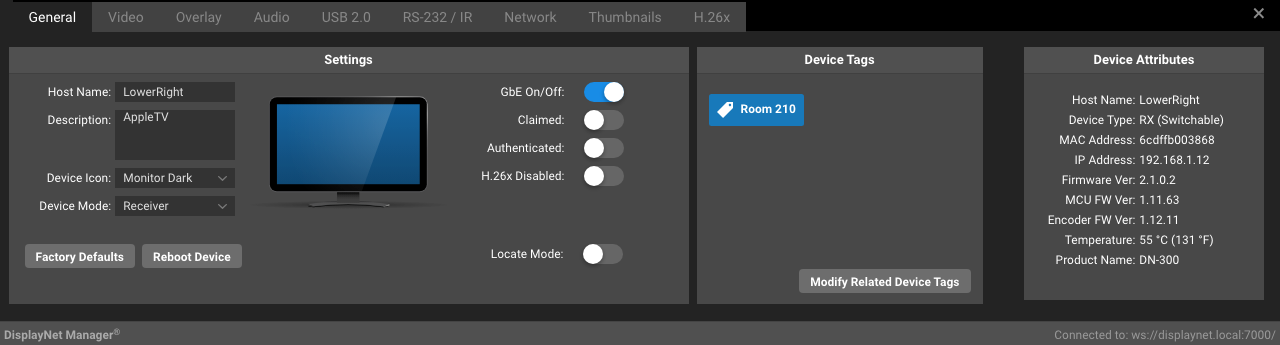
Additionally, a user can also view device firmware version information via the Device List as long as the appropriate column is enabled in the Device List's Column Options.
If the current device doesn't have the corresponding chipset, the firmware version will not be displayed for that chipset. For example, if a device doesn't have an MCU, the MCU firmware version will not be displayed in the Device Settings Rollup or the Device List.
APZ firmware files
APZ firmware files are used to update the firmware on the DisplayNet devices. APZ files contain the firmware for all the chipsets in a given device.
Typically, you'll want to select the latest APZ file for the device you're updating. However, if you need to update a specific chipset, you can select the APZ file for that chipset.
To update the firmware on a device, you'll need to select the APZ file for the Device/MCU/Encoder Firmware Update selector. The rows of devices on your system will then be updated with information about whether it's compatible with the selected APZ file and what firmware version it's currently running. You can now apply it to one or more of the compatible devices by clicking the row associated with the device and hitting the 'Update Selected Devices' button. At this point, the firmware update process will begin and the progress of the update will be displayed in the progress screen as seen below.
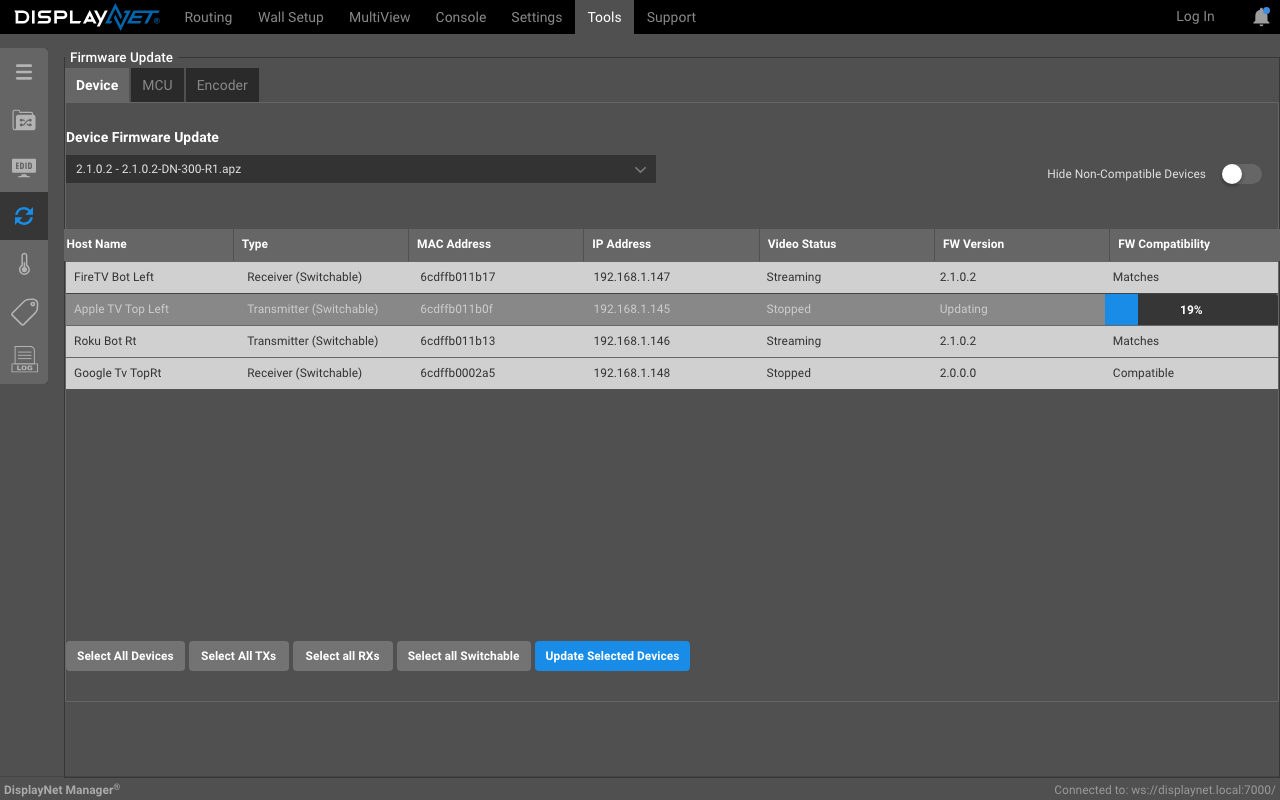
When the update is complete, the device will reboot and the new firmware will be loaded.
FW Compatibility
This field indicates whether a device is compatible with the selected APZ file and is also used to display status during the firmware update process. Devices which are shown to be 'Not Compatible' will not be selectable as a target for the firmware update.
- Devices which are not compatible with the selected APZ file, will contain the text 'Not Compatible'.
- Devices which are compatible with the selected APZ file, will contain the text 'Compatible'.
- Devices which have the same firmware version as the selected APZ file, will contain the text 'Matches'.
Device Firmware Update
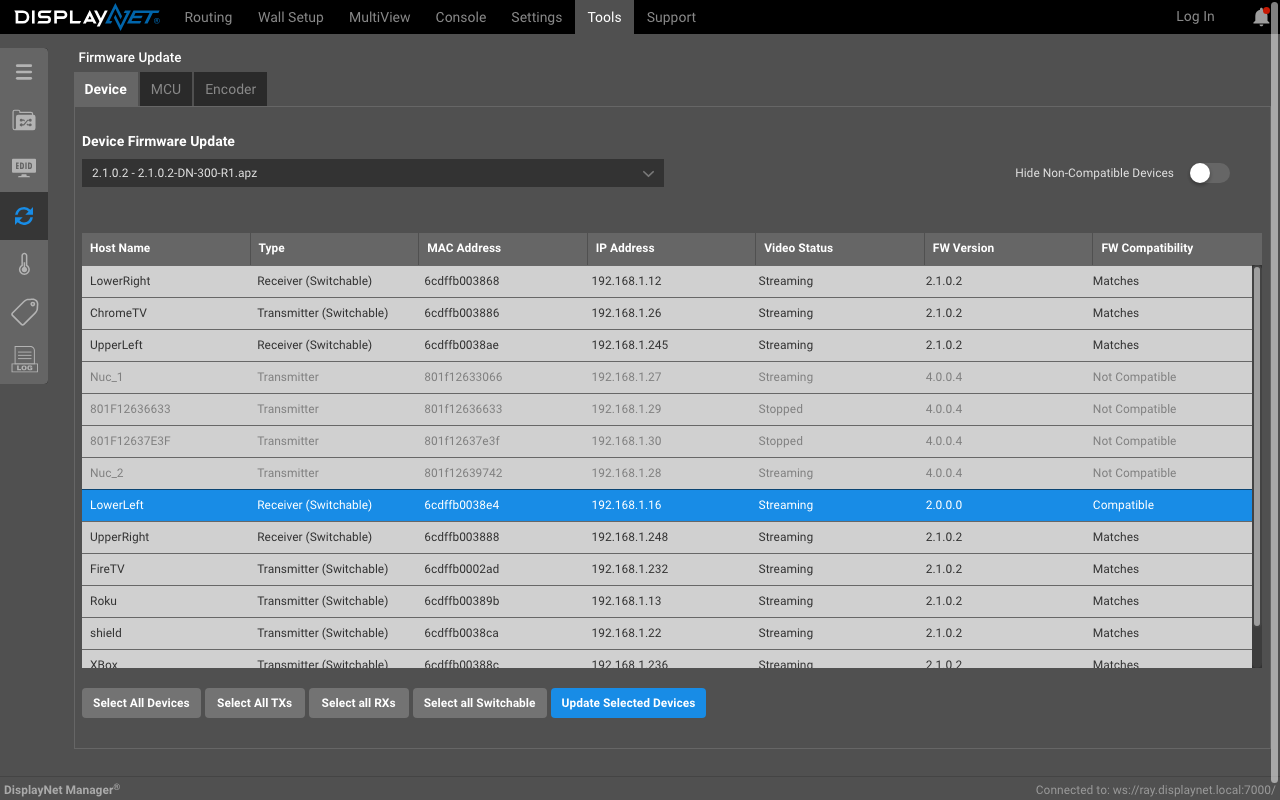
Steps to update device firmware
- Navigate to the correct location
Select the Device tab on the top of the Firmware Update tab which is in under the main Tools menu. - Select the Firmware file
Choose the APZ file from the dropdown menu for the device firmware update you wish to apply.
The compatible devices will be displayed in the table below. - Device Selection
Clicking on a row will alternate its state between selected and unselected. Alternatively, you can also click the buttons on the bottom left to select the devices by type. - Update The Firmware
Once you have chosen the rows corresponding to the devices you wish to update, use the 'Update Selected Devices' button to apply updates to the chosen device(s).
The progress of the update will be displayed in the progress screen as seen below.
When the update is complete, the device will reboot and the new firmware will be loaded.
Hiding incompatible devices
On large systems, it may be useful to filter the devices that are displayed in the firmware update tab. This can be done by toggling the 'Hide Non-Compatible Devices' buttons at the top right of the Device Firmware Update tab. When this is active, only devices which are compatible with the selected APZ file will be displayed.

MCU Firmware Update
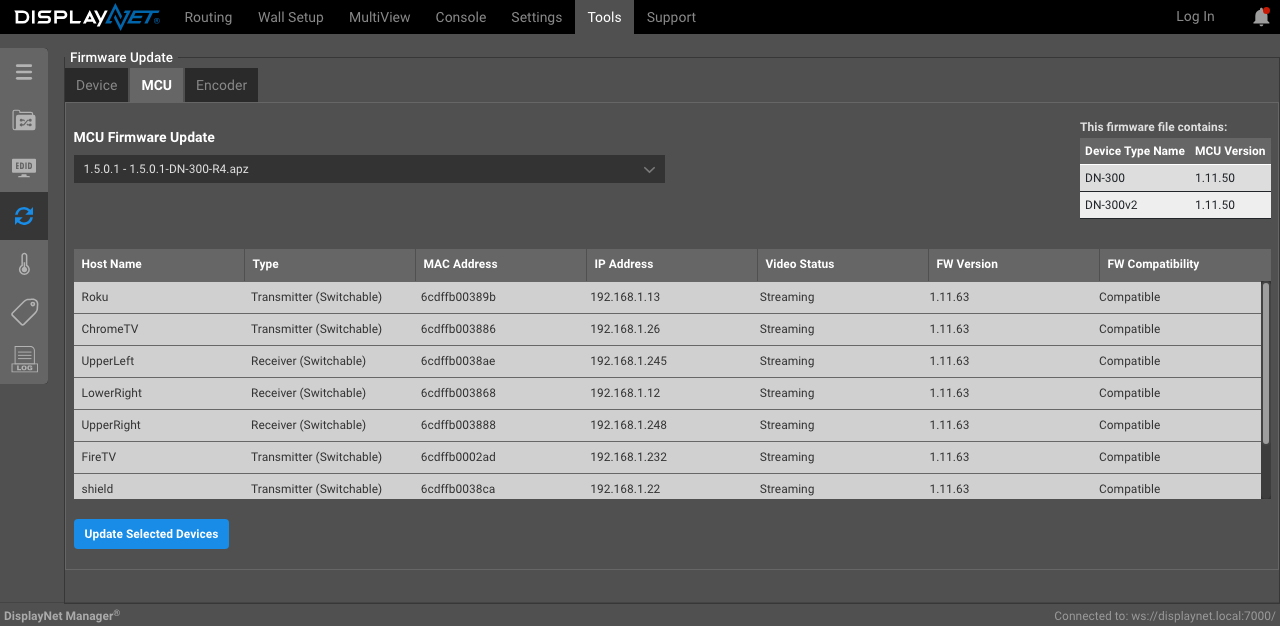
Encoder Firmware Update
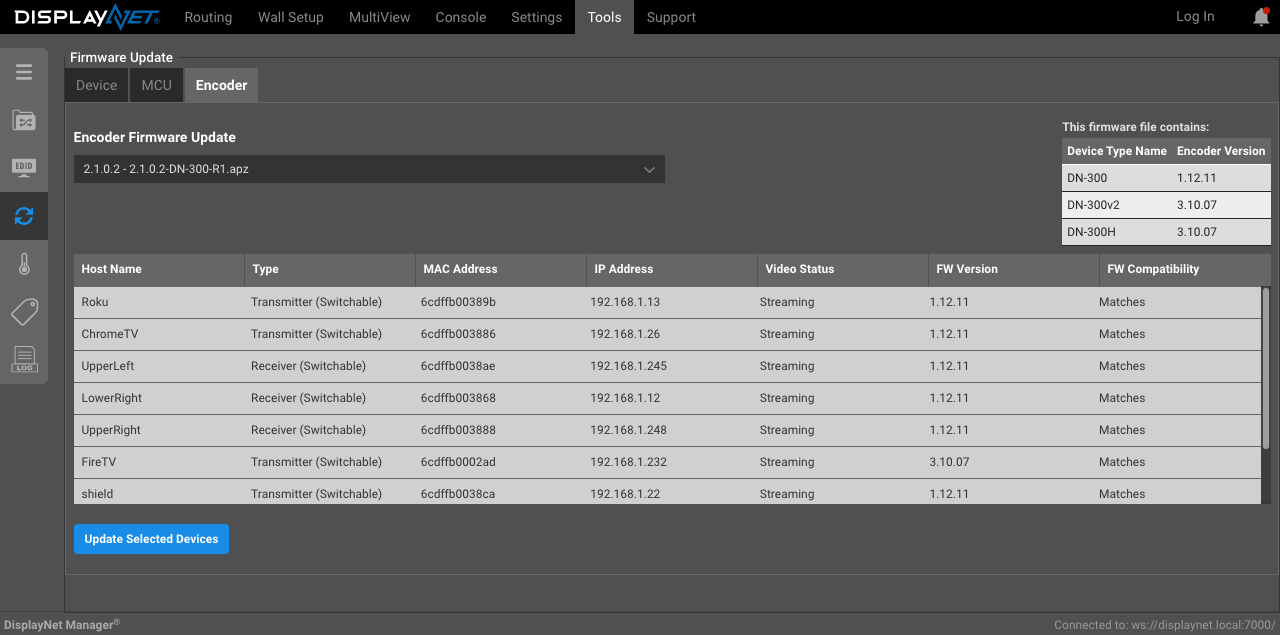
The steps between updating MCU and Encoder firmware are essentially the same.
Steps to update MCU (or Encoder) firmware
- Select the MCU (or Encoder) Tab within the Firmware Update Tab.
- Select the APZ file for the MCU (or Encoder) firmware update you wish to apply.
- The compatible devices will be displayed in the table below. Also, the firmware contained in the APZ file will be displayed in the 'this firmware file contains' section with the device type name next to the version contained within.
- Clicking on a row will alternate its state between selected and unselected. Once you have selected the rows corresponding to the devices you wish to update, use the 'Update Selected Devices' button to apply updates to the chosen device(s).
- The progress of the update will be displayed in the progress screen as seen above.
- When the update is complete, the device or applicable chipset will reboot and the new firmware will be loaded.
Note: The updating of MCU firmware is sequential. This means if more than one MCU is being updated, the updates will be applied one at a time.