
Preset Snapshots
Preset Snapshots are a feature of DisplayNet Server that allows users to save and load system configurations. When a snapshot is created, all of the DisplayNet API commands that would be used to produce the current state of the system are saved. The Snapshot is then added to the preset library stored on DisplayNet Server. Snapshots can then be loaded to restore the system to the previously saved configuration.
Essentially, a "Preset Snapshot" is a snapshot of the current configurations of all DisplayNet devices in the system at the time the snapshot is saved. This can be useful for quickly integrating DisplayNet into existing control system workflows. Using DisplayNet Server, the system can be configured as desired, a snapshot can be created, and then the API commands for that configuration can be loaded into a third-party control system.
Because a "Preset Snapshot" is a "snapshot" of the current system configuration, only wall configurations that are currently active will be saved with a preset. The saved wall configurations will be stored separately on DisplayNet Server.
Preset Snapshots are managed in the Preset Library.
The Snapshot Viewer
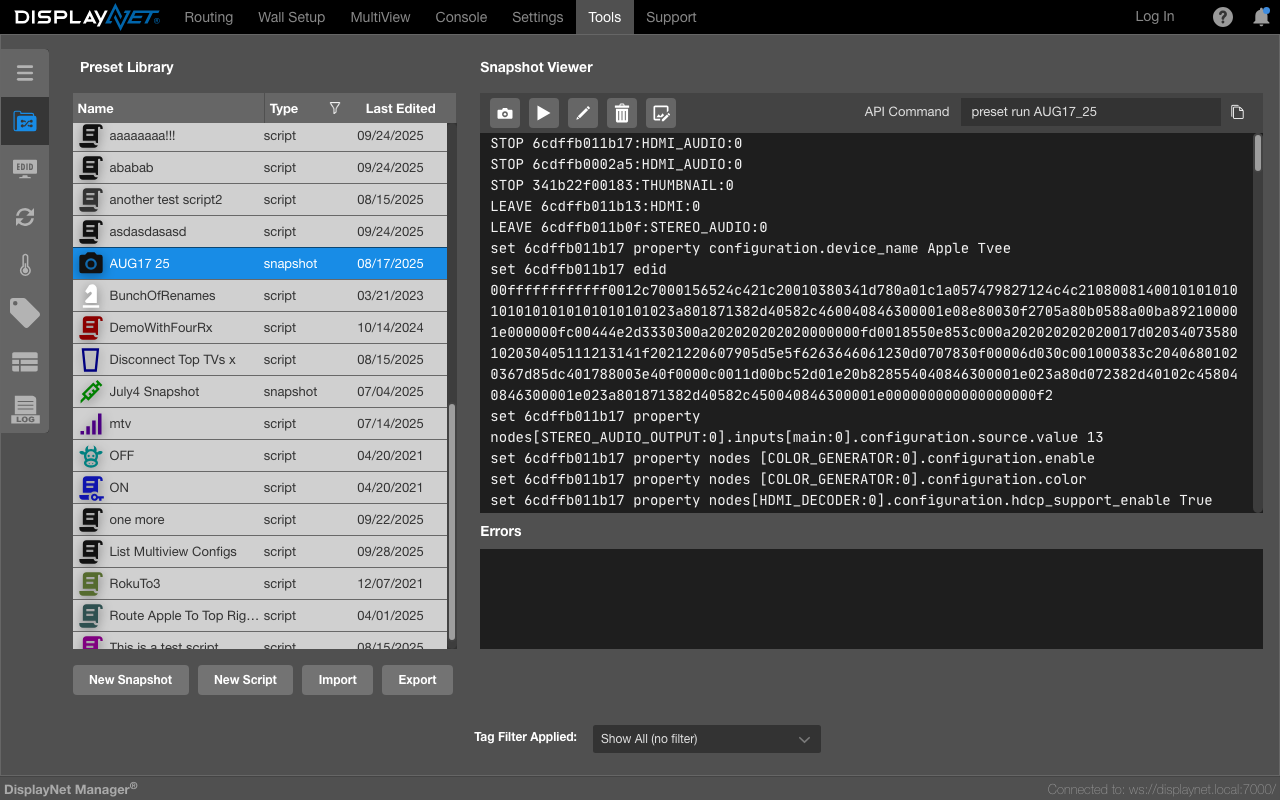
The Snapshot Viewer button bar

Left to right, the items are:
- Update Selected Snapshot - Updates the selected snapshot with the current system configuration.
- Run/Load Selected Snapshot - Loads the selected snapshot and sends the DisplayNet API commands to DisplayNet Server to restore the system to the saved configuration.
- Rename Snapshot - Renames the selected snapshot.
- Delete Snapshot - Deletes the selected snapshot from the Preset Library on DisplayNet Server.
- Change Snapshot Icon - Opens the icon customization modal to select a custom icon and color for the snapshot. See Icon Customization for details.
- API Command - This displays the DisplayNet API command that will be executed when the snapshot is run.
- Copy API Command Icon - Copies the API command to the clipboard which can be run in the DisplayNet Console to run this snapshot.
Creating a Snapshot
- Open the Preset Library.
- Click the "New Snapshot" button to create a new script.
- Enter a name for the snapshot and click "OK". This snapshot will now be saved in the Preset Library on DisplayNet Server.
Let's review the items in the button bar at the top of the Snapshot Viewer window.
Updating a Snapshot
- Open the Preset Library.
- Select the desired snapshot from the Preset Library.
- Click the "Update Selected Snapshot" button. This will update the snapshot with the current system configuration and send the DisplayNet API commands to DisplayNet Server to update the snapshot.
- The snapshot will now be updated with the current system configuration.
Running / Loading a Snapshot
- Open the Preset Library.
- Select the desired snapshot from the Preset Library.
- Click the "Load" button. This will load the snapshot and send the DisplayNet API commands to DisplayNet Server to restore the system to the saved configuration.
- The system will now be restored to the configuration saved in the snapshot.
Renaming a Snapshot
- Open the Preset Library.
- Select the desired snapshot from the Preset Library.
- Click the "Rename Snapshot" button. This will open the Rename Snapshot window.
- Enter the new name for the snapshot and click "OK". This will rename the snapshot in the Preset Library on DisplayNet Server.
- The snapshot will now be renamed.
Deleting a Snapshot
- Open the Preset Library.
- Select the desired snapshot from the Preset Library.
- Click the "Delete Snapshot" button. This will delete the snapshot from the Preset Library on DisplayNet Server.
- The snapshot will now be deleted.
- Note that this action cannot be undone.
DisplayNet will be used to distribute video throughout the corporate headquarters of a pharmaceutical engineering company. Each room must allow for different video routing configurations depending on the day-to-day needs of the employees. The rooms are centrally managed with a third-party controller and controlled with user-friendly touch panels. The programming staff is very familiar with the controller product to be used, but this is their first project using DisplayNet. Rather than spending valuable time and resources learning the DisplayNet API and manually writing a script for each configuration, the AV integration team decides to leverage DisplayNet Manager’s Preset Snapshot functionality. The team configures the system in DisplayNet Manager to match individual use-cases, and saves each configuration as a Preset Snapshot. Once the snapshots are saved, they generate the script of DisplayNet API commands from each snapshot and copy each snapshot's script into the control system. By doing this, the team is able to integrate DisplayNet into their existing workflow with minimal time and effort.