
Tagging
The Tagging tab is located within the Tools tab and is dedicated to overseeing the management of tags and tag groups.
Tagging serves as a system designed to categorize and group items within larger systems. By assigning tags to multiple devices or presets, it facilitates efficient organization and filtering capabilities. Moreover, these tags can be further organized into Tag Groups, providing a streamlined approach to managing a substantial array of items.
In this context, the term "devices" encompasses devices, walls, and MultiView Configurations collectively.
There are four views within the Tagging tab: Tags, Devices, Presets, and Tag Groups, which are described in detail below.
To navigate to the Tagging tab, click on the "Tagging" sidebar option in the Tools Tab.
Tags
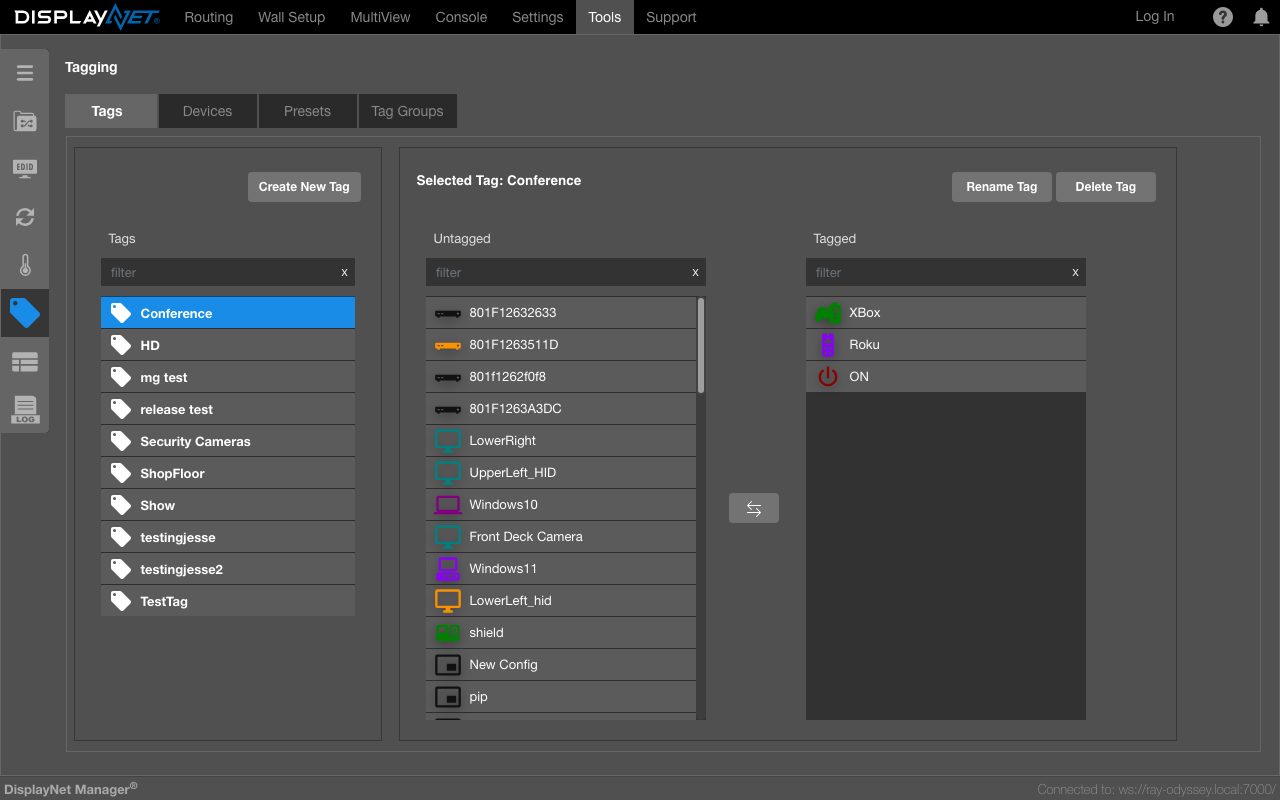
The Tags view is a tag-centric view used to create and manage the tags themselves. Within this view, you can create a new tag by selecting the "Create New Tag" button and assigning it a unique name. Once created, these tags become available to be assigned to devices and presets in their respective views. You can also rename or delete existing tags from this section.
Devices
The Devices view provides a device-centric interface for managing which tags are applied to which devices. Here, you can select a device from a list to view, assign, or remove its associated tags. This process involves selecting one or multiple tags from an adjacent column and using arrow buttons to associate or disassociate them with the selected device.
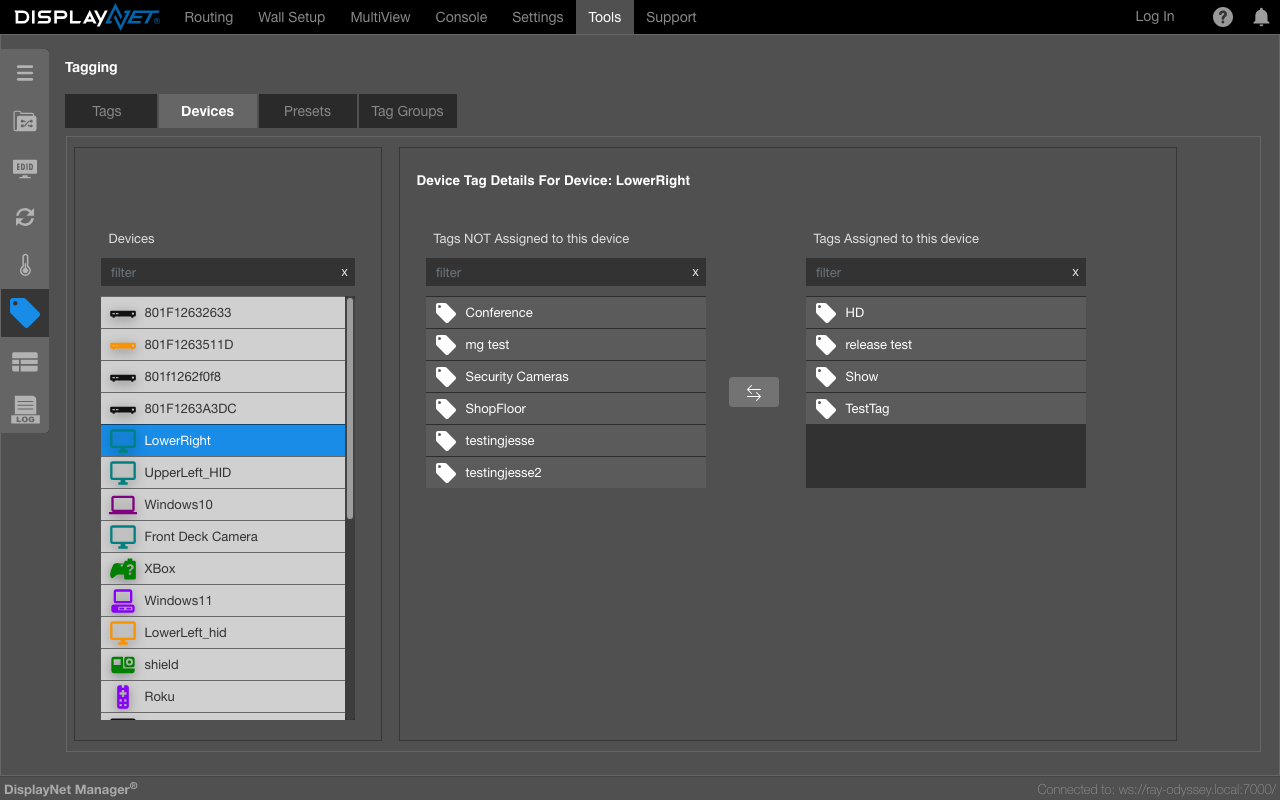
Shortcuts to this functionality can be found under the 'General Tab' of each device's Device Settings page under the section labeled Tags.
Presets
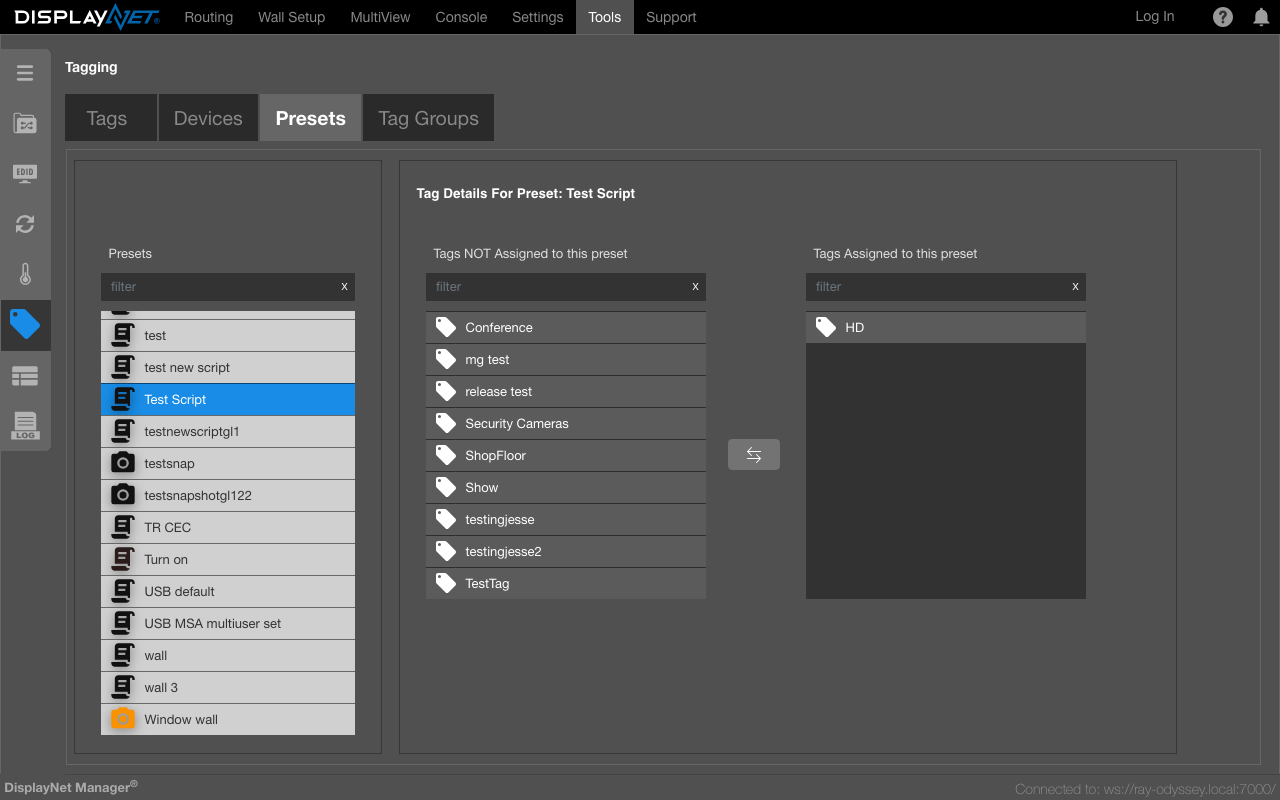
The Presets view provides a preset-centric interface for managing tags. In this section, you can select a preset from a list to view, assign, or remove its associated tags. Similar to the Devices view, you can select one or more tags and use arrow buttons to associate or disassociate them with the selected preset.
Tag Groups
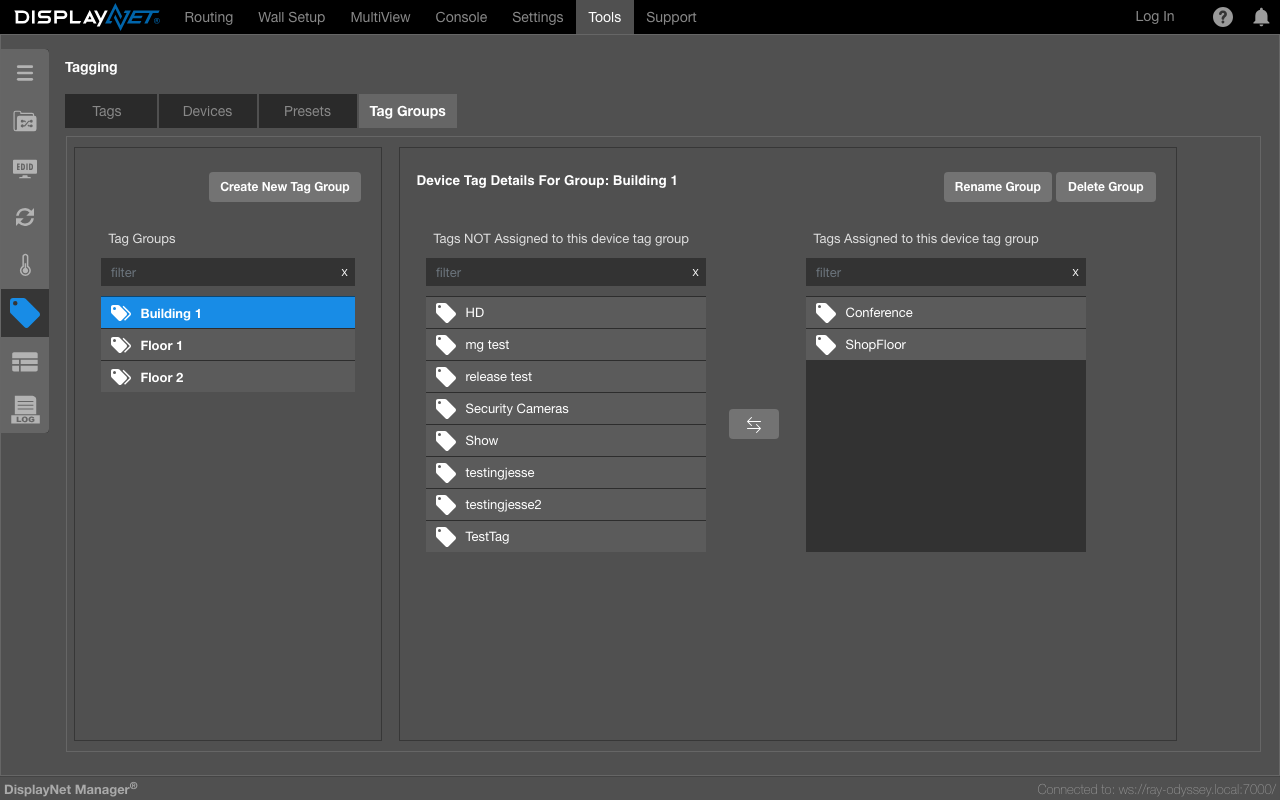
Tag Groups provide a method for consolidating multiple tags into a single, manageable group. Within this interface, you can create a new Tag Group by selecting the "Create New Tag Group" button and assigning it a unique name. Once a group is established, you can assign existing tags to it, which helps in organizing a large number of tags. Renaming or deleting a tag group can also be done from this view.
Using Tags and Tag Groups
Once tags and tag groups have been created and assigned, they can be used to filter the devices displayed on the Routing Tab as well as the Device List.