
Wall Setup Tab
DisplayNet supports concurrent matrix switch and video wall operation within the same system. In Video Wall mode, a single source may be shown across a grid of displays. Each screen has its own DisplayNet receiver, and each receiver is assigned a segment of the video based on its configured location within the video wall. The result is that multiple screens are combined to achieve a single large-scale display. DisplayNet Server includes a video wall configuration tool that can be used to create, save, and use a virtually unlimited number of wall configurations.
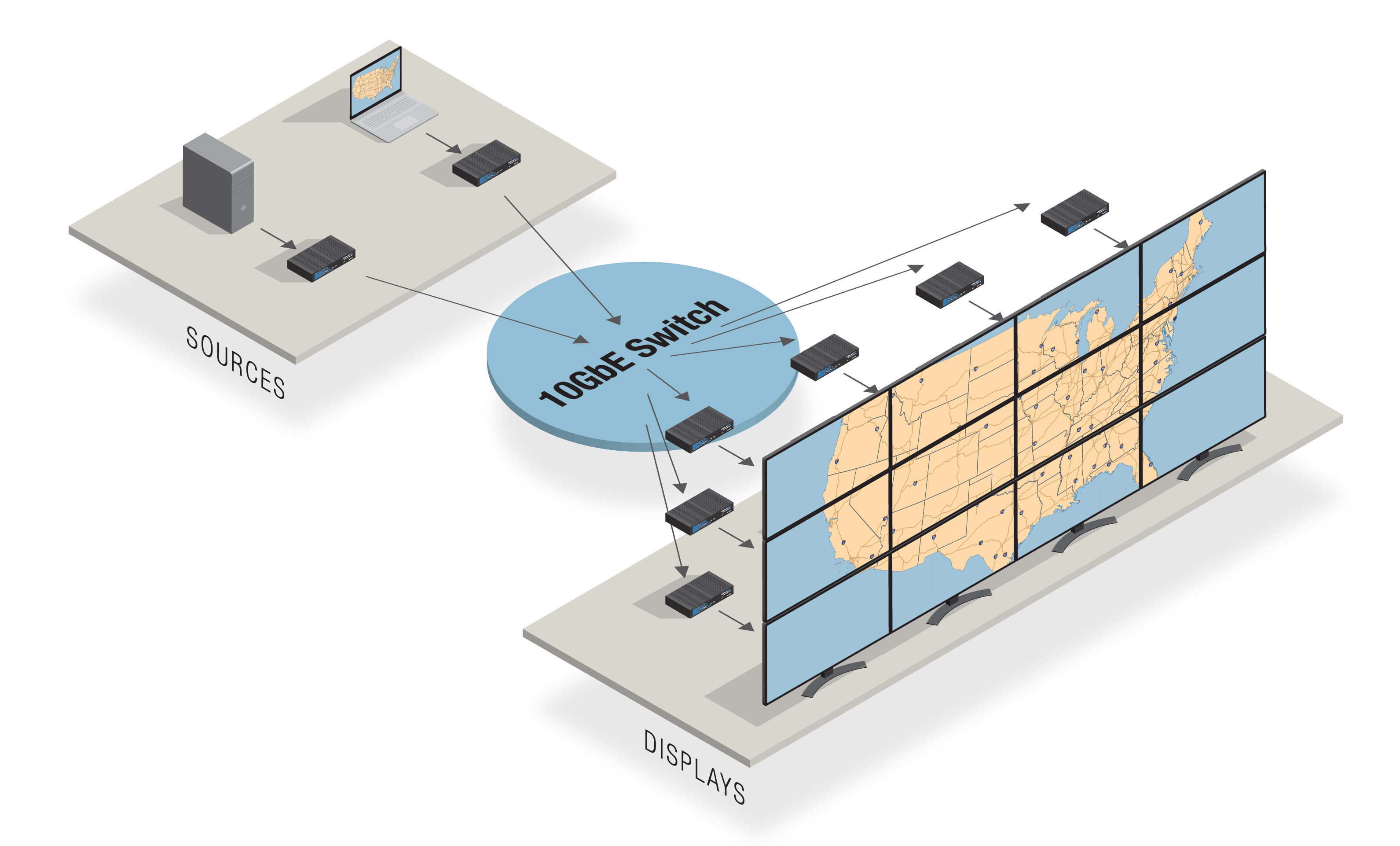
By concurrently supporting both matrix switching and video wall capabilities in the same system, DisplayNet provides two valuable display solutions in one, scalable product. This unique capability allows system integrators to manage a wide variety of AV assets and configurations within a single, centralized system.
In a video wall application, each RX device is joined to the same TX device. However, unlike an ordinary pair, each RX is also assigned a certain pixel area of the source signal. The RX crops the scene to its assigned pixel area and sends the resulting cropped signal to the connected display. It is important to note that the receivers do not support scaling. Instead, the scaling is done by the displays. For this reason, displays that are capable of scaling displaying the specific resolutions used in a given video wall implementation should be selected.
In DisplayNet Manager, custom wall configurations can be created in the Wall Setup Tab. The software supports a minimum video wall array of 2x2 and a maximum array of 9x9. Although typical configurations are 2x2, 3x3, 4x4, etc., the software also supports other arrangements such as 6x2, 4x3, 3x2, etc. Once a wall configuration has been saved in the Wall Setup Tab, it is stored on DisplayNet Server and becomes available as a destination in the Routing Tab. Sources can be switched to walls as with other destination devices.
Note: Multiview Configurations cannot be used as a source for a wall configuration.
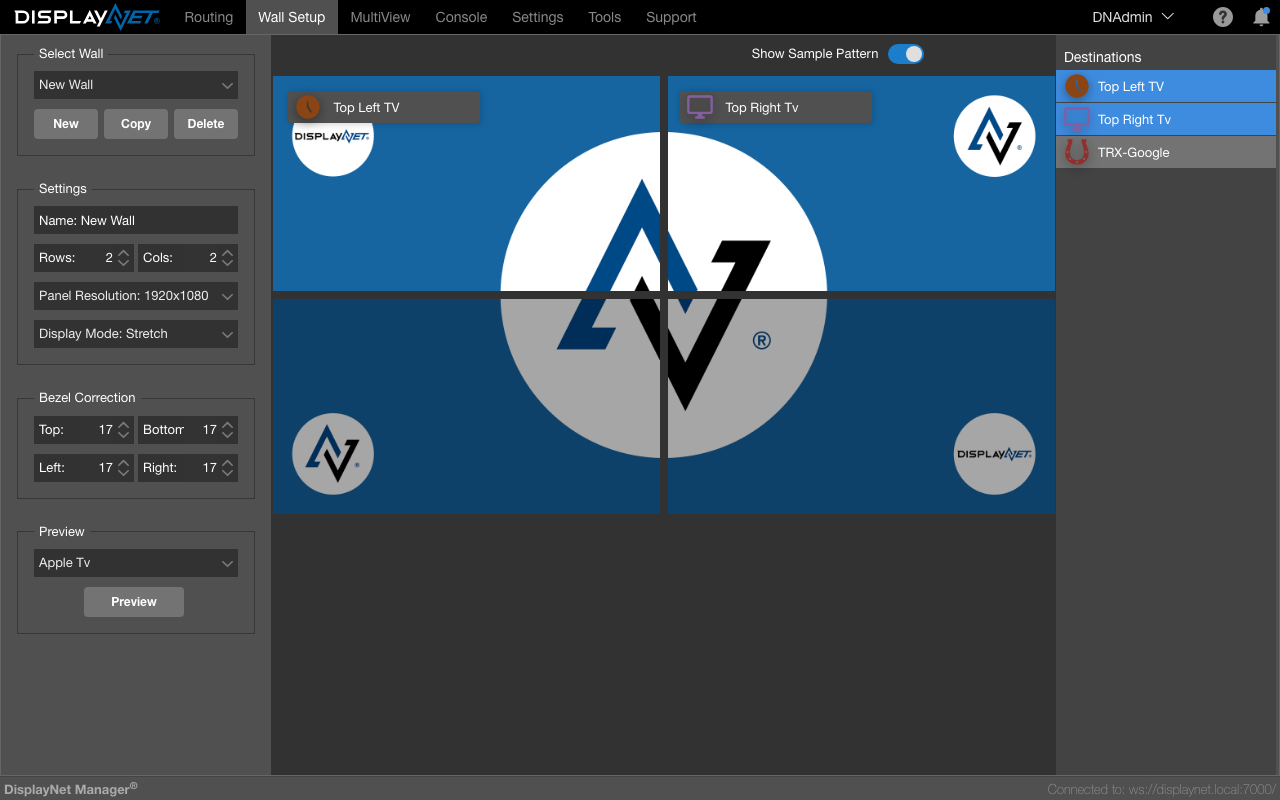
Showing A Sample Pattern
The Show Sample Pattern toggle is used to display a sample image on the wall (the DisplayNet logo on a blue background).
This image is useful for determining the correct bezel compensation settings for a given wall configuration.
The displays used in a wall should be identical. Displays from different manufacturers or even different models from the same manufacturer will have different bezel sizes, input lag, and color reproduction.
If a receiver is part of an active wall configuration, its normal display mode will be overridden, and Wall mode will be used instead. If the receiver is returned to matrix switching operation, then its display mode will return to its previously set value.
Walls and Wall Configurations are not the same thing. A Wall Configuration is a saved wall that can be used as a destination in the Routing Tab. A Wall is a group of DisplayNet Receivers that are joined to the same source and are configured to display a segment of the source signal. A Wall Configuration can be used to create a Wall, but a Wall cannot be used to create a Wall Configuration.