
Connecting to the Server
After completing the Setup Wizard, you can access your DisplayNet Server using a web browser from any PC, Mac, or tablet connected to the network.
On first boot, the server will automatically redirect to the Setup Wizard regardless of which interface you select. The splash screen interface selection is only available after initial setup is complete.
Accessing the Server
Open your web browser and navigate to one of these URLs:
- Primary:
http://displaynet - Alternative:
http://displaynet.local
The DNS-20 DisplayNet Server displays the IP addresses and hostname on the front panel screen that can be used to access the server.
Interface Selection
Once initial setup is complete, when you connect to the DisplayNet Server, you'll see a splash screen that allows you to choose between two web interfaces, each designed for different user roles and workflows:
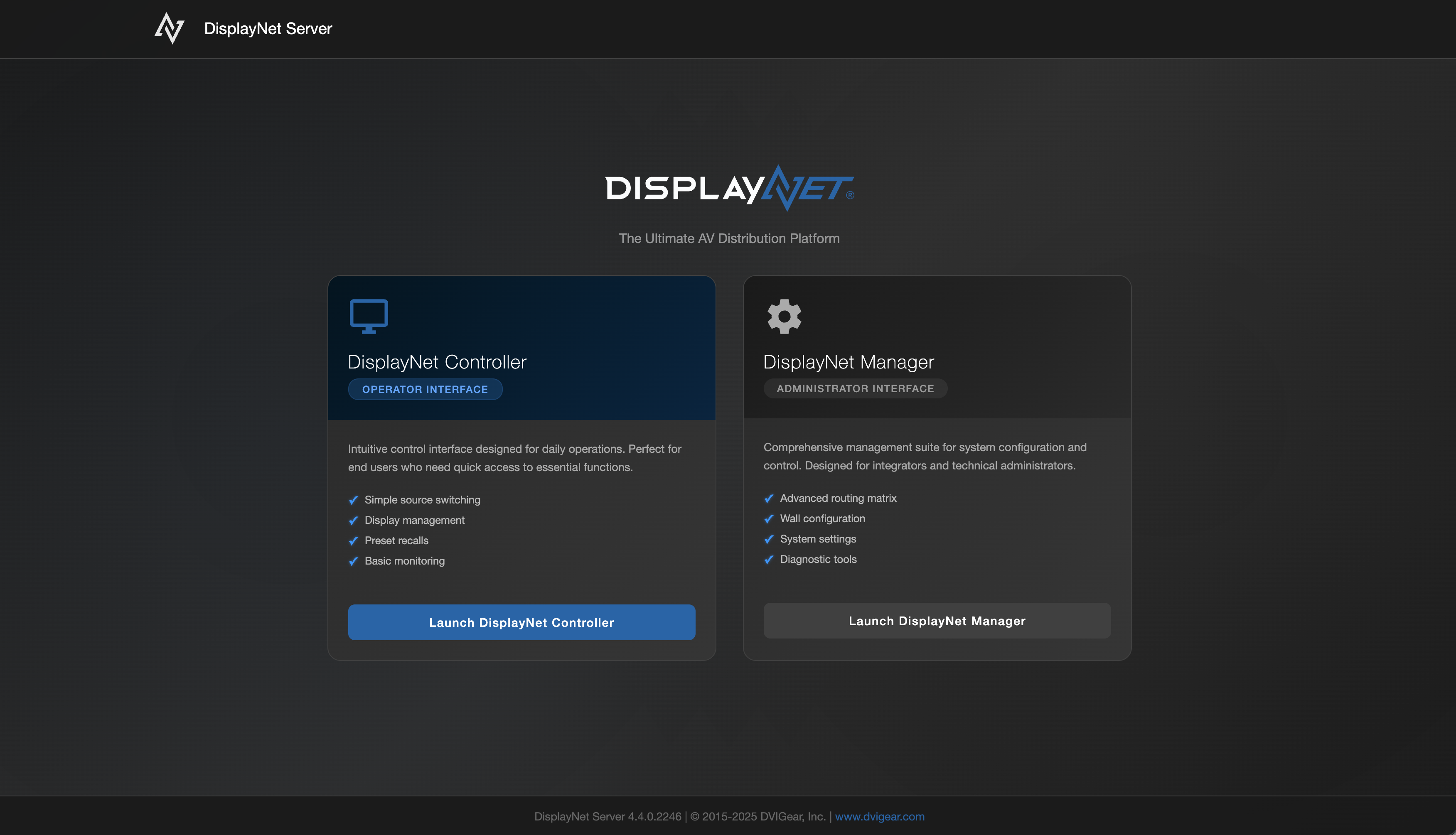
DisplayNet Manager - Administrator Interface
DisplayNet Manager is the comprehensive management suite for system configuration and control. This is the interface integrators should use for all initial system configuration and ongoing administrative tasks.
Key Features:
- Advanced routing matrix
- Wall configuration
- System settings
- User management
- Diagnostic tools
- Firmware updates
- EDID management
Ideal For: System integrators, administrators, and technical staff who configure, manage, and troubleshoot the DisplayNet system.
Learn More: DisplayNet Manager Documentation
DisplayNet Controller - End User Interface
DisplayNet Controller provides a simplified control interface designed for day-to-day operational tasks. This interface only supports operational actions, not system configuration.
Key Features:
- Simple source switching
- Display management
- Preset recalls
- Basic monitoring
Ideal For: End users who need streamlined access to daily operational controls without administrative or configuration capabilities.
Learn More: DisplayNet Controller Documentation
Selecting the Right Interface
As an integrator, you'll primarily work in DisplayNet Manager for system configuration and setup, then configure DisplayNet Controller for your end users.
For System Configuration (Integrators)
Use DisplayNet Manager for all system configuration and administrative tasks:
- Initial system setup and configuration
- User account management
- Advanced routing matrix setup
- Video wall and MultiView configuration
- EDID management
- Firmware updates
- System diagnostics
For End User Control
Once your system is configured, DisplayNet Controller provides your end users with a simplified interface for day-to-day operational control:
- Source switching and routing
- Preset recalls
- Basic monitoring
- Display management
To deploy DisplayNet Controller to your end users:
- Configure user accounts in DisplayNet Manager User Management
- Customize the interface for each user's needs through DisplayNet Controller Configuration
- Provide end users with the DisplayNet Controller URL or create bookmarks for easy access
Next Steps
- Begin configuration - Launch DisplayNet Manager to start configuring your system
- Set up users - Create and configure user accounts for system access
- Configure routing - Set up your routing matrix and create presets
- Deploy to end users - Customize and deploy DisplayNet Controller for operational control